
This chapter covers a basic overview of the Just Control Configuration window. For a more in-depth configuration, refer to the following chapters:
Accessing the Configuration Panel
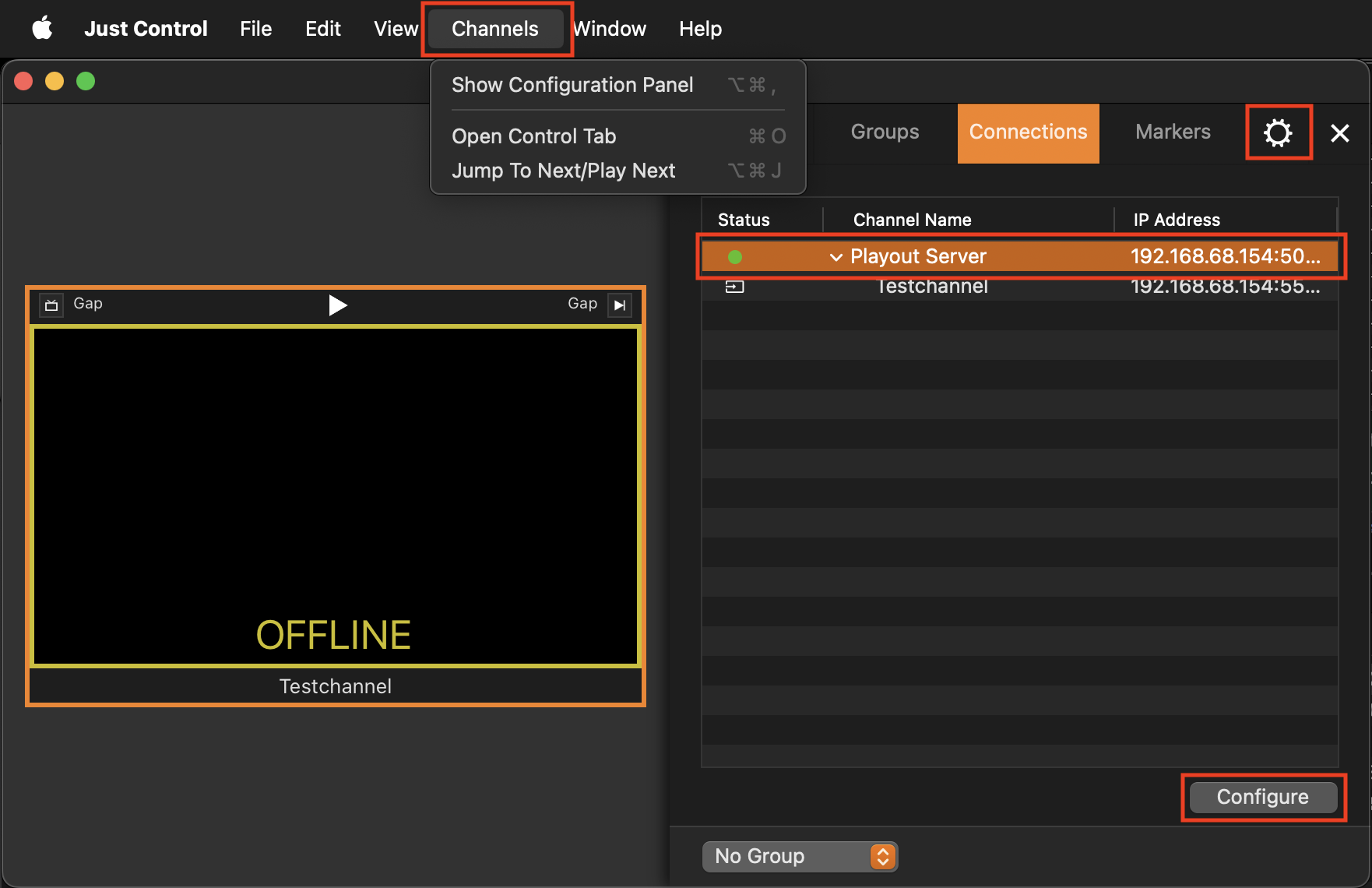
In the Configuration panel, you can configure the Channel settings which are saved. The defined settings are then stored in Just Connect, regardless of whether Just Connect is on the same or on a different machine. You can access the Configuration panel
with the menu Channels → Show Configuration Panel (Option-Command-,)
by clicking the gear icon in the upper right corner in the Multi Viewer
by double-clicking the device
by clicking the Configure button while a device is selected under the Connections tab
Configuration Panel Overview
Devices & Channels List
You must unlock the Configuration panel first to perform any changes.
Before proceeding, you must stop the Channel by deactivating the checkbox. Stopping the channel will also stop the Just Out Primary engine output.
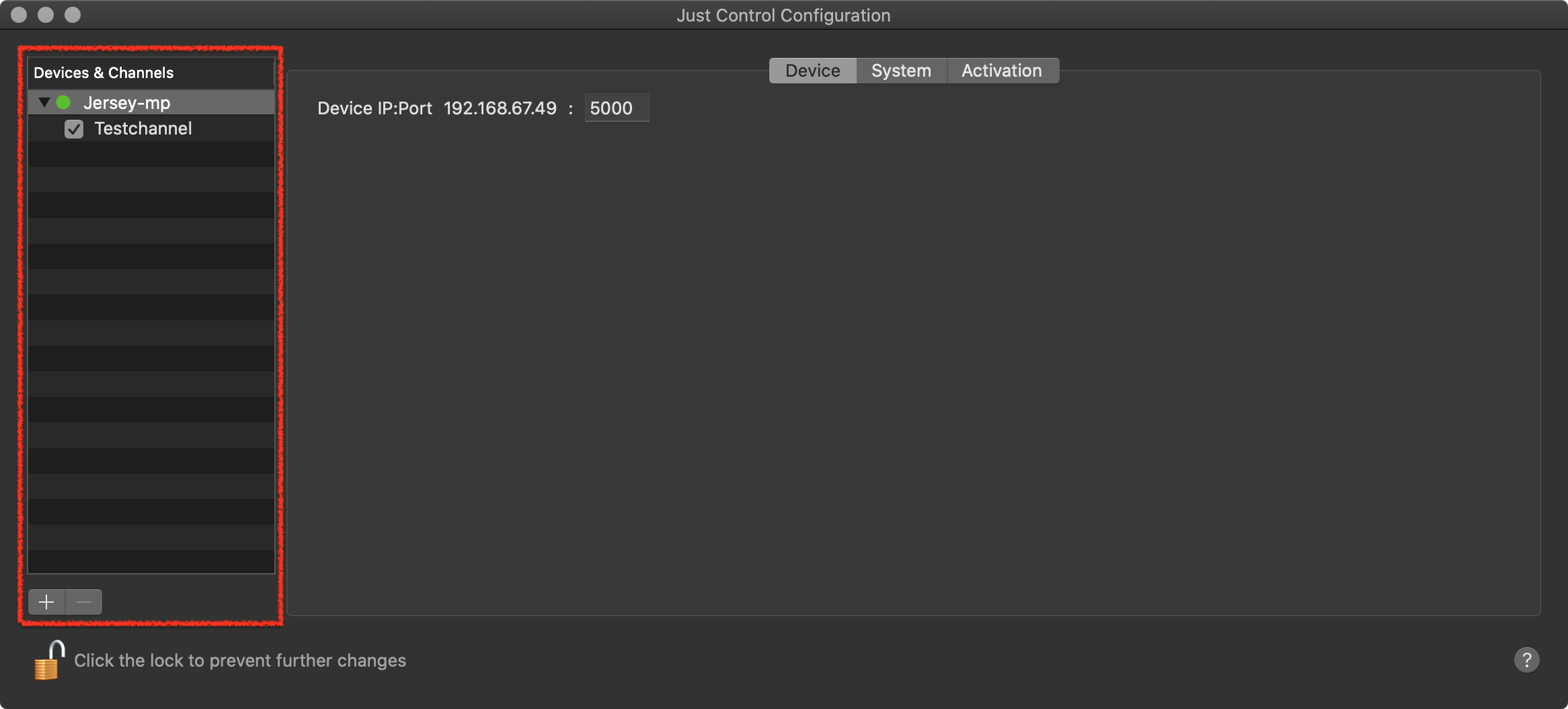
Lists all Devices and Channels that are administrated by this interface.
The checkbox in front of a Channel allows you to start or stop the Channel. This is required, for example, when changing the configuration of a Channel.
Add and remove Devices and Channels by using the Plus (“+”) and Minus (“-”) buttons at the bottom.
Device Status Light
At the left of each Device, there is a Status indicator.
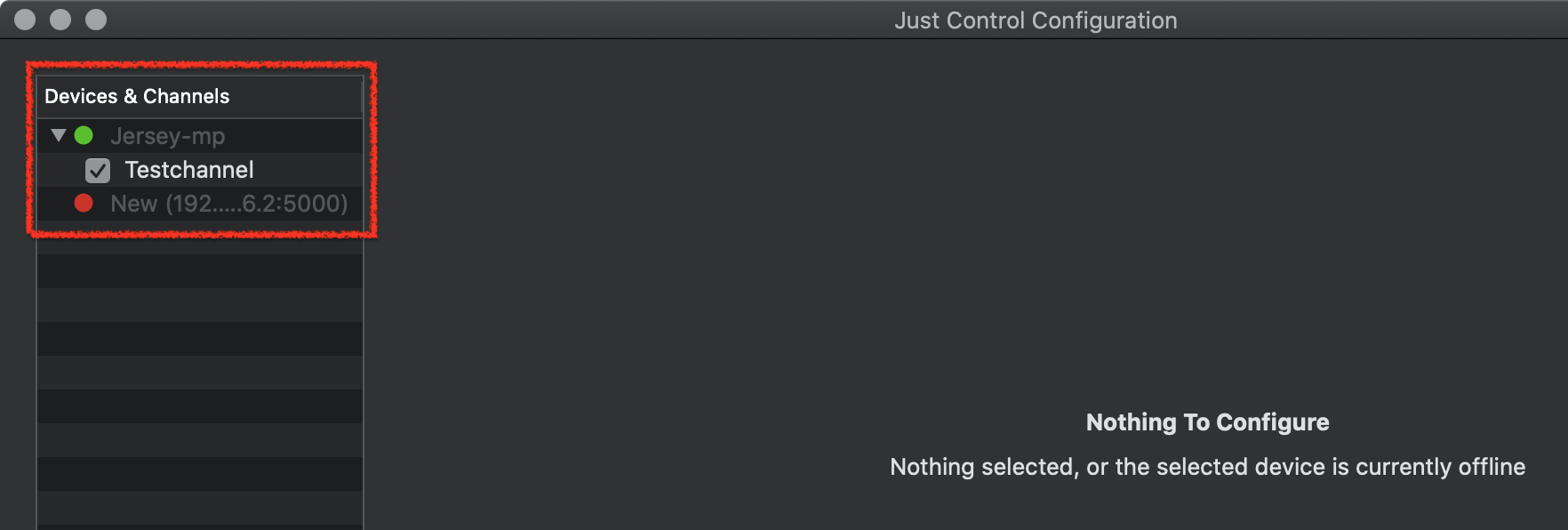
Green: The connection to the Just Connect application could be established.
Red: The connection to the Just Connect application could not be established.
Configuration Area and Tabs
You must unlock the Configuration panel first to perform any changes.
Before proceeding, you must stop the Channel by deactivating the checkbox. Stopping the channel will also stop the Just Out Primary engine output, unless there is a Redundant engine available.
Click on one of the available tabs to change the setup of a Device or Channel.
Device Configuration Tabs
Select a Device in the “Devices & Channels” list first.
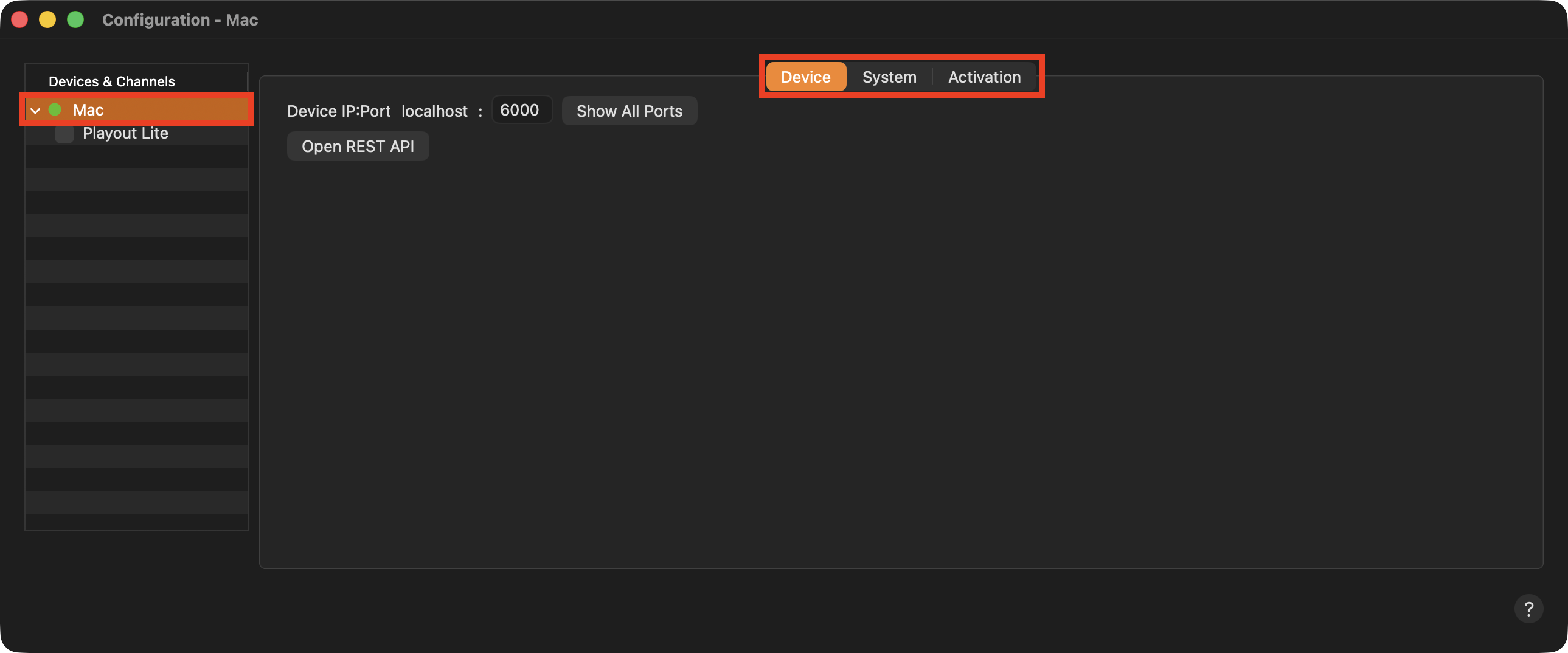
Device: Let you check the IP address of the selected device and to change the Port of the device if needed. Press the button “Show All Ports” to see which ports are used by the selected Device and press the button “Open REST API” to show the available REST API calls.
System: Shows a list of available log files and let you save a TOA System Profile.
Activation: Allows you to view or change the Activation information for the selected Device.
Channel Configuration Tabs
You must unlock the Configuration panel first to perform any changes.
Before proceeding, you must stop the Channel by deactivating the checkbox. Stopping the channel will also stop the Just Out Primary engine output, unless there is a Redundant engine available.
Select a Channel in the “Devices & Channels” list first.
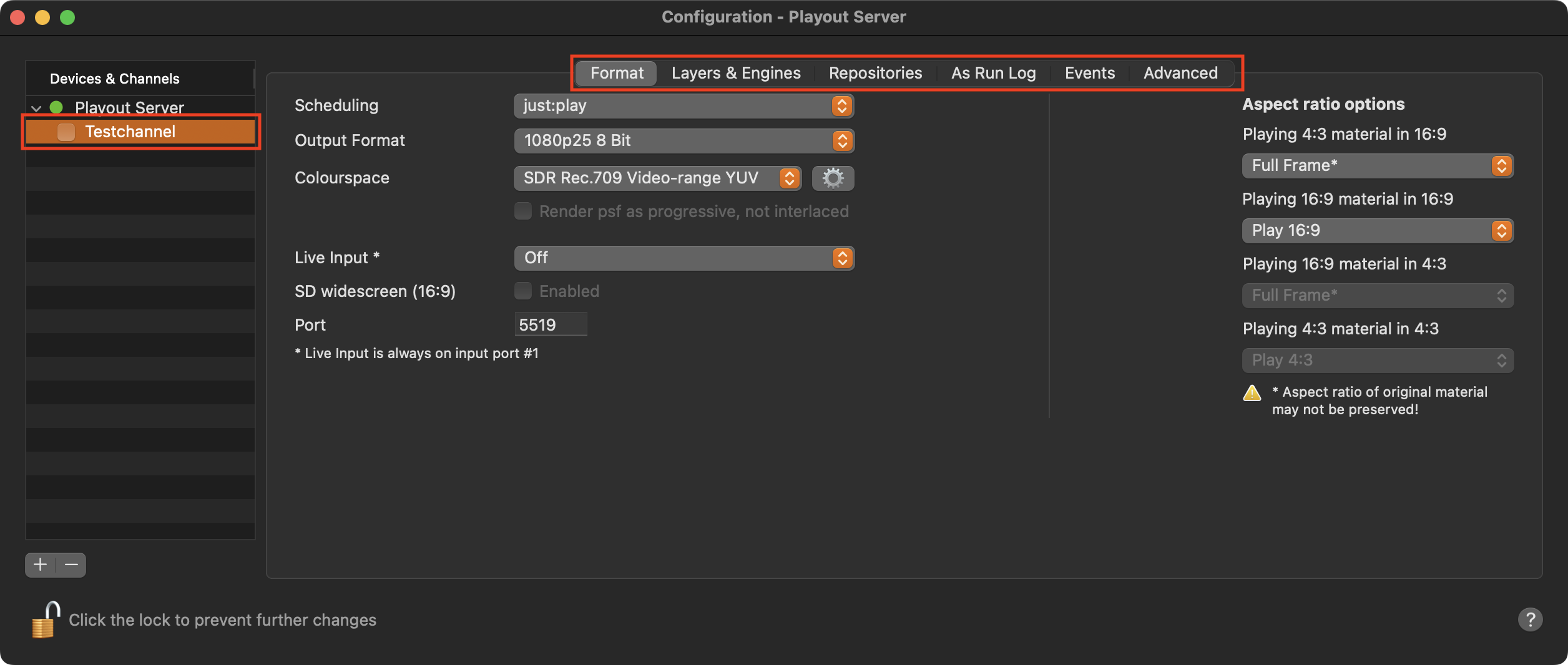
Format: Allows you to change more general settings related to the user interface and the output format.
Layers & Engines: Shows the amount and types of activated Layers of the selected Channel.
Repositories: Define the path(s) to Audio files, Videos, Graphics, and Playlists that a client can use. The content of the Repository paths will show up in the Library of the Just Live/Just Play user interface.
As Run-Log: Allows to define the attributes Just Out will write to the As Run-logfile at the end of each Video.
Events: Allows you to configure Devices and to define Events related to those Devices for the selected Channel.
Advanced: Activate and configure advanced functions such as “Redundancy” and the “Default Gap Playlists”.