
Adding Simple Graphics (SFX) to the Rundown
A Tools On Air Station ID and a Live Bug still image is automatically provided with every channel. If activated, they are shown in the upper right corner of the output signal. They can easily be replace by the Station ID and Live Bug of your channel in the Inspector of the Multi viewer.
Simple Graphics (SFX) allows adding graphics such as a Channel Bug (aka Station ID) and a Live Bug to your rundown, without the need to build the graphics template using Composition Builder or to add a graphics template to the rundown. Instead, one or two still images can be defined as described under 5.7 Inspector Channel Tab - Simple FX, where one still image will be scheduled by default as the Channel Bug and the second one with every Live Event.
Timeline
In case Simple Graphics (SFX) has been configured for your Channel, an additional Layer will be available in the Timeline named “SFX”. In contrast to all other layers, elements from the Library cannot be added via drag and drop, instead the visibility is controlled for each element in the video track using the Inspector.
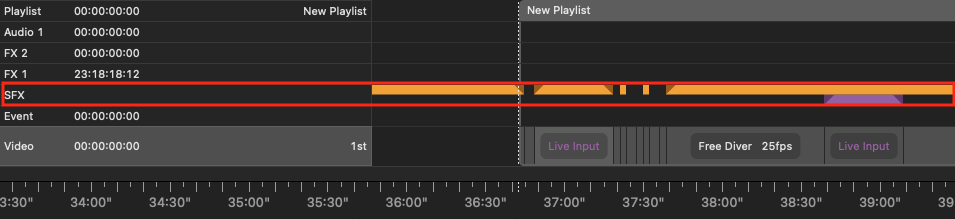
An Orange (🟠) marker is shown for each element, which has the Channel Bug activated.
A Purple (🟣) marker is shown for each Live Event element, which has the Live Bug activated.
If a Fade In/Out has been defined, the markers are ramped up/down in the timeline.
Scheduling Simple Graphics (SFX) using the Inspector
If a Simple FX Channel Bug has been defined, it will be on air by default and can be turned off for each element in the video track. It does not matter if the element is a video, a Gap element, a Placeholder, or a Live element. If Live Event is added to the rundown and a Simple FX Live Bug has been defined, every Live Event that is added to the rundown will have the Live Bug activated by default.
Both a Channel Bug and a Live Bug can then be (de-)activated individually for each element in the Video track, no matter what kind of element it is.
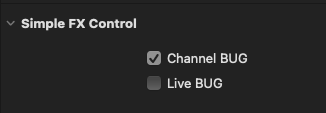
Make sure you have NO fade out defined for the Live Bug element, in case you would like to use them for Infinite Live Events as well. Having a fade out defined, the Simple FX will fade out at the scheduled end of the live event and will remain invisible for the overtime of the infinite live event.
Default On Air rules
If a Simple FX Channel Bug has been defined for a channel, the Channel Bug will be on air by default, no matter if there is a playlist scheduled at the current Playout position or not.
If a Simple FX Live Bug has been defined for a channel using “Live Pass-Through by default”, the Live Bug will be on air by default if no playlist is scheduled at the current Playout position.
If a Simple FX Live Bug has been defined for a channel using “No In” or “Default Black”, the Live Bug will not be on air by default if a Playlist is scheduled at the current Playout position.