
After the installation, there are a few settings that can be changed in the Settings window of Just Out.
Accessing the Just Out Settings
Start Just Out.
Open to the “Just Out” menu.
Select “Settings…”
The “Just Out Settings” window will appear.
Settings Window
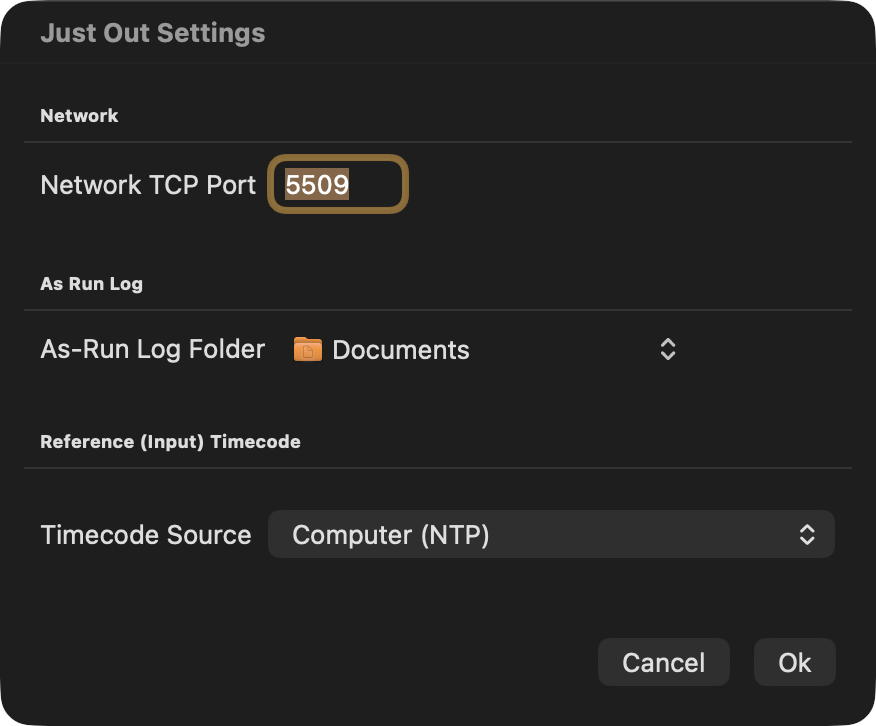
Network TCP Port: This is the network TCP port used by Just Out when publishing its service over the network to Just Connect. By default, this is set to “5509” for the first Just Out and must correspond to the port defined in the Channel it belongs to. It is possible to use any unused port between “1” and “65535” if port “5509” is already used on this machine.
A port is a unique identifier for a service running on a computer. If you are not sure whether a port is available on your network or not, please consult your network administrator.
As-Run Log Folder: If desired, Just Out can write a log file from the playout to a predefined location.
Timecode Source: Here you can define where Just Out takes the Master Timecode from. You can choose between Computer (NTP) and LTC Audio sources.
When changing the preferences, you must restart Just Out for any changes to take effect. Restarting Just Out will stop the final output for the time of the restart.
Minimal User Interface
Just Out has no actual user interface, but only a Diagnostics window.
Diagnostics Window
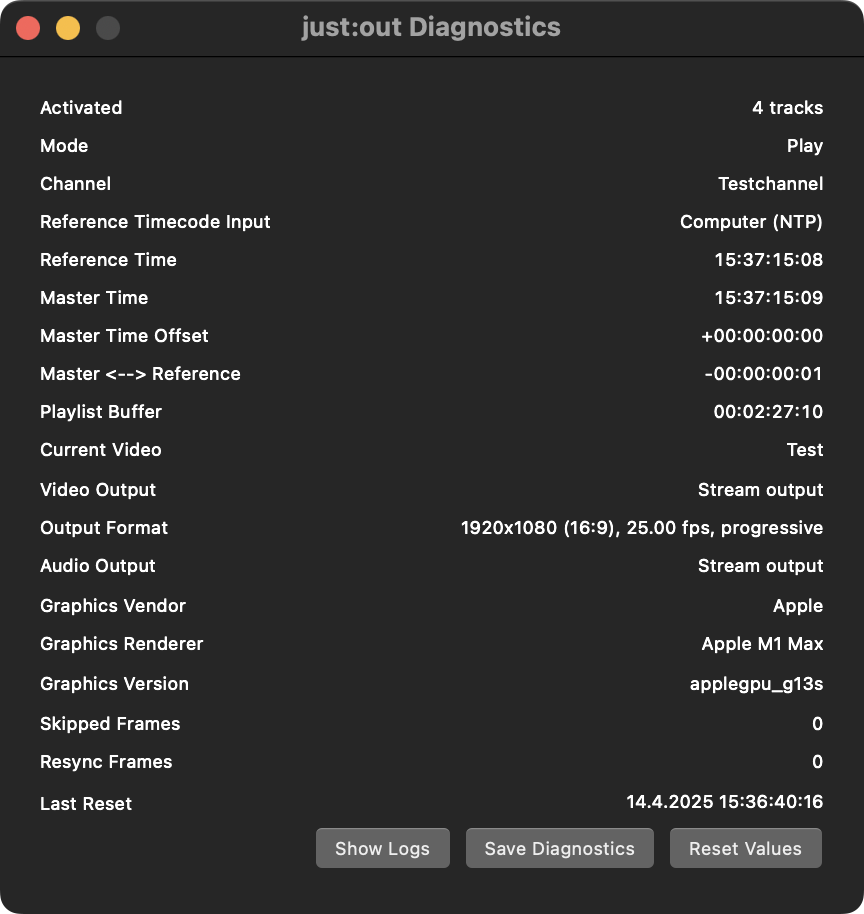
Select the menu Window → Diagnostics. The “Just Out Diagnostics” window shows:
The Status of the Activation
The Mode like Preflight/Play
The Channel Name
All Timecode relevant information such as the Master Timecode source, the Master Timecode (with the difference to the Timecode source) as well as the amount of rundown information (in hours, minutes, and seconds) Just Out stores up to 4 hours of playlist information (“Playlist Buffer”).
Playout Statistics such as the current Video on air and the Output Device and Format
GPU Vendor, Model, and Driver.
Skipped frames maybe because of slow disk or slow processing
Resync frames to keep Master and Reference time sync to each other.
The buttons at the bottom can be used to show Engine Logs, Save Diagnostics (for support purposes), and Reset the Statistics shown in the diagnostics window.
Skipped Frames
Usually Just Out make sure the playout can continue without dropping frames even under bad conditions. Once frames has been skipped. The playout will resume to normal immediately as soon as the problem has been fixed.
Bad Conditions
Bad Condition 1 | Bad Condition 2 |
|---|---|
The storage system is not fast enough to deliver the required data. This could happen because…
| The GPU isn't able to render the content fast enough because the current Graphic is too complex. |
Test any real-time Graphics before taking them on air to ensure they will be played out properly.