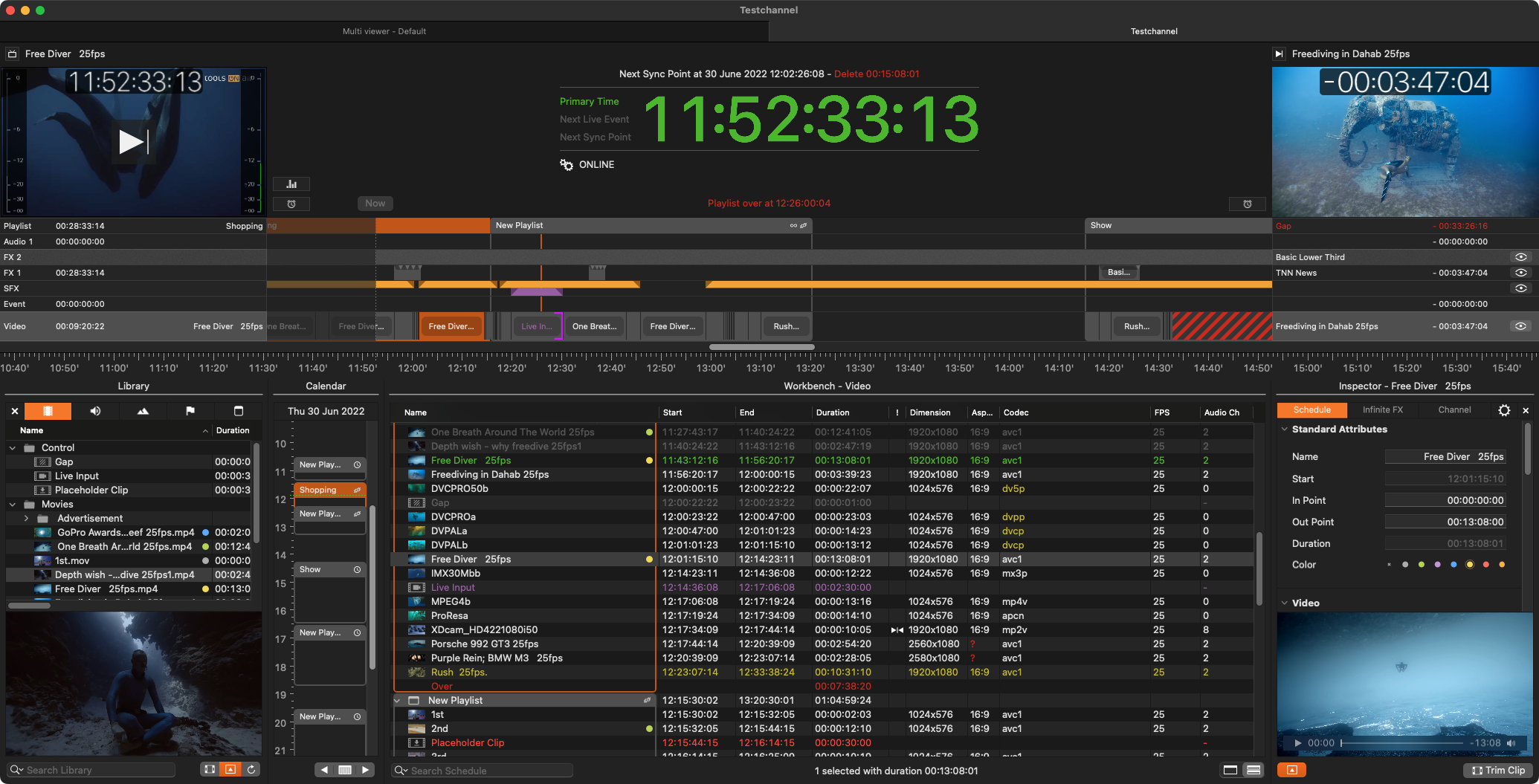
We assume that the hard- and software infrastructure for Just Play Pro has already been set up by the time you are reading this page.
If this is not the case, refer to Just Play Pro v.2026.x Getting Started Chapter or contact your system administrator.
Connecting to a Just Play Pro Channel
To use Just Play Pro you need to connect to a Channel using the Just Control application.
Go to your Applications folder and open the Just Playout folder.
Open the Just Control application. The Login window shows up.
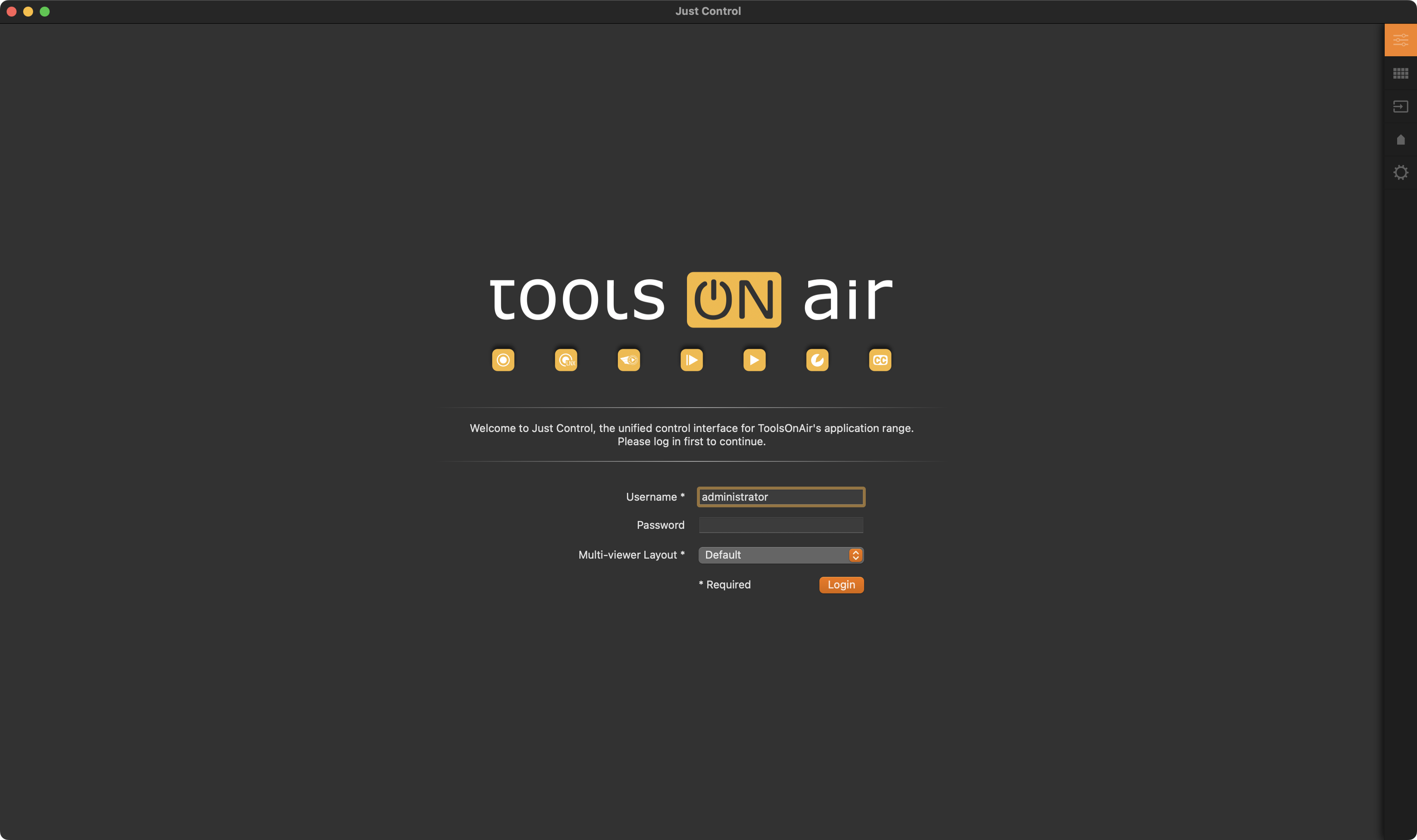
Enter the Username and Password. Consult your system administrator if you don’t know these credentials.
Optional: Select a Multi viewer layout. It may be the case that this menu only allows you to select the “Default” layout.
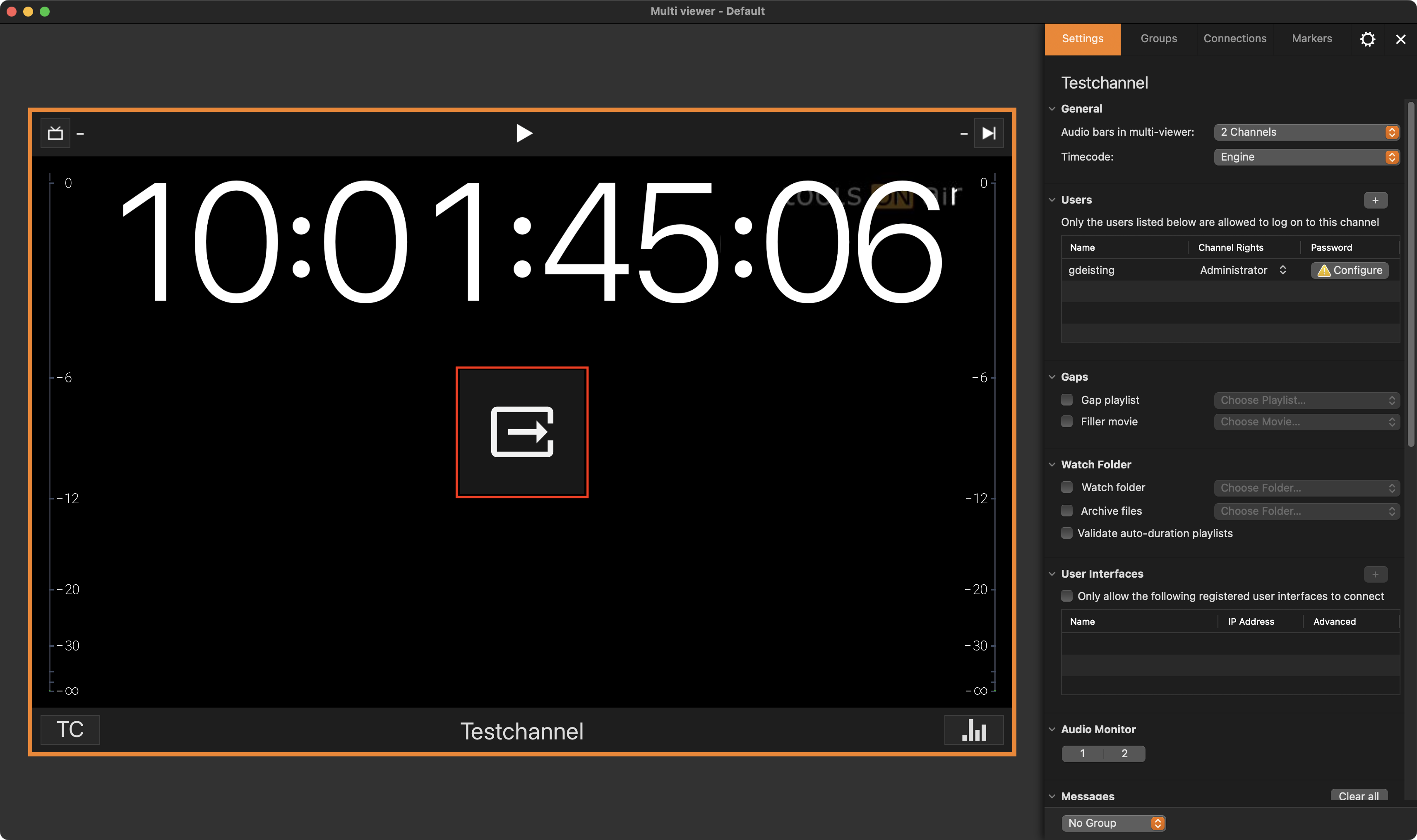
Click on the “Login” button to enter Just Control. The Multi viewer window is shown with all Channels available for the selected user.
Click on the “Open Interface” button in the middle of the screen, marked in RED (🔴) of the Channel you would like to operate.
The corresponding Channel will be opened and the Just Play Pro interface will show up. A tabbed bar is displayed, allowing you to switch back to the Multi viewer window, or close the previously opened Just Play Pro user interface. Please note that when closing the user interface, the playout will continue to run, unless the Just Out and/or Just Connect applications are quit as well.