
Just Control supports growing files within the Library, Workbench, and Preview windows. Growing Files are indicated by an italic font face style within the Library and Workbench area.
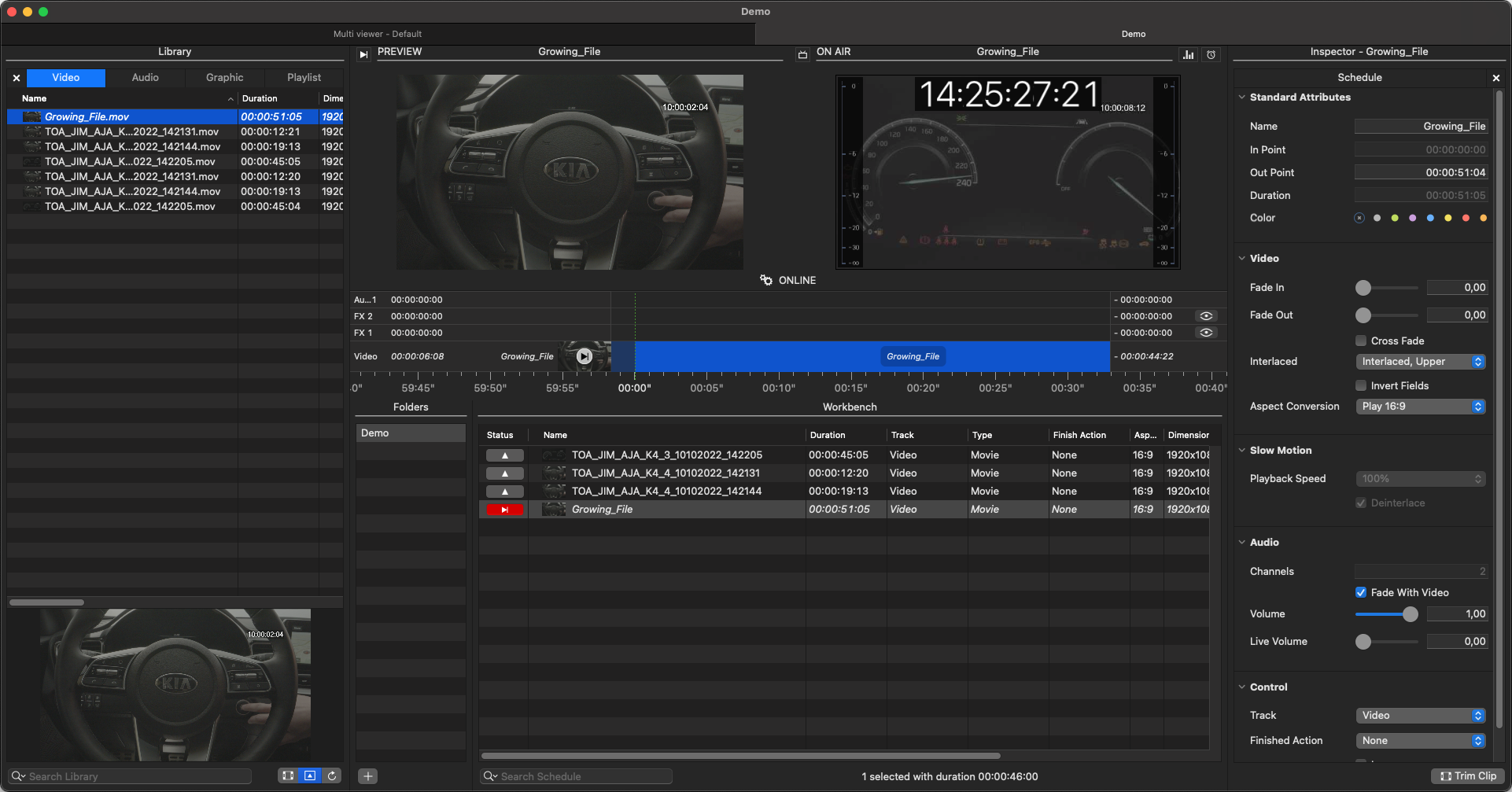
Given the nature of growing files, we strongly recommend thoroughly testing this workflow before deploying it in a production environment.
Just Live Pro:
Once a Growing File gets played out, the endpoint of that clip will be automatically updated.
Just Play Pro:
Once a growing file is dropped into the rundown, it will take over the current length but will not grow further or play out, until the recording has stopped. Until then, it will behave and look like a Placeholder element.
Just Play Pro - Placeholder:
In Just Play Pro, you can add a Placeholder to the rundown, before the final video is ready. This is useful when scheduling needs to be planned, but the video is not yet available. The Placeholder will automatically be replaced as soon as the final video is available on the storage system.
Growing File Update Parameters:
To cope with different storage systems and file types, there are two settings (Apple “Terminal” commands) available, which can be used to adjust the Growing File behavior within the Just Control application:
# Growing File Update value
# Default value: 5
defaults write com.toolsonair.Just-Control TAKMDSGrowingFileUpdate -int X
# Growing File Check value
# Default value: 2
defaults write com.toolsonair.Just-Control TAKMDSGrowingFileDelay -int X
The “TAKMDSGrowingFileUpdate” value defines the interval (in seconds), in which Just Control checks for new file durations. So, by default, the growing file will be updated every five seconds.
The “TAKMDSGrowingFileDelay” value defines how many times Just Control checks if the file is still growing. By default, Just Control checks the “TAKMDSGrowingFileUpdate” value twice and if there is no update, the file will be identified and displayed as closed.
Please note that the Just Control application has to be closed when changing these values.
We recommend testing such Growing File workflows in every detail, before using them in production, as every storage system can act differently and especially MXF files may require adjustments of the given default values.
Please ensure that the playout storage is properly mounted on the Mac (Finder level) running the Just Connect application and that the “Full Disk Access” (“System Settings → Privacy & Security → Full Disk Access”) permission has been granted to Just Connect as described here.