
You must unlock the Configuration panel first to perform any changes.
Before proceeding, you must stop the Channel by deactivating the checkbox. Stopping the channel will also stop the Just Out Primary engine output, unless there is a Redundant engine available.
Each Channel uses a certain Colourspace which is used by the engines connected to this Channel to "render" the final output.
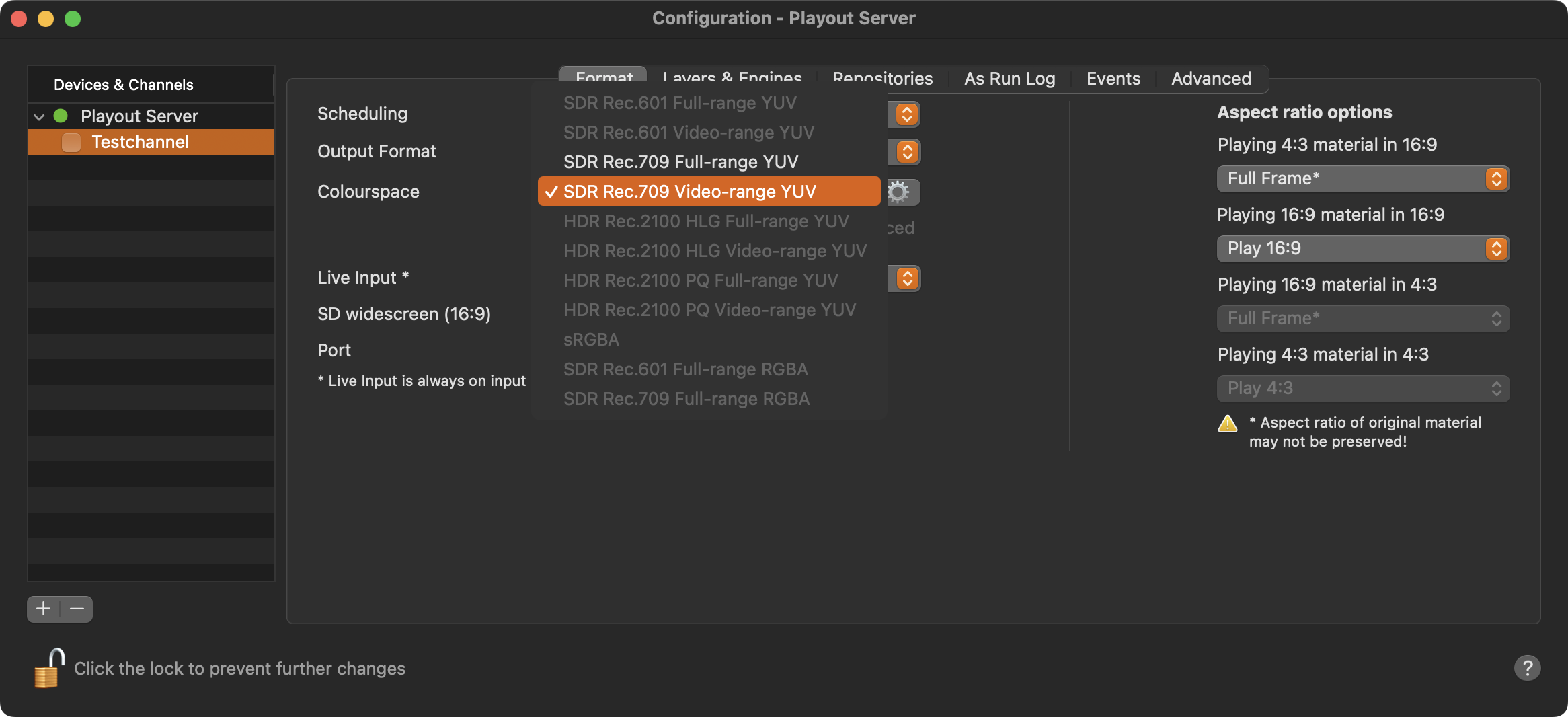
Stop the desired Channel by deactivating the checkbox in front of it. Stopping a Channel will also stop the Just Out engine and therefore the final output.
Select the Channel in the “Devices & Channels” list.
Click on the “Format” tab.
Select the desired output format in the “Output Format” drop-down menu.
Select Rec.601 for standard video playout
Select Rec.709 for HD or UHD playout
Select Rec.2100 for UHD playout in HDR/HLG or HDR/PQ
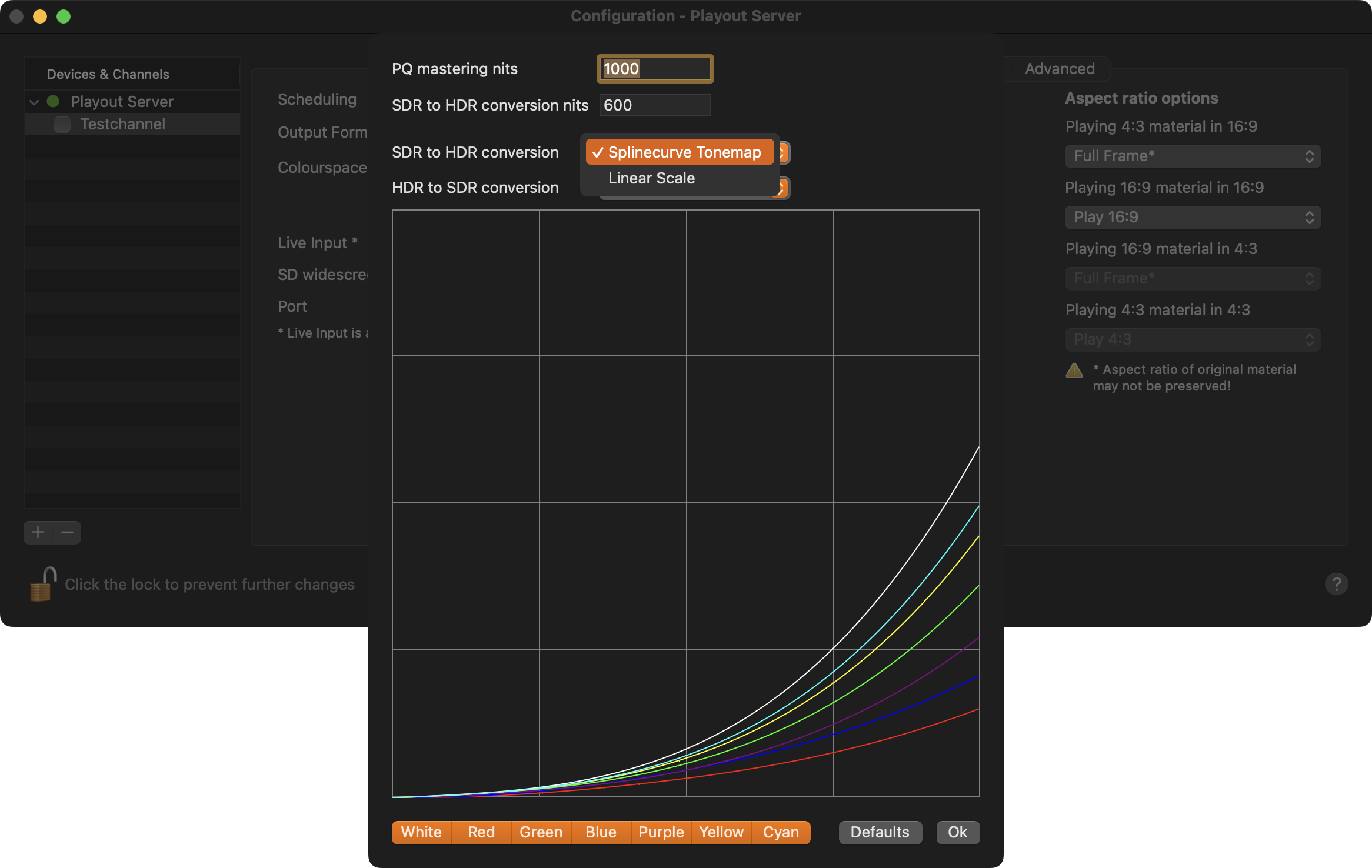
Using a HDR color space, click the Gear for more settings to change the PQ mastering nits and to adjust the nits used for SDR to HDR conversion. In addition, you can define if a Spline curve or Linear Scale is used for HDR to SDR conversion.
Activate the checkbox in front of the Channel to start it again and to take over the changes you just made.
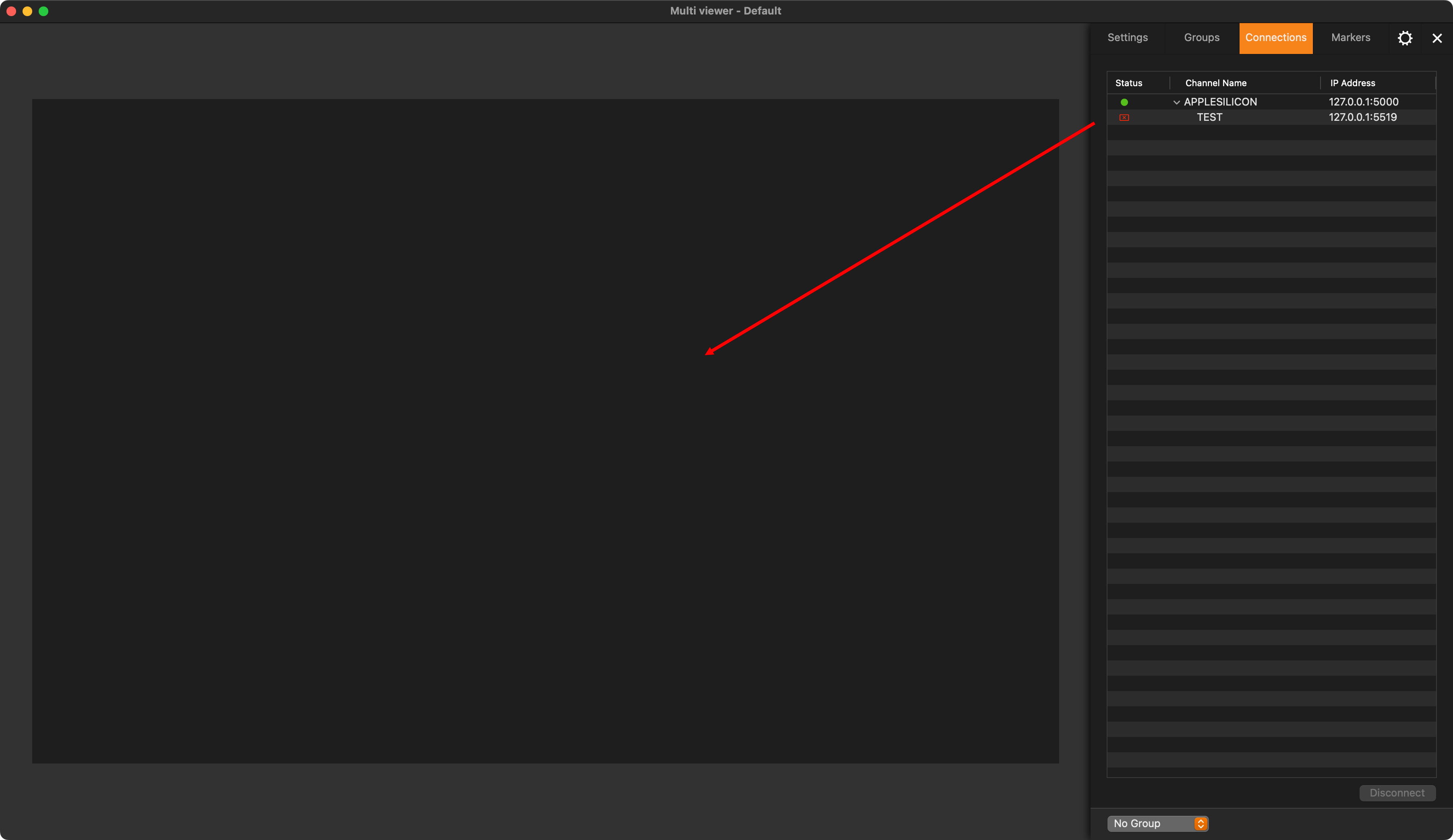
Close the Just Control Configuration panel and drag the Channel from the “Connections” tab to the Multi viewer area, or select the empty viewer you would like assign the channel to, then select the Settings tab in the Inspector and choose the channel under “Contents” - “Channel”.
There are several ways to convert SDR movies to HDR and vice versa, so you have to test the settings described above with your movies to find out which one works best for you. SDR conversions to/from Rec.601, Rec.709 and Rec.2020/Rec.2100 are lossless and do not require additional testing.