
Control Area
The Control Area allows you to preview the item that is currently selected in the Workbench/Timeline (shown in the PREVIEW window) and it shows the final output signal (shown in the ON AIR window) sent to the Video output device. The Overlay buttons are shown depending on the playout status, once the mouse is over the Preview or On Air window. At the bottom of the Control Area, the relevant information about the Channel Status is displayed.
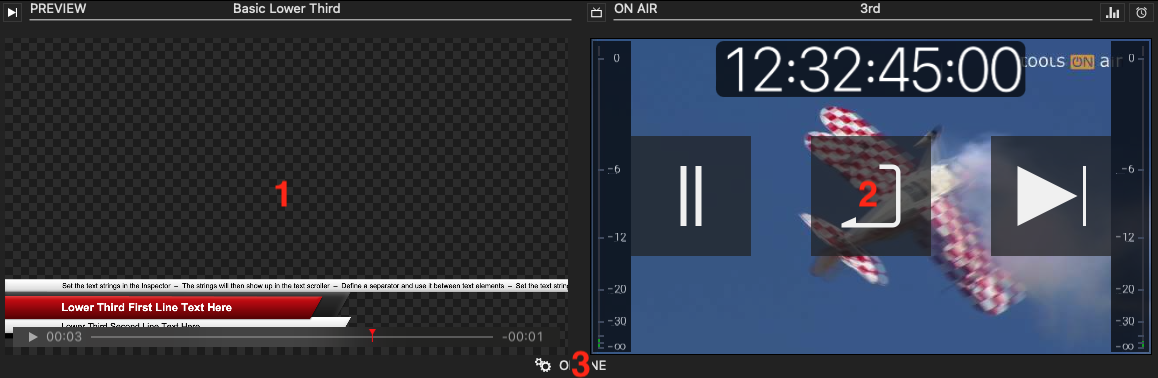
Tab view (not shown on screenshot): Shows the Multi viewer and all the opened Channels you are currently working with, which allows you to switch to a different Channel.
Preview: Shows the selected Video, Audio or GFX element. Click the “Play” button in the viewer to start the preview of the element, or to release the stop frame of a graphics element. Click the “Speaker” symbol to toggle the ability to preview the audio.
On Air: Shows the On Air signal including video and graphics and the relevant control buttons (see description below) as overlays, in case the mouse is over the window. In the upper-right corner, there are two elements to control the Audio Bars and Timecode overlays shown on top of the On Air window, which allows you to turn the Audio Monitor on/off.
Status: Shows the Channel status.
The “Control“ buttons
The buttons shown in the On Air window are depending on the status of the playout.
Icon | Function | Dependency |
|---|---|---|
 | Press this button to:
| There has to be at least one movie loaded in the timeline
|
 | Press this button to Cue the first frame of the first Movie in the timeline. | There has to be a at least one movie loaded into the timeline with no Movie currently playing or paused. |
 | Press this button to end the currently playing Movie and to execute the selected Finished Action. | A Movie has to be playing. |
 | Press this button to end the currently playing Movie and to load the first frame of it. | A Movie has to be playing. |
 | Press this button to pause the currently playing Movie- | A Movie has to be playing. |