All ToolsOnAir software applications are highly dependent on a properly configured and stable network connection. Therefore an active network connection is mandatory and has to be configured and activated first. Please contact your network administrator or local dealer if you need help.
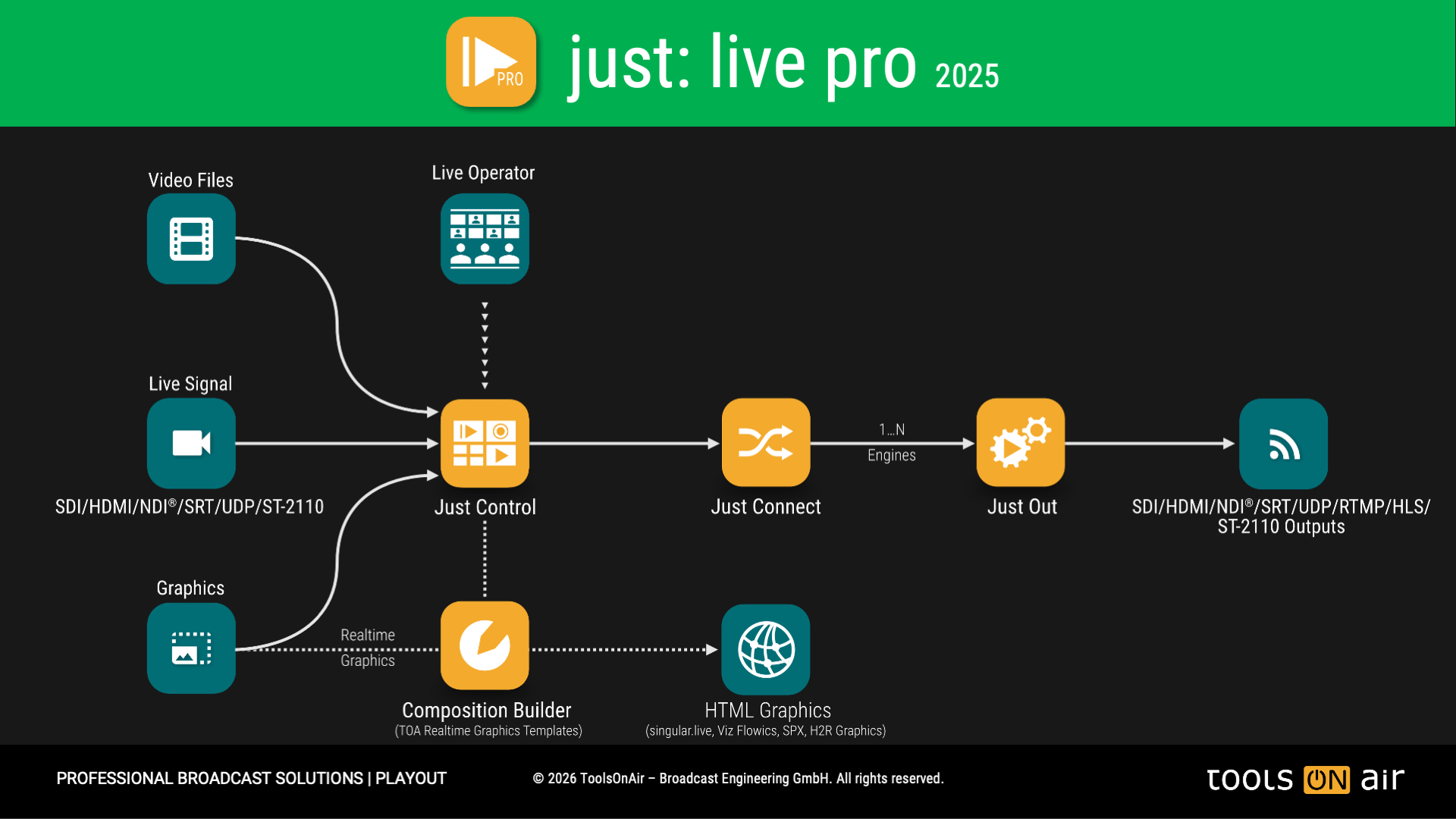
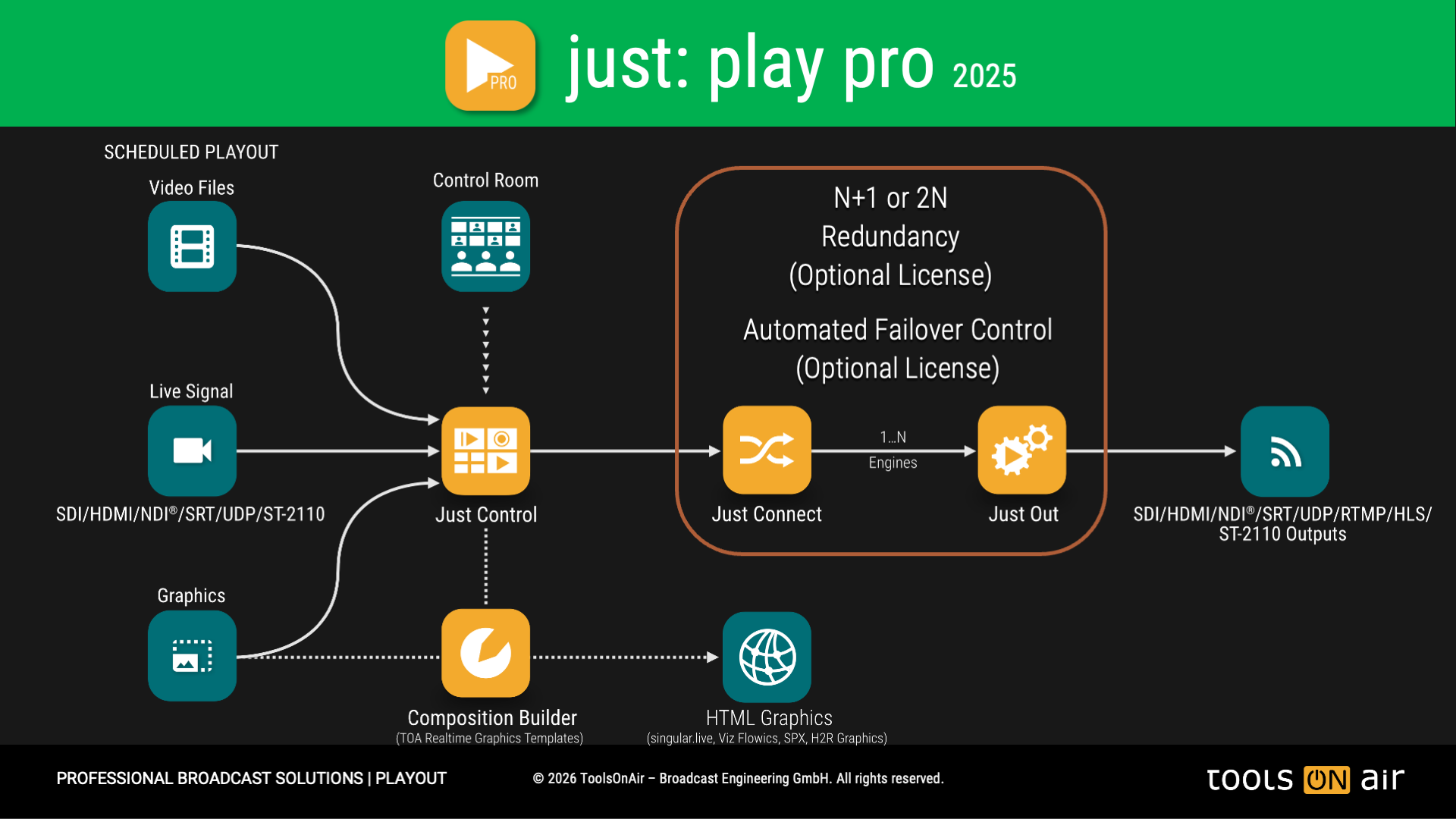
Just Out, Just Connect and Just Control can be installed on one or multiple machines. In both scenarios, they communicate with each other via network communication protocols. When the user interacts with the Just Control user interface, this information is sent to Just Connect – stored there – and immediately sent to all Just Out assigned to the channel, so it can be executed and rendered by the engine.
The following pictures apply to Just Live Pro and Just Play Pro v.2026 respectively.
Network Latency & Performance
The latency of the user interface highly depends on the speed and load of the network. For example, clicking the “Jump to Next” button can be executed immediately – but it can also take one second or more, if the network is under heavy load or improperly configured. Because of this, we strongly recommend using a dedicated network interface for communication and a second network interface for the data transfer (e.g., communication to the network storage device).
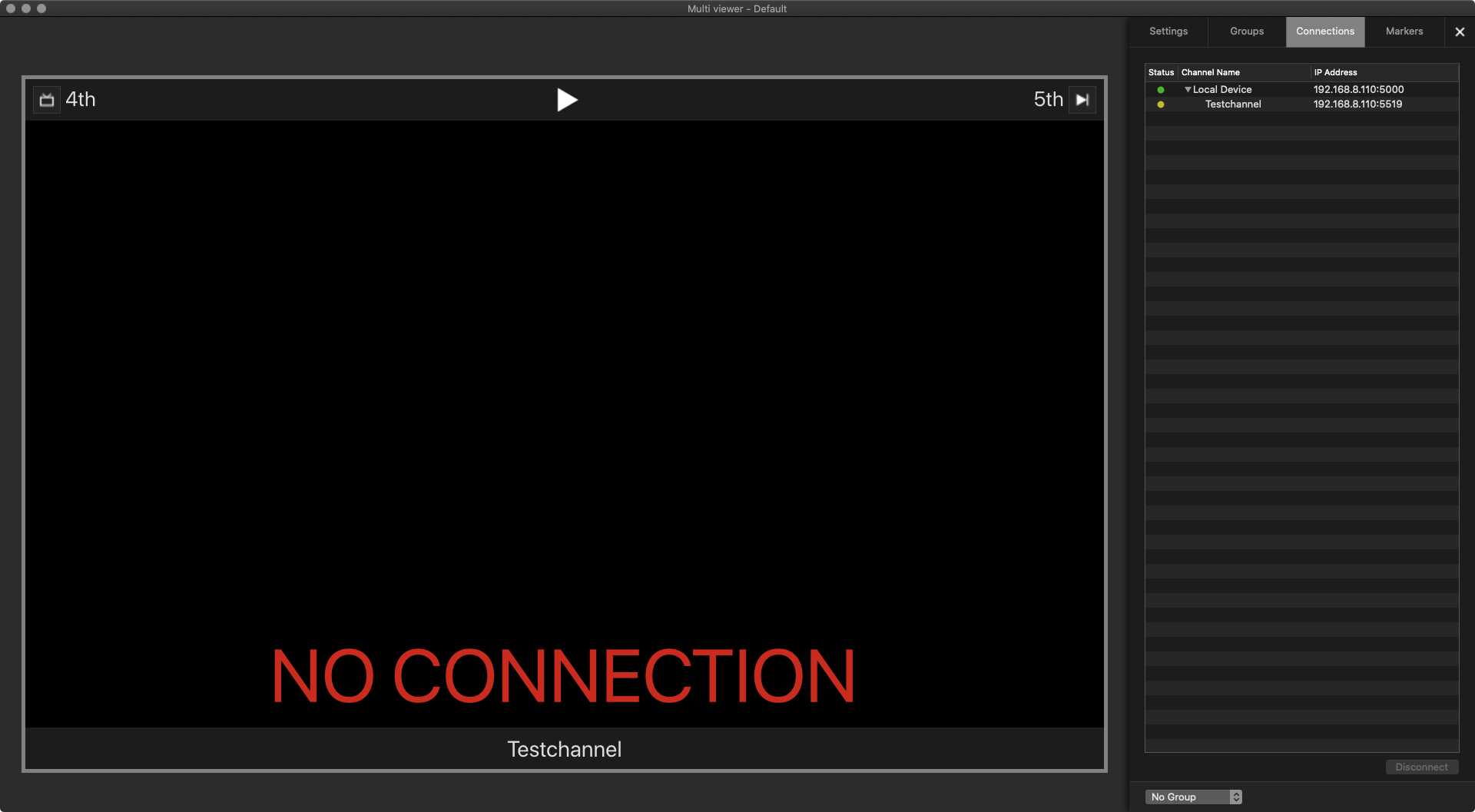
If the communication between a user interface and Just Connect is interrupted for more than one second, the interface will close and automatically fall back to the multi-viewer interface, showing "NO CONNECTION". This mechanism prevents the user from making any changes that would never be executed by the Just Out engine.
IPs and Ports
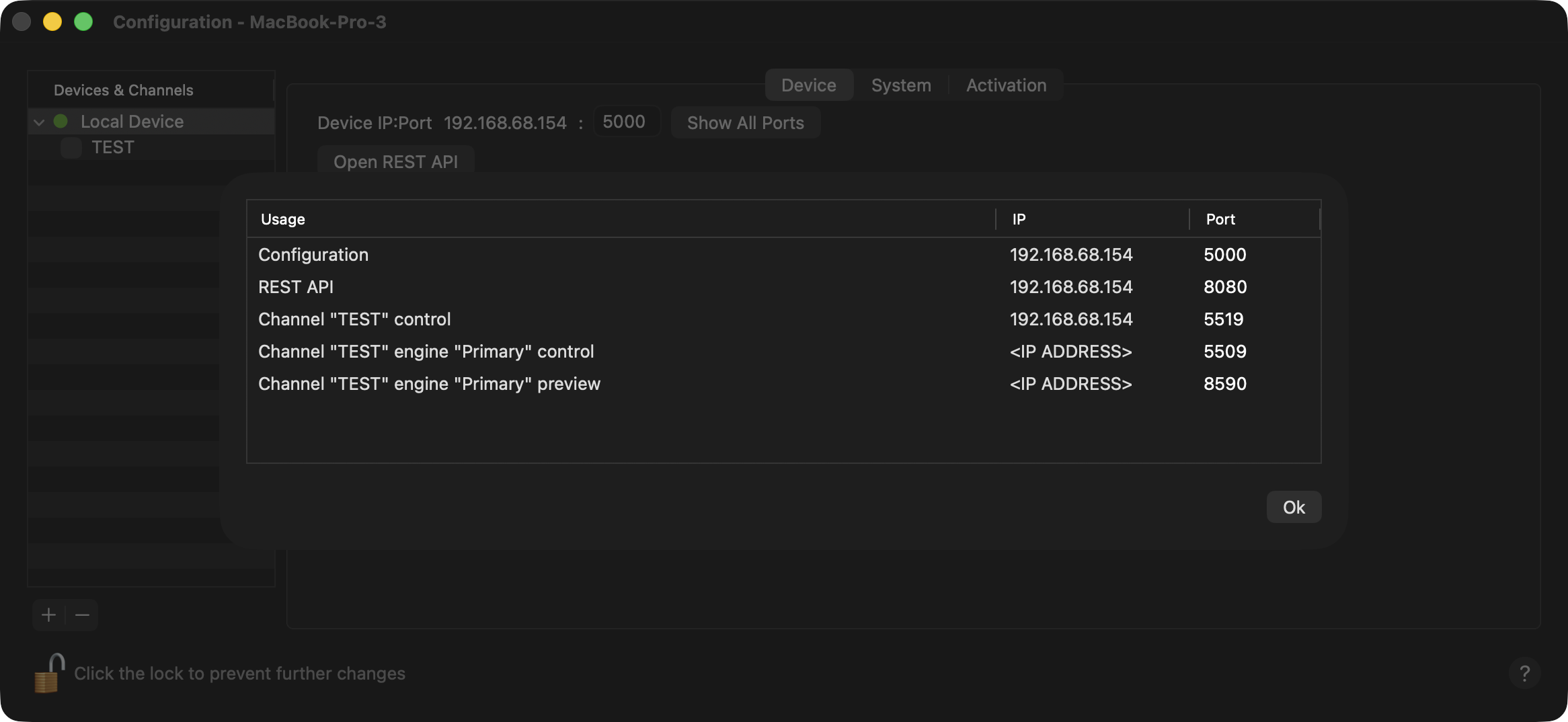
Under the same IP address, a certain Port can be used only once. The default Port used by the first Just Out is 5509 and the default port of the first CHANNEL is 5519. The Just Connect (DEVICE) uses port 5000, and we recommend using the default ports during setup using the installation Wizard. Please ensure that the Ports mentioned above are not used by another application. In case a Port is already used, the following warning will be shown:
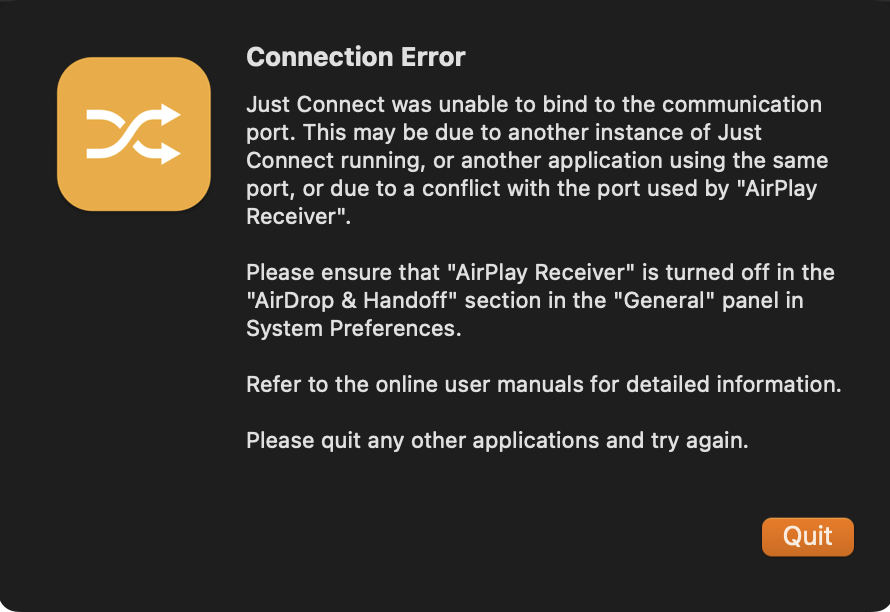
Generally, this can be solved by turning off the “AirPlay Receiver” option in the “AirDrop & Handoff” section in the “General” panel of the macOS System Settings.
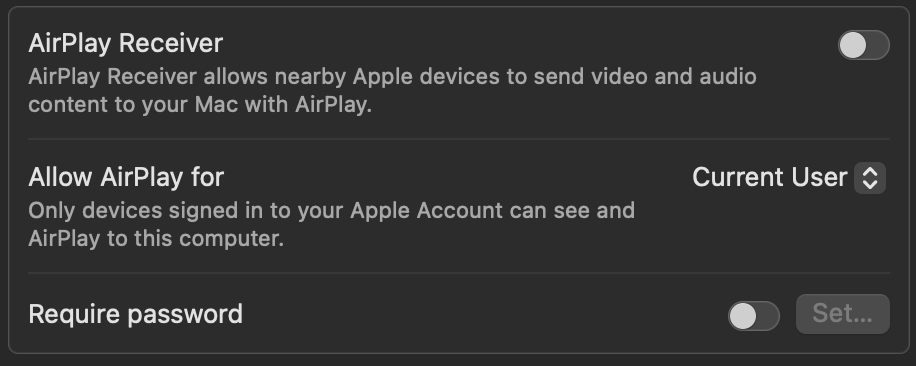
Please contact your local network administrator in case that turning off the AirPlay Receiver mode did not solve the underlying network related issue.
Showing the used IPs and Ports
It is possible to see the IP address and the ports used by all channels which are assigned to a certain device. This can be done by:
open the Configuration window
select a Device under Devices & Channels
make sure the tab “Devices” is selected
click on “Show All Ports” to open a window which shows all IPs and Ports used by all channels administrated by the selected device and if there is a conflict or not.