
Every time an element in the Video Layer has reached its endpoint, the Just Out engine writes a new entry into a text file called Just Out As Run Log (+ date and time it has been created). An As Run Log File is useful to verify if and when a certain Video has been played out. The destination of the Log can be defined in the Just Out preferences, and what's written into the As Run-log can be defined in the Just Control Configuration panel.
The date and time format is taken over from the System Preferences option “Date & Time” or “System Settings → General → Language & Region” pane.
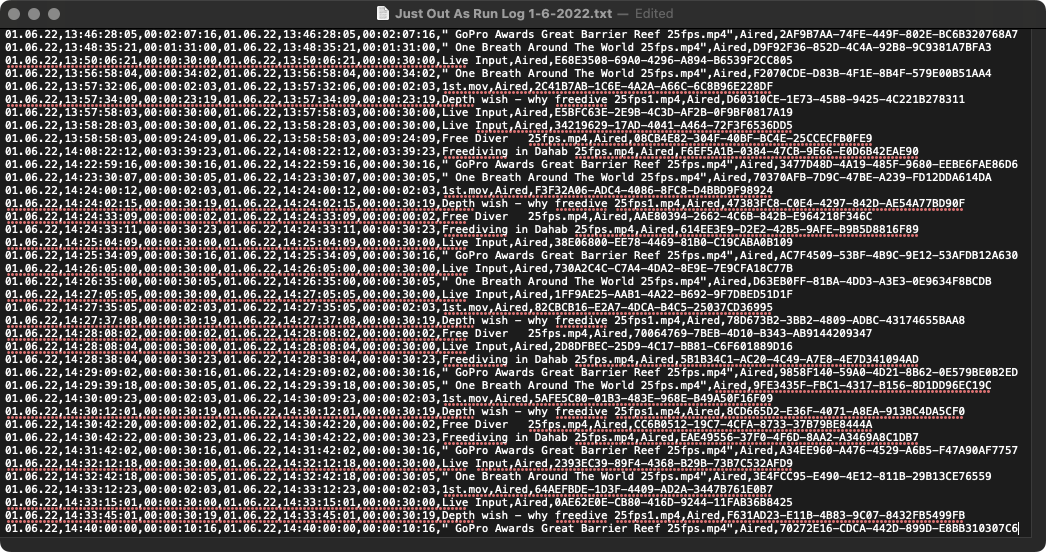
As Run Log Configuration
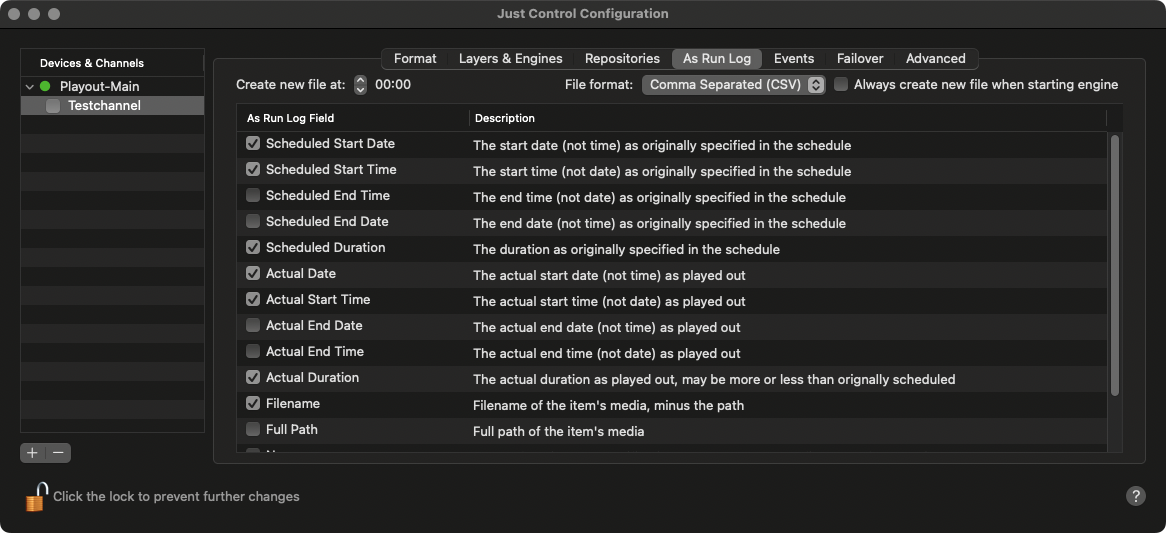
You must unlock the Configuration panel first to perform any changes.
Before proceeding, you must stop the Channel by deactivating the checkbox. Stopping the channel will also stop the Just Out Primary engine output, unless there is a Redundant engine available.
Select the Channel in the “Devices & Channels” list.
Click on the “As Run Log” tab.
Create new file at: Defines the point of time when a new log file is being created.
File format: By default, the log is saved as CSV file in UTF-8 encoding. This means that all Unicode characters are logged properly. Optionally, you can also save the log file in the Fixed Width Column format.
Always create new file when starting engine: When enabled, a new log file is created every time the Just Out engine is (re)started.
Active "As Run Log" fields: Defines the information which will be stored to the log file.
Activate the checkbox in front of the Channel to start the Channel and to take over the changes you just made.
The Channel will be removed from the Multi viewer interface, and you have to add it again by dragging and dropping the Channel to a Viewer.