
You must unlock the Configuration panel first to perform any changes.
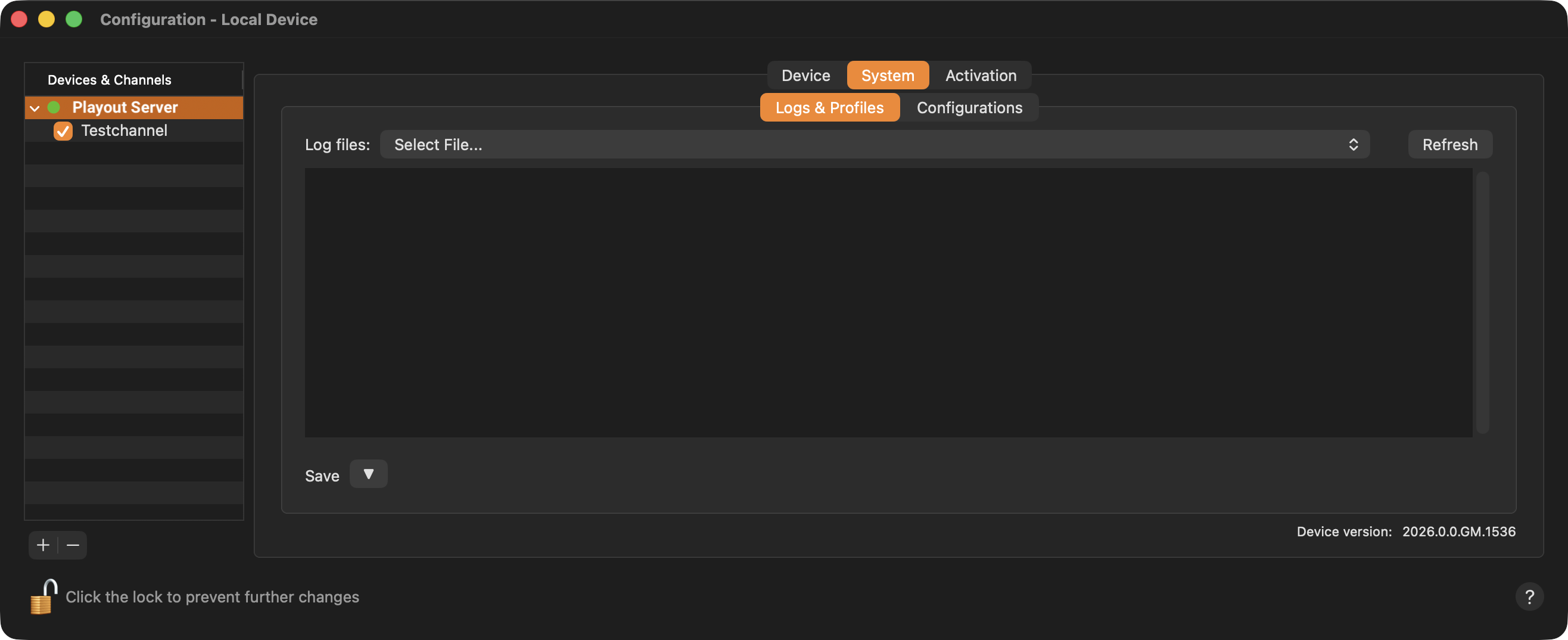
Logs & Profiles tab:
Log files: Select one of the available Log files to be displayed in the viewer below. Click the “Refresh” button to refresh the list of log files.
Refresh Button: To update a displayed Log file, you must press the “Refresh” button.
Log File Viewer: Shows the content of the selected Log file.
Save: Saves a Log file to a destination of your choice.
Save Selected Log: Only saves the Log which is currently selected.
Save All Logs (TOA System Profile): Saves all log files related to the selected Device.
Device Version: This shows the version that is currently installed.
If you encounter a problem or are asked by ToolsOnAir support staff to provide logs, please first ensure that all relevant TOA playout applications are running on the machines for which you intend to save the log files.
Subsequently, use the Save All Logs (System Profile) button to save the Logs and attach them to a support ticket. We treat your data confidentially and delete it after a support case has been resolved.
Configurations tab:
Reserved for Just In ingest solutions.
Reset & Restore: Reserved for Just In capture solutions.