To be able to use a Channel configured in the Just Control Configuration window, the Channel must be started and assigned to a Viewer of the Multi Viewer interface.
What is a Channel?
A Channel is a virtual representation of a single output signal. Depending on the number of Devices, you may configure one or multiple Channels.
Before connecting to a Channel using Just Control, it is mandatory that the channel is running and configured correctly. Refer to the Playout v.2026.x Administrator Manual for more information.
Channel not started
If a Channel is not started, it will not show up under the “Connections” tab of the Just Control user interface or in one of the windows of the Multi Viewer.
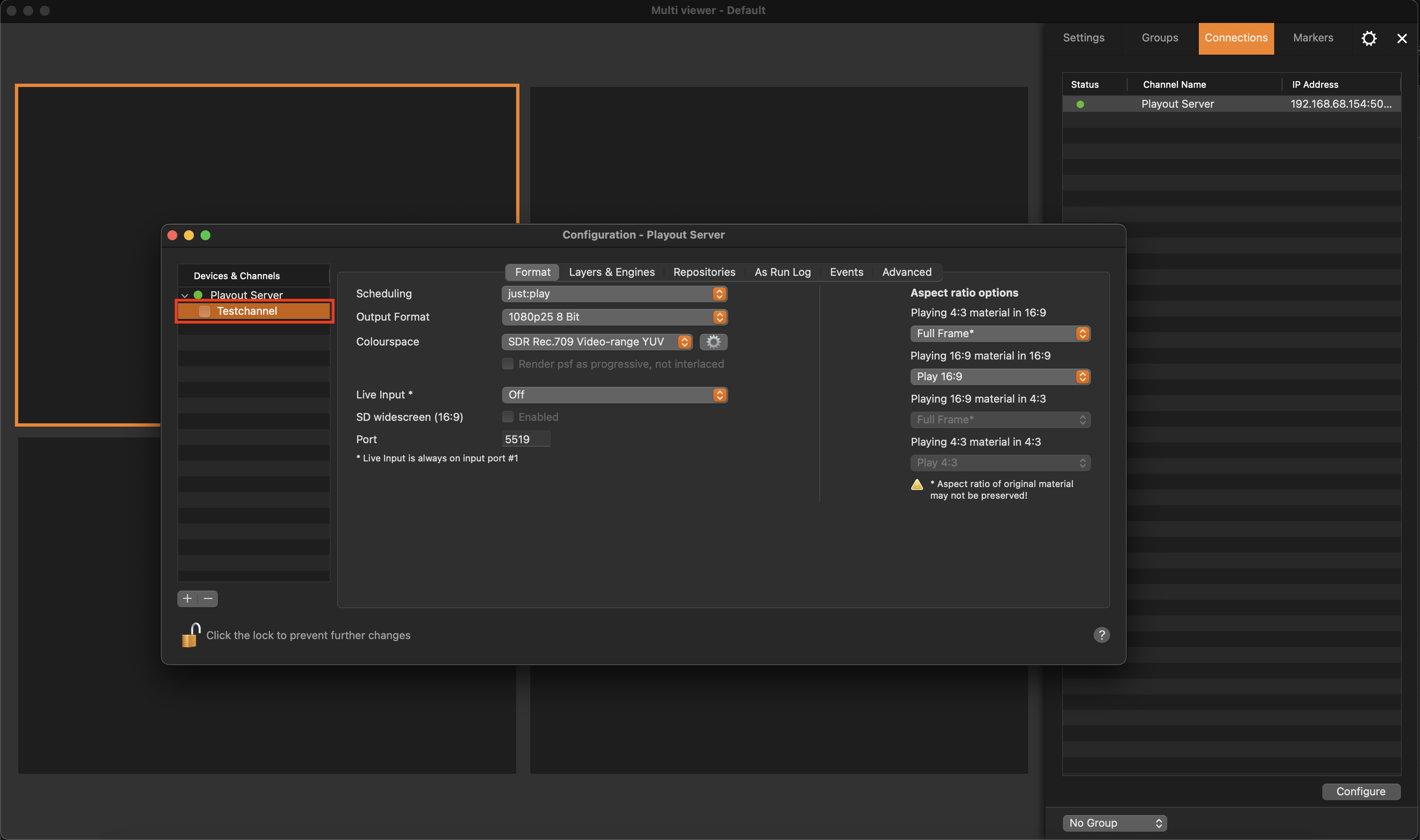
The checkbox in front of the Channel is not activated, and therefore the Channel is not shown under the “Connections” tab of the Just Control Inspector.
Channel started but not assigned to a Viewer
Once a Channel is started, it will show up under the “Connections” tab of the Just Control user interface and is ready to be assigned to one of the windows of the Multi Viewer.
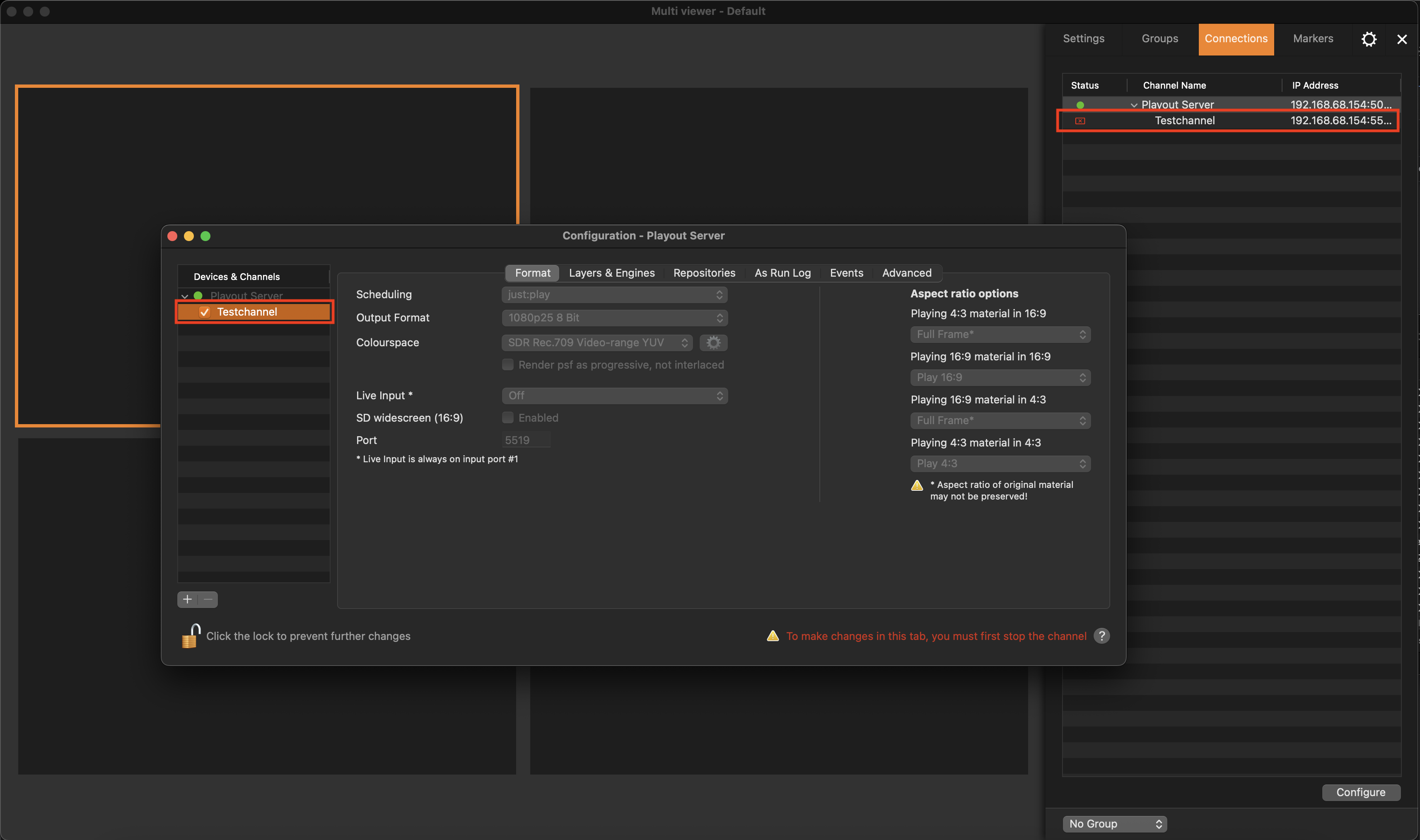
The checkbox in front of the Channel is activated, and therefore the Channel is shown under the “Connections” tab of the Just Control Inspector.
The connection symbol is Red (🔴) in front of the Channel under the Connections tab of the Inspector which indicates that the Channel is not assigned to a Viewer.
Channel started and is assigned to a Viewer
A Channel is fully functional once it has been assigned to a window of the Multi Viewer interface.
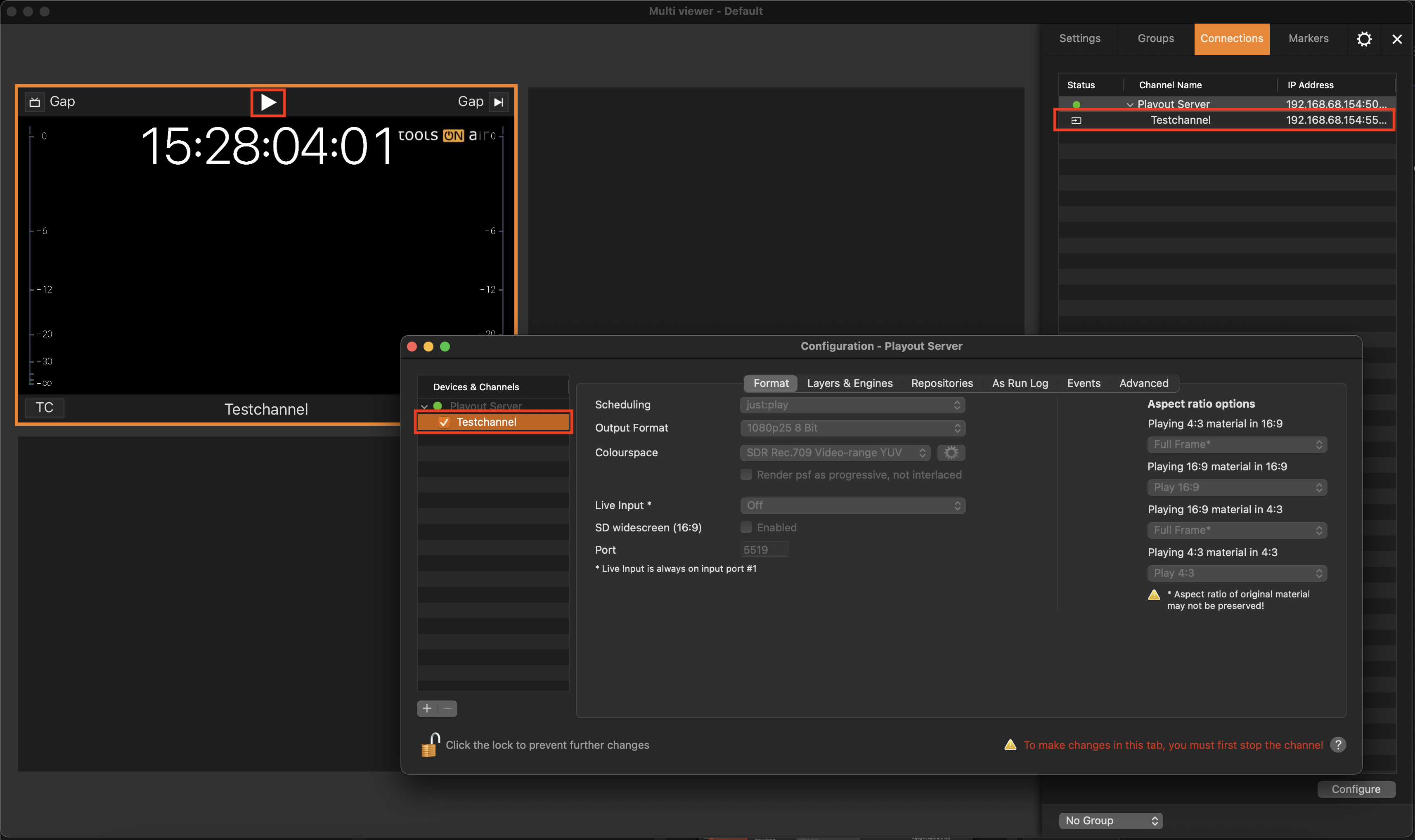
The checkbox in front of the Channel is activated, and therefore the Channel is shown under the Connections tab of the Just Control Inspector.
The connection symbol is White (🟢) in front of the Channel under the “Connections” tab of the Just Control Inspector, which indicates that the channel is assigned to a Viewer.
The Channel is shown in a window of the Multi Viewer interface, and the type of Channel is displayed at the top of the window.
Status of a channel
Within the Connections List, there is a Status indication, which can have three different values.
White (🟢): Device/Channel is successfully connected.
Yellow (🟡): Channel had a problem while connecting.
Red (🔴): Device/Channel is not connected.
How to assign a Channel to a Viewer
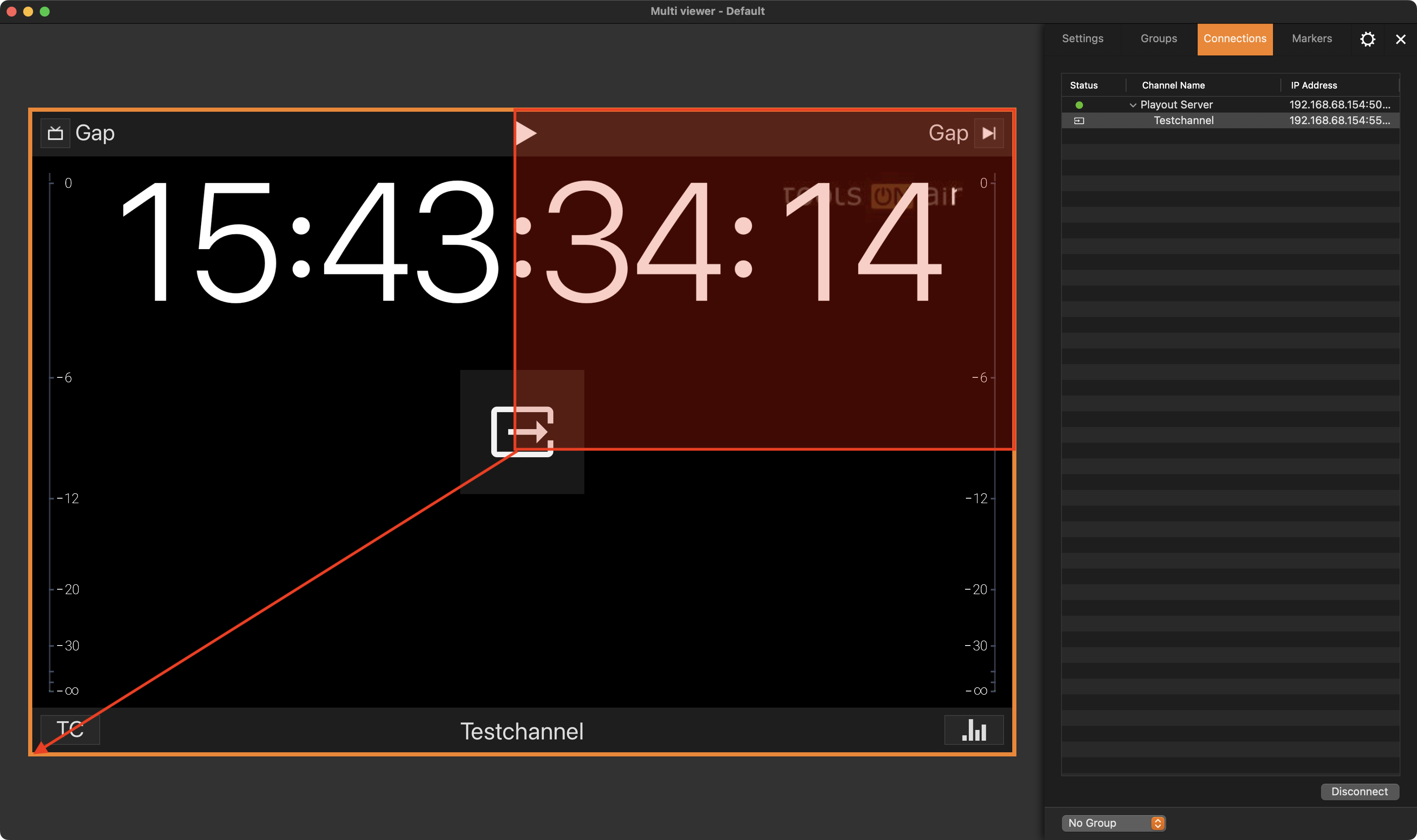
A Channel can be assigned to any unused Viewer of the Multi Viewer interface via Drag and Drop or double-click.
Drag and Drop: Grab a Channel (identified by a Red connection symbol (🔴) from the “Connections” tab of the Just Control Inspector to an unused Viewer of the Multi Viewer interface.
Double Click: Click on an unused Viewer in the Multi Viewer interface so that it gets selected, and double-click on the Channel (identified by a Red connection symbol (🔴) in the “Connections” tab.
Settings Tab: Click on an unused Viewer in the Multi Viewer interface so that it gets selected first. Then in the settings tab select “Channel” under “Contents” and choose the Channel you would like to assign to the selected Viewer.
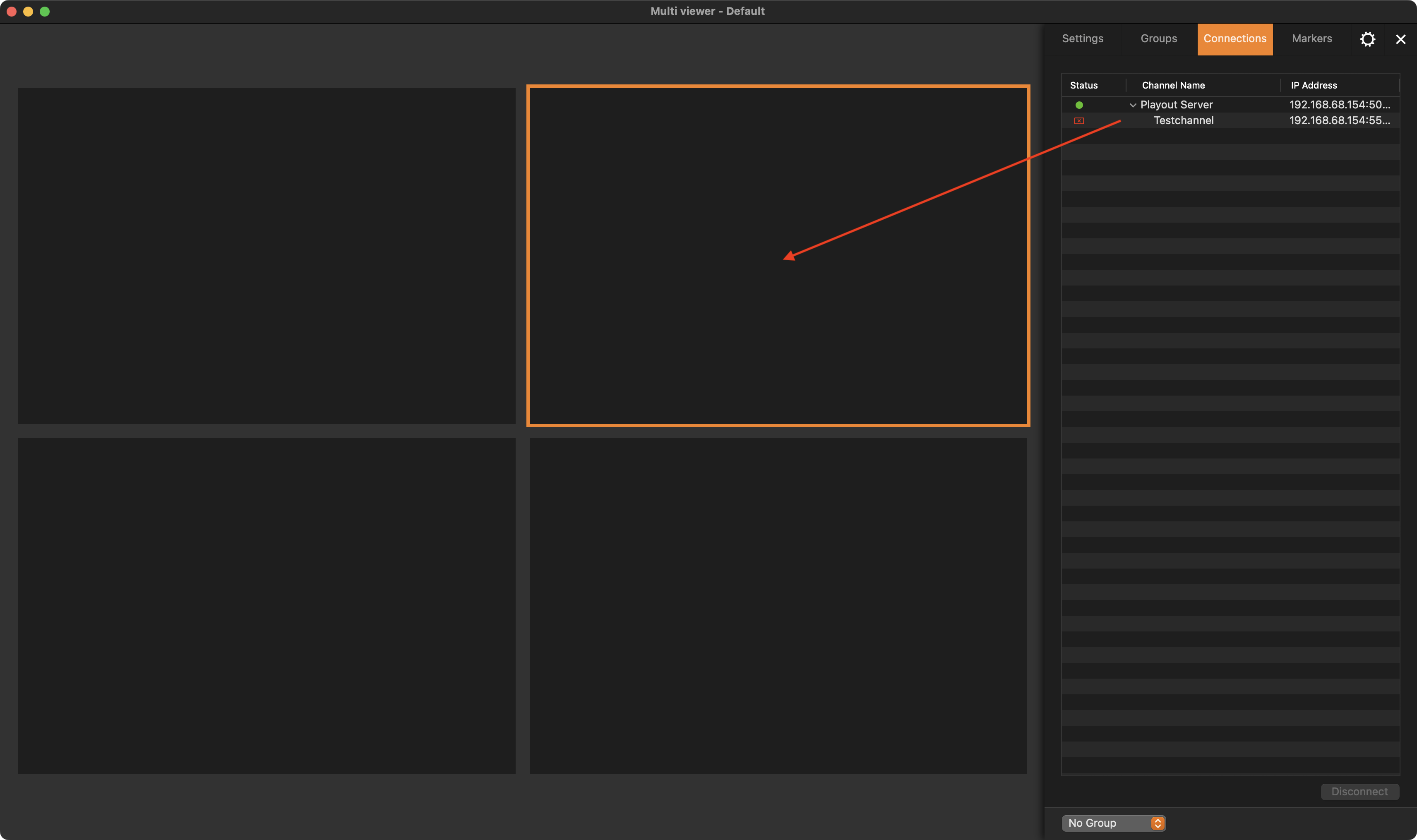
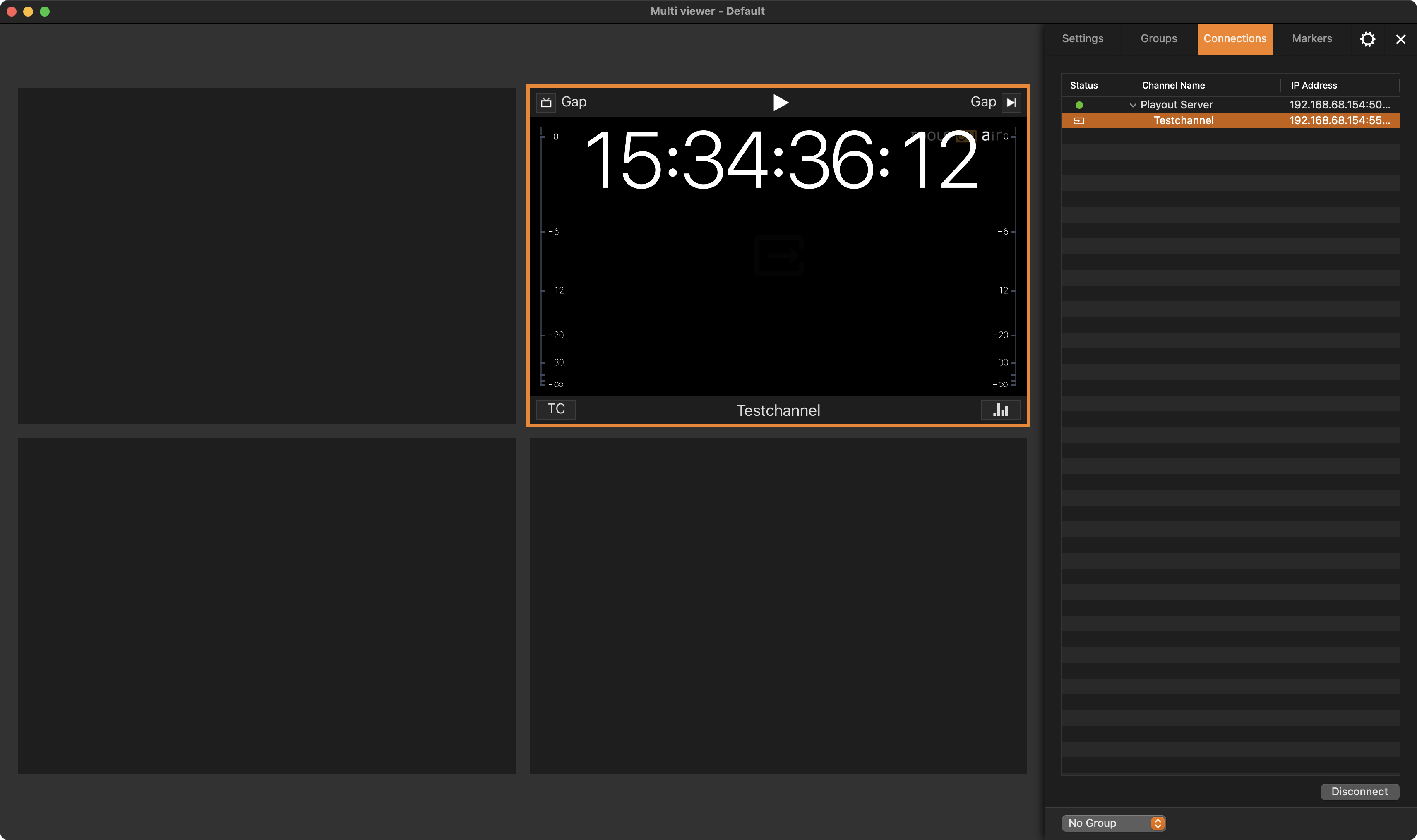
Every time a Channel has been deactivated in the Just Control Configuration window, it must be assigned to a viewer again, except there is only one channel and one viewer. In this case, the channel is automatically assigned to the only available viewer.
Moving a Channel between Channel Viewers
Some screenshots below show a Just In channel. This is expected, as Just Control works the same, regardless of the kind of Channel used.
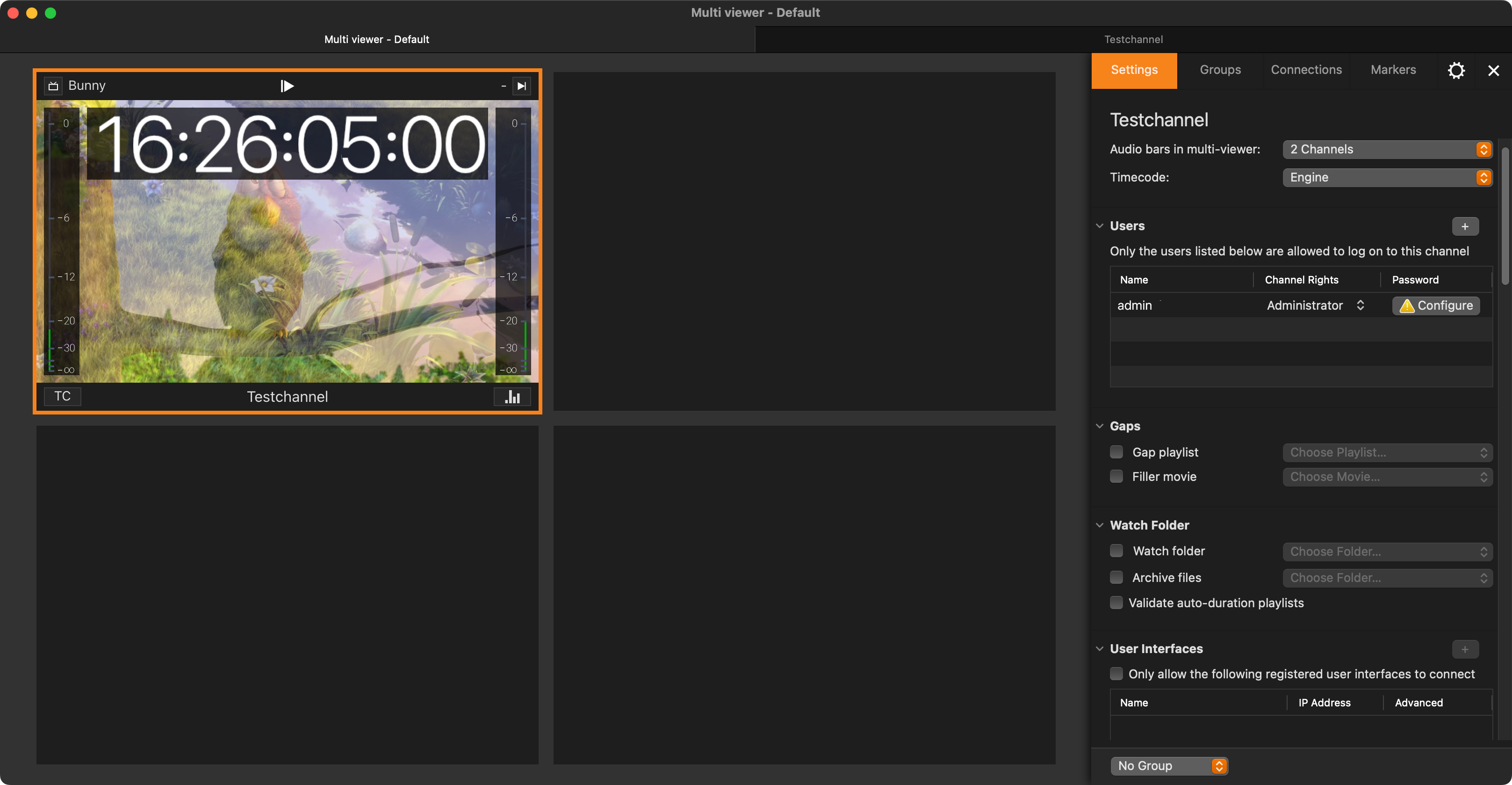
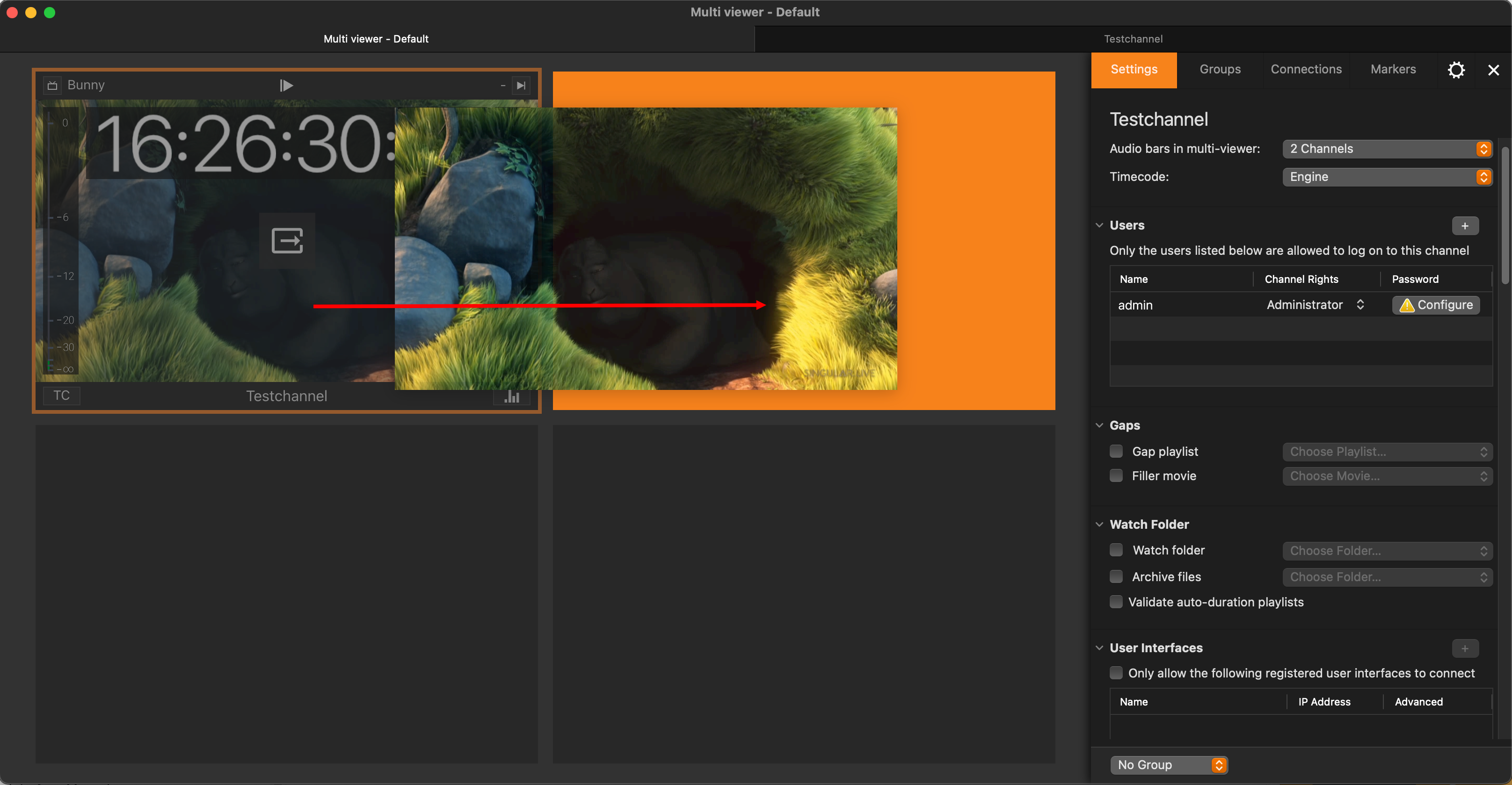
Drag a Channel and drop it onto a different Channel Viewer to move it. It does not matter if the destination Channel Viewer is empty – either the selected Channel will be moved to the empty Channel Viewer, or it switches location with the other Channel automatically.
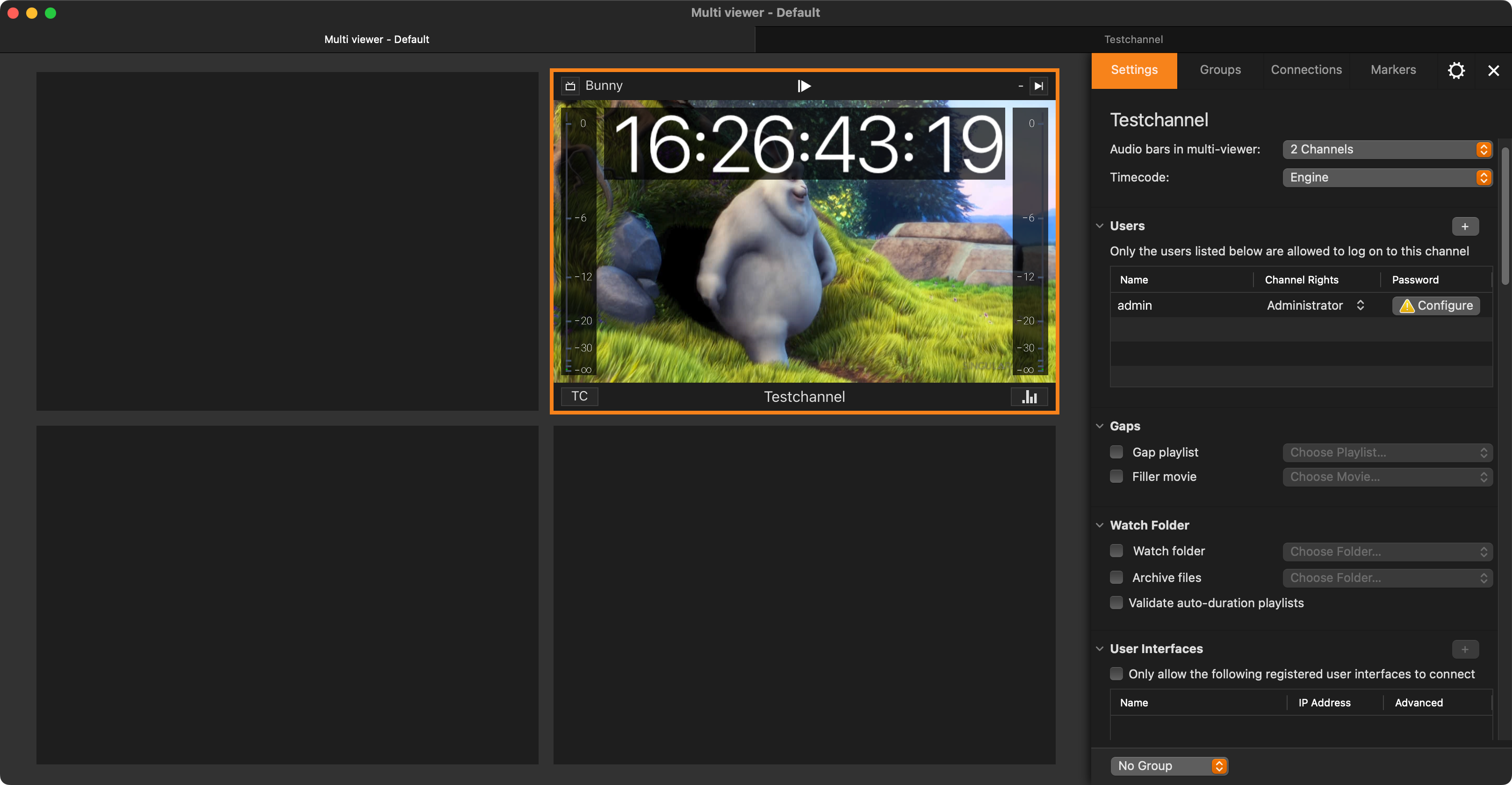
Disconnecting a Channel
Select the Channel in the Connections List or the Channel Viewer area.
There are different ways to disconnect:
Use the Command + Shift + D keyboard shortcut.
Double-click on the Channel in the Connections List.
In the Connections List, swipe the Channel entry to the right (using the Trackpad).
Click on the “Disconnect” button on the lower right-hand side of the Inspector panel.
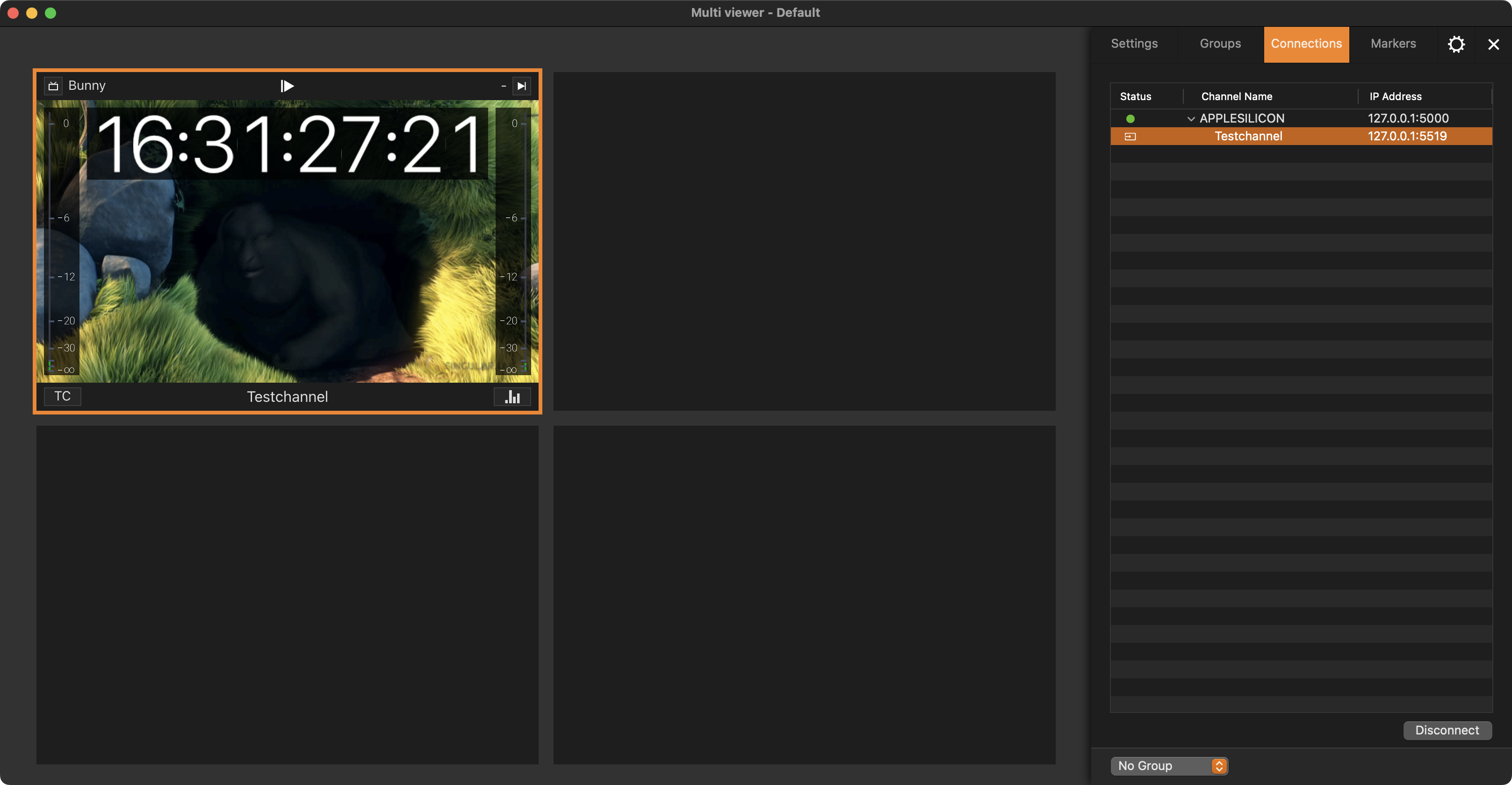
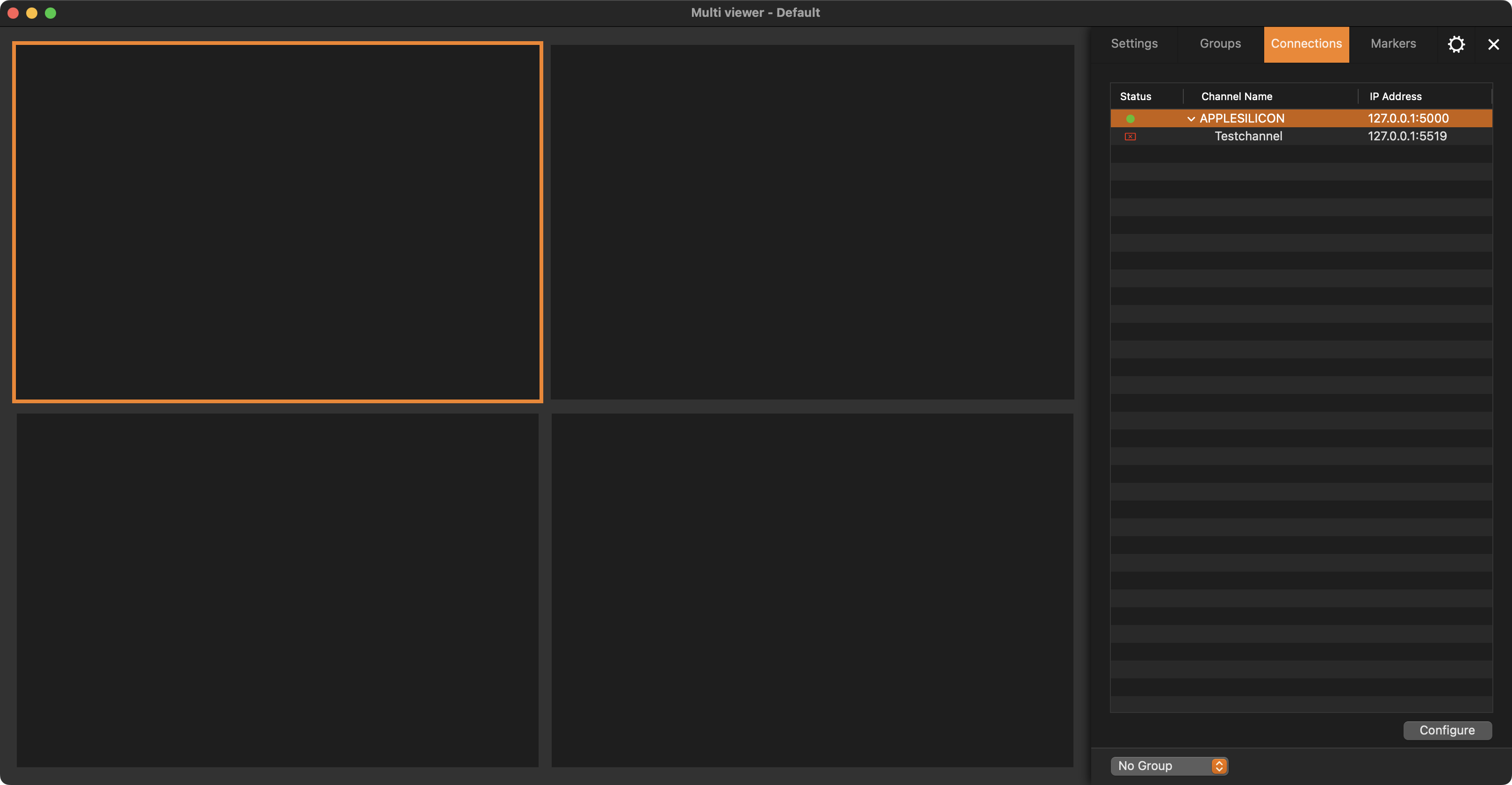
Disconnecting a Channel from the User Interface does not interrupt the playout!
Channel Quick Look
If you want to see only one Channel in Quick Look, select a Channel and press the Space bar – or double-click on a Channel to switch to Quick Look View. Press the Space bar again (or the “Escape” key) or double-click the Channel again to switch back to the normal view.
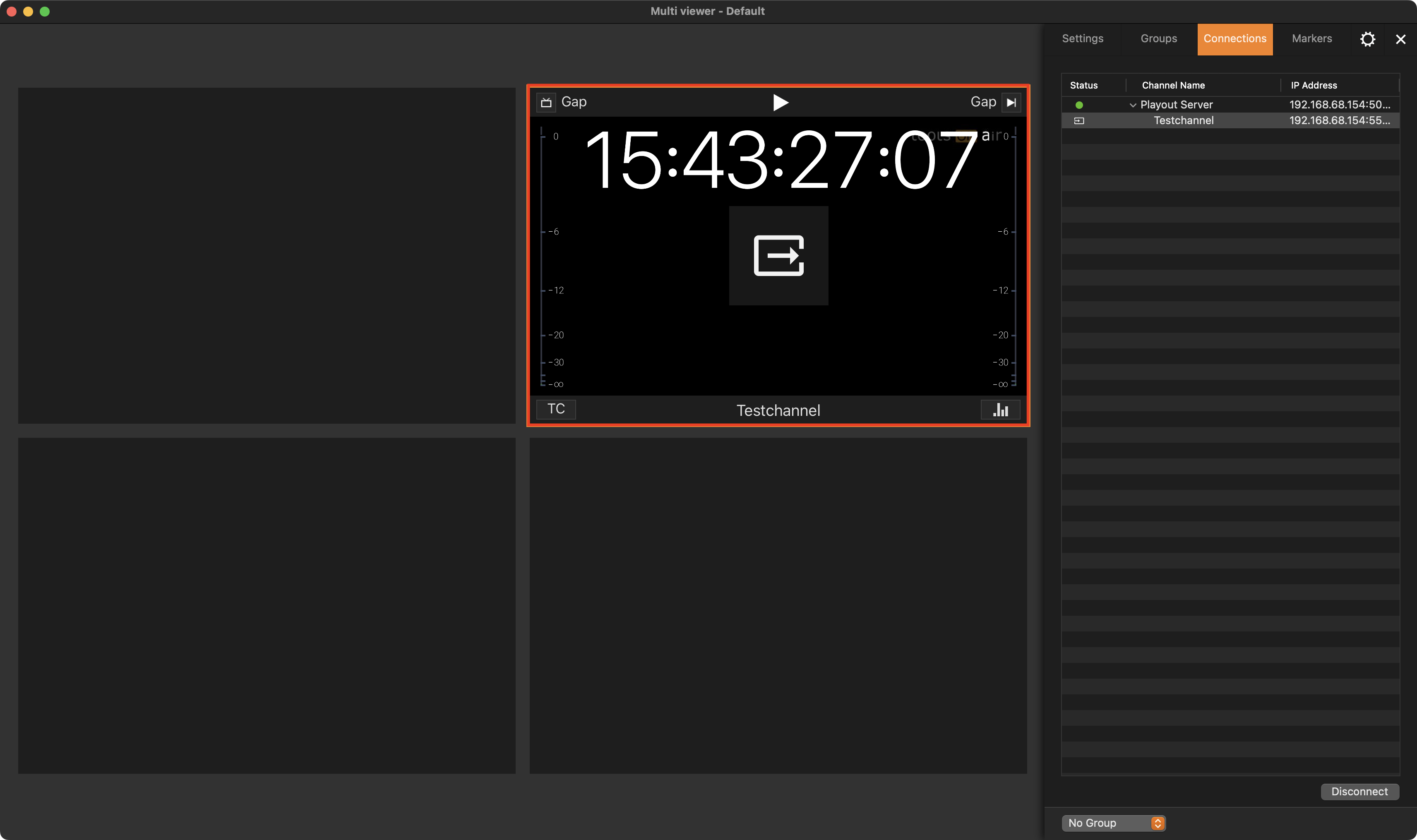
Press the Space bar to switch between the Single Channel View and the Multi Channel View.
Engine not Running
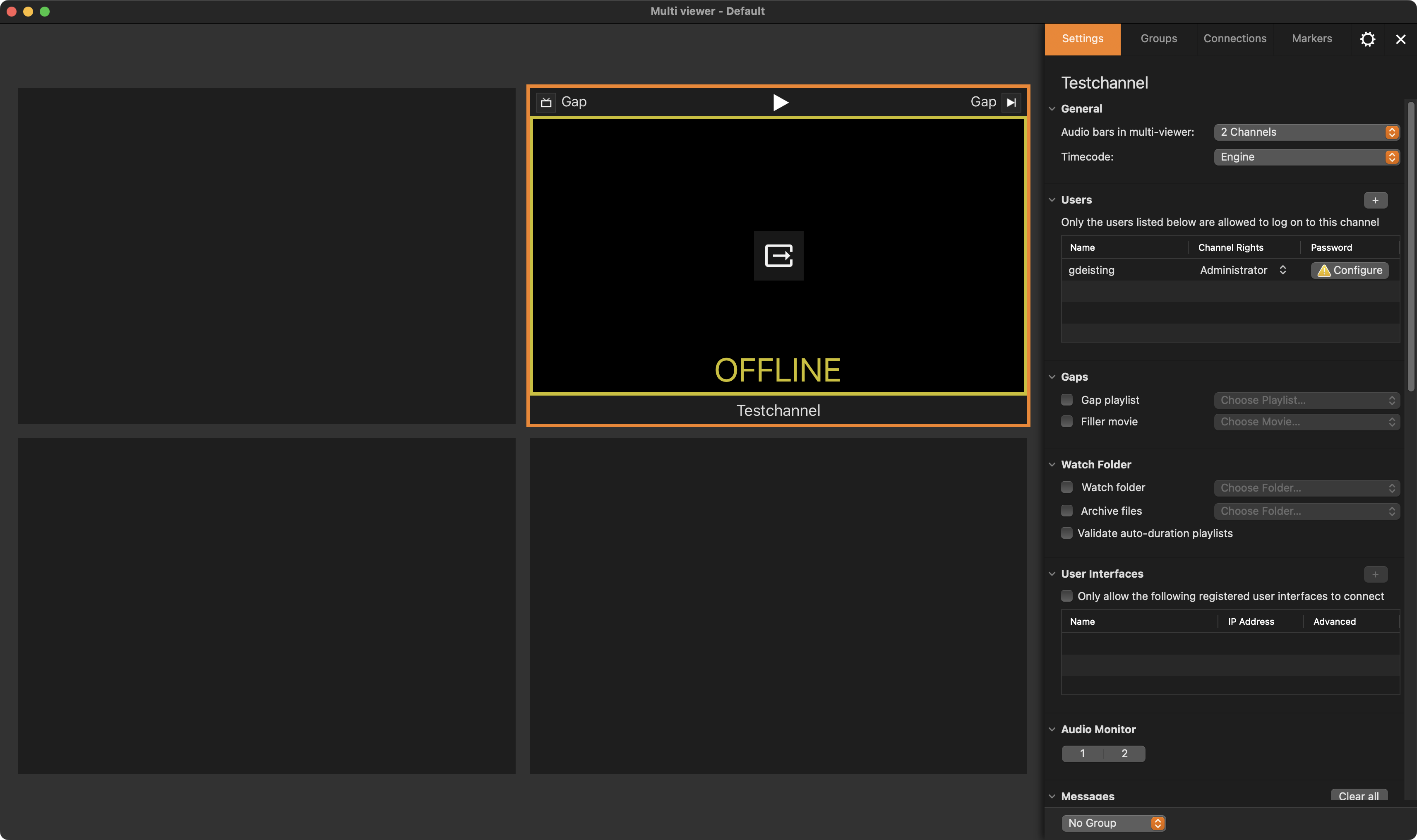
If the Device status light is GREEN (🟢) but the Channel has a YELLOW (🟡) border and displays the text “OFFLINE” in the Viewer, then one can assume that the Just Out Engine is not running.