
The Multi Viewer interface of Just Control is a single interface for the Tools On Air solutions Just In Mac and Just In linux, Just Live and Just Play and provides the following functions:
It allows viewing and controlling multiple Channels available from one or multiple instances on the same network.
It provides Realtime Video and Audio Previews from the Channels.
It provides access to the dedicated playout interfaces Just Live and Just Play.
It allows to show elements like clocks, timer, engine previews and web sites in unused viewers.
It provides access restrictions based on User rights.
It provides different Interface Layouts which can be assigned to one or several Users.
It provides additional functionality like Groups and a tabbed Channel View.
Channel View Area and Inspector
There is the main Channel Viewer Area (1) and the Inspector (2) on the right-hand side of the Multi Viewer interface.
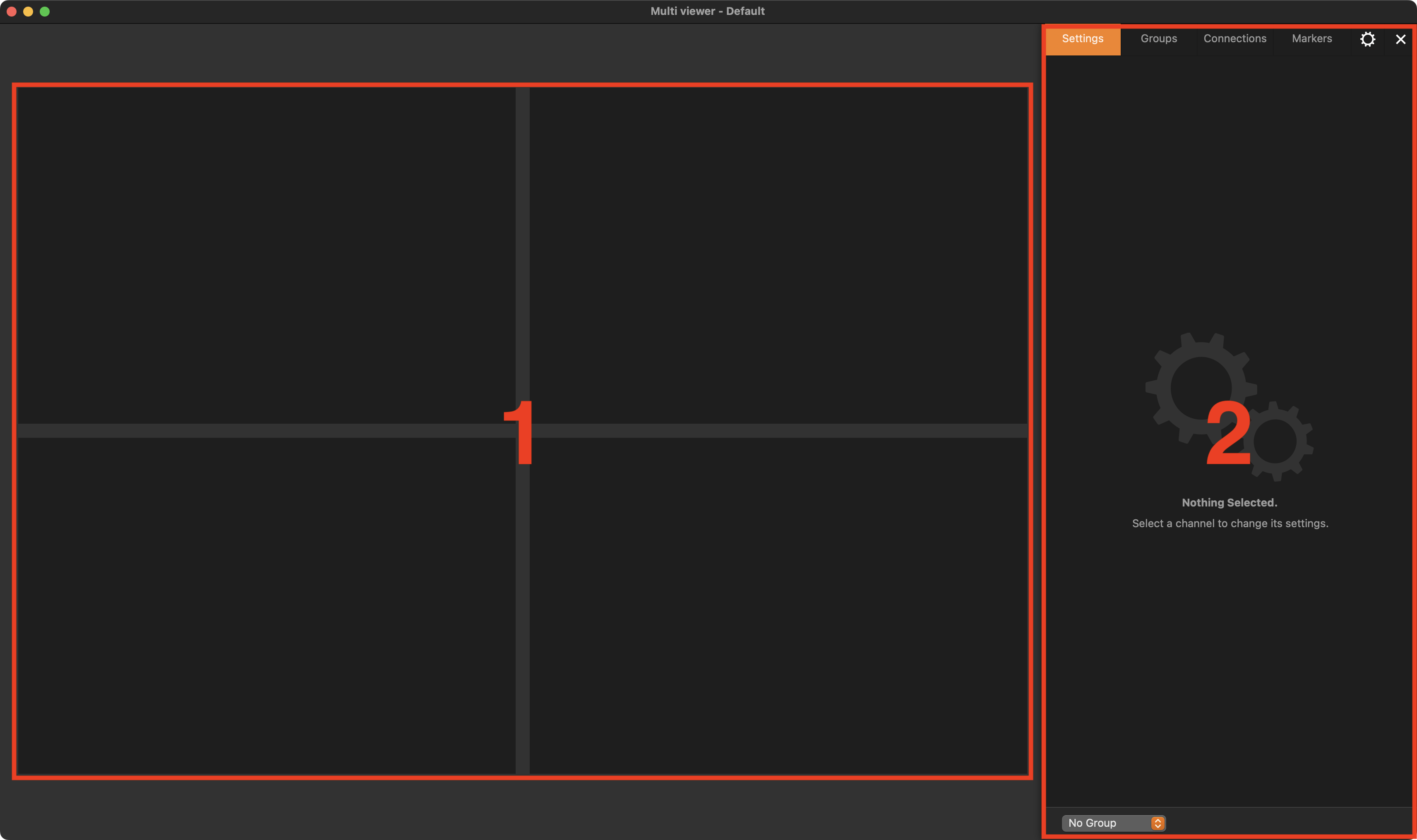
Channel Viewer Area Layout
The Channel Viewer Area (1) Layout can be user defined, which means it may look different on your machine. This depends on which grid layout you have selected and afterward which “Splits” and “Joins” you were using to customize your grid.
The Inspector
The Inspector (2) has the following tabs.
Settings: Provides the settings or the selected viewer.
Groups:
Connections:
Markers:
Configuration Gear
Click on the Gear, to open the Configuration panel.
Open and Close the Inspector
When the Just Control Inspector is closed, you see different icons (top to bottom: “Settings”, “Groups”, “Connections”, “Markers”). Click them to open the Just Control Inspector and to access the desired tabs directly. The last opened tab is marked.
When the Just Control Inspector is opened, click the “X” in the tab bar to close the Just Control Inspector window.
Multi Viewer Grid
After the first launch of Just Control, you will see a Viewer window for each channel which has been generated using the Channel Wizard. But the Viewer can show up to 64 channels at the same time, it is not relevant whether they are Capture or Playout Channels. This can be done by simply splitting a single window into 4 windows, or by defining a complete new Grid Layout.
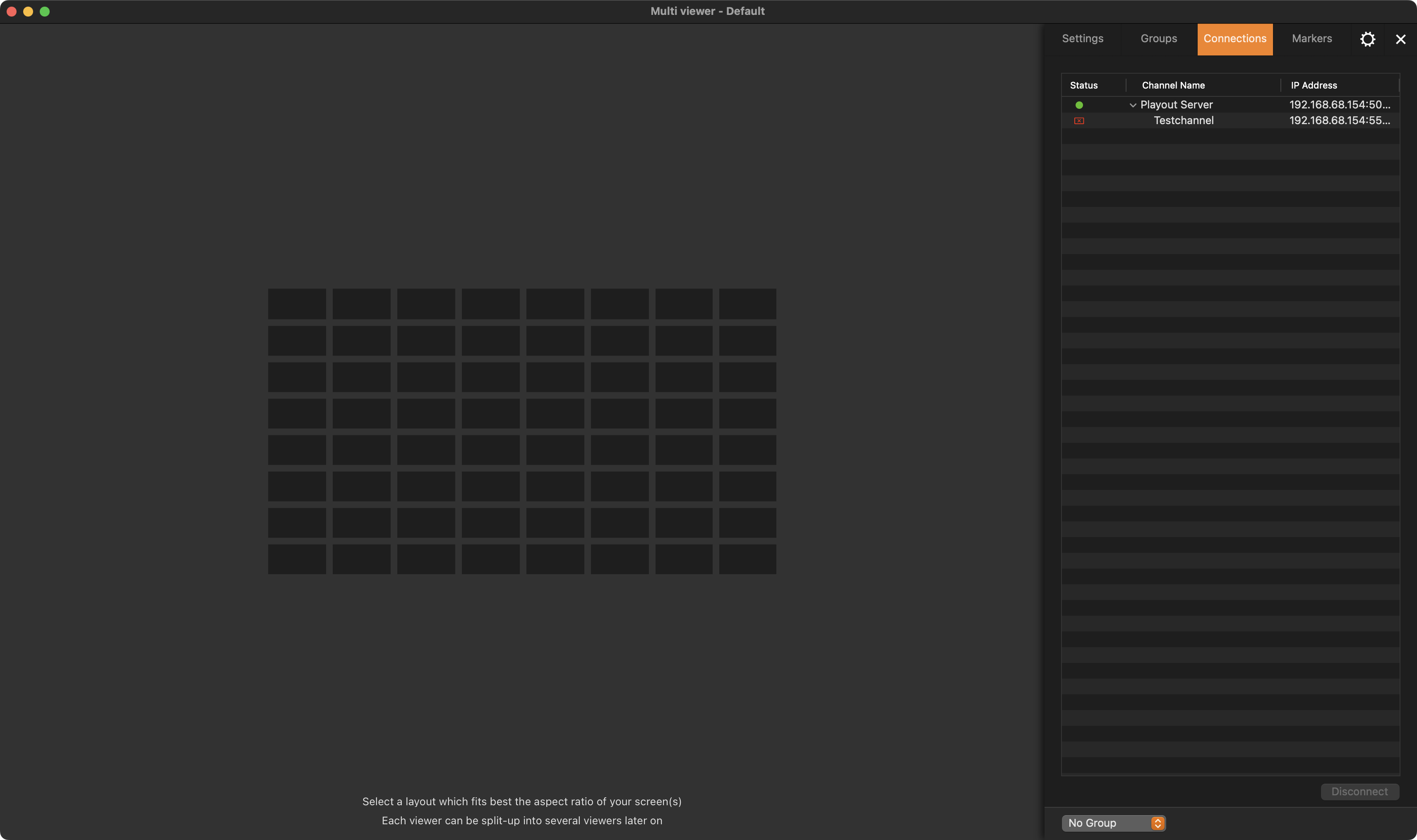
Selecting a Grid Layout
The dimensions of the grid defined here should match as close as possible the aspect ratio of the computer display you would like to use to control the channels.
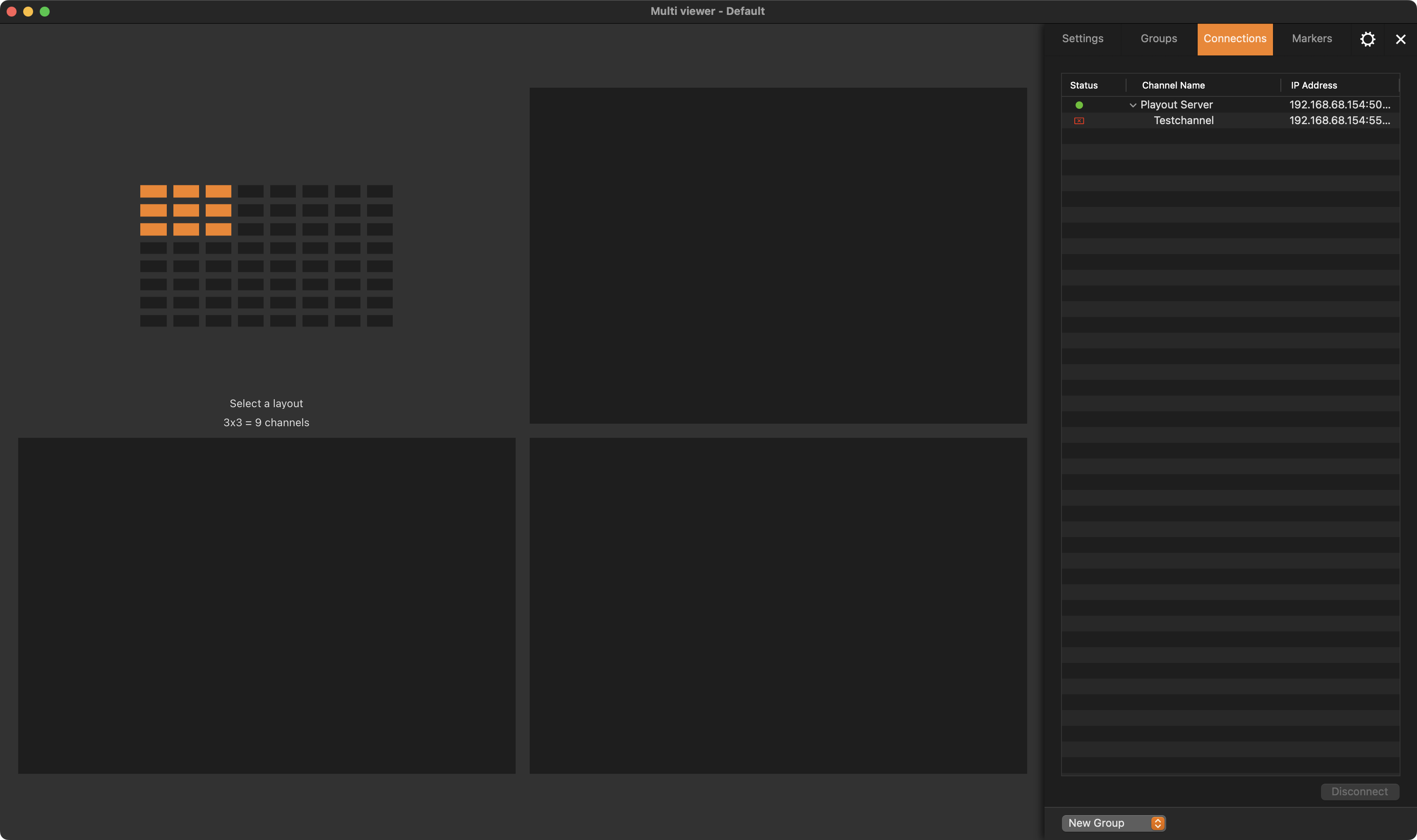
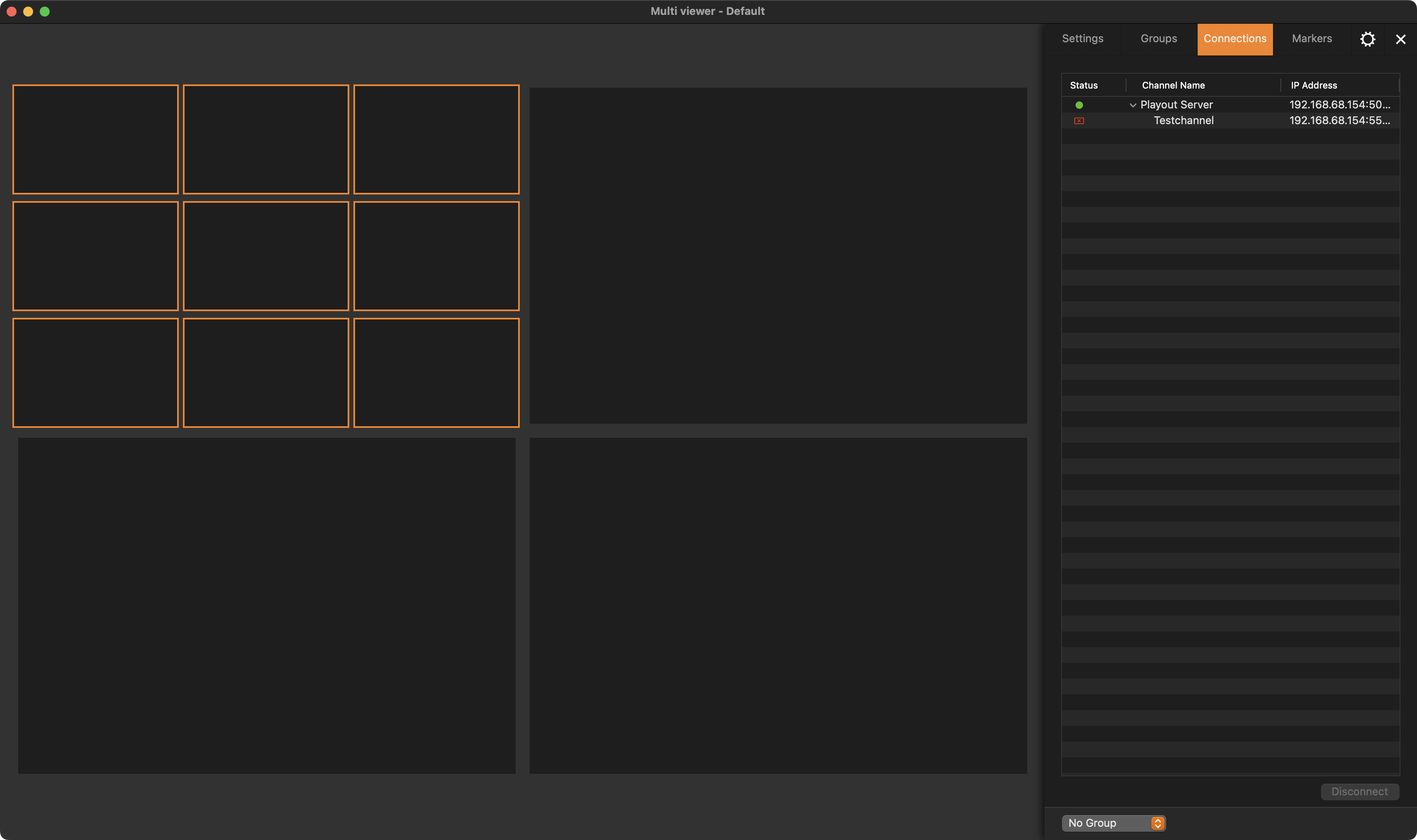
Open the Just Control user interface and chose a Grid Layout. Use the mouse to select the appropriate number of Channel Viewers, and then single click when you're done. Here are some examples:
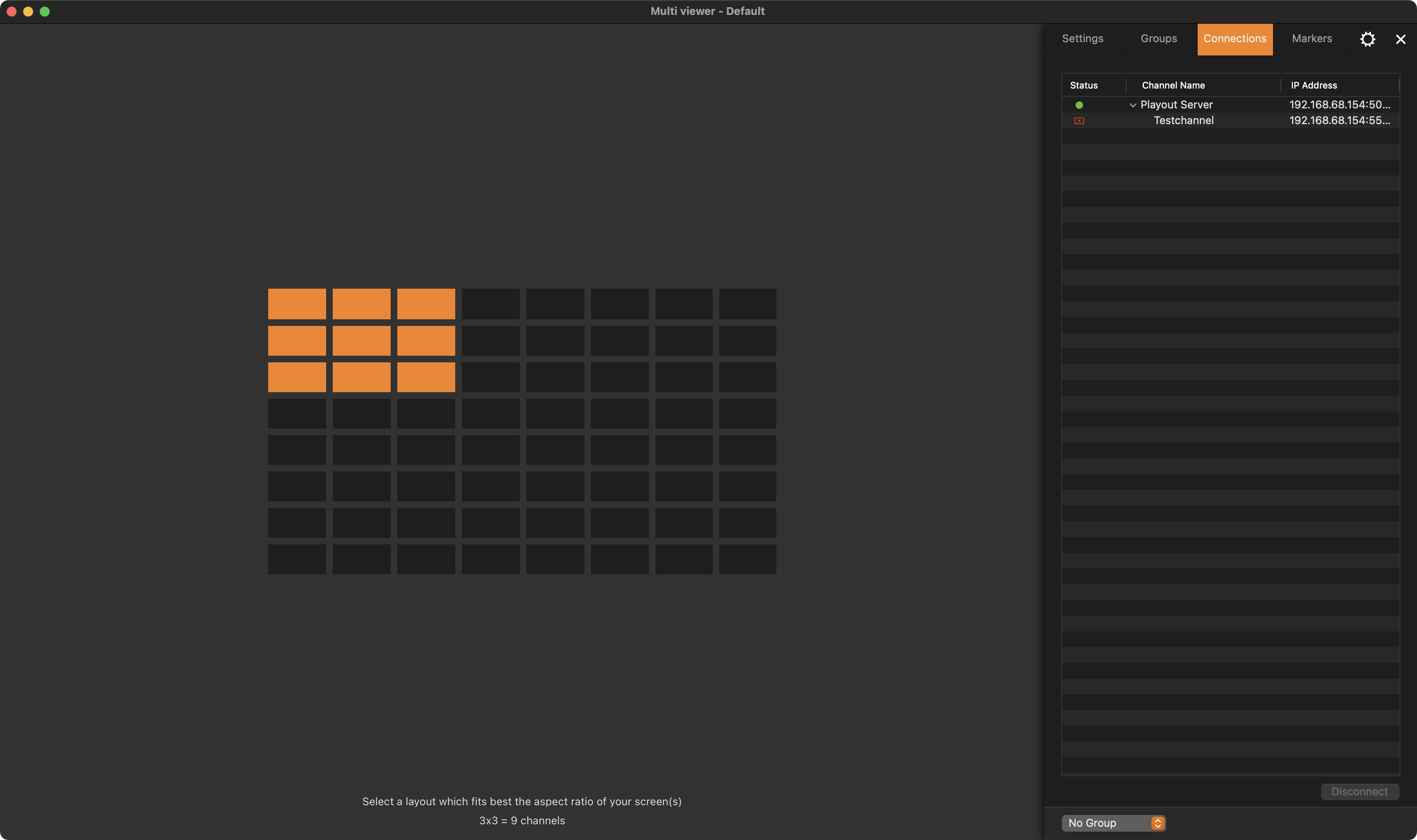
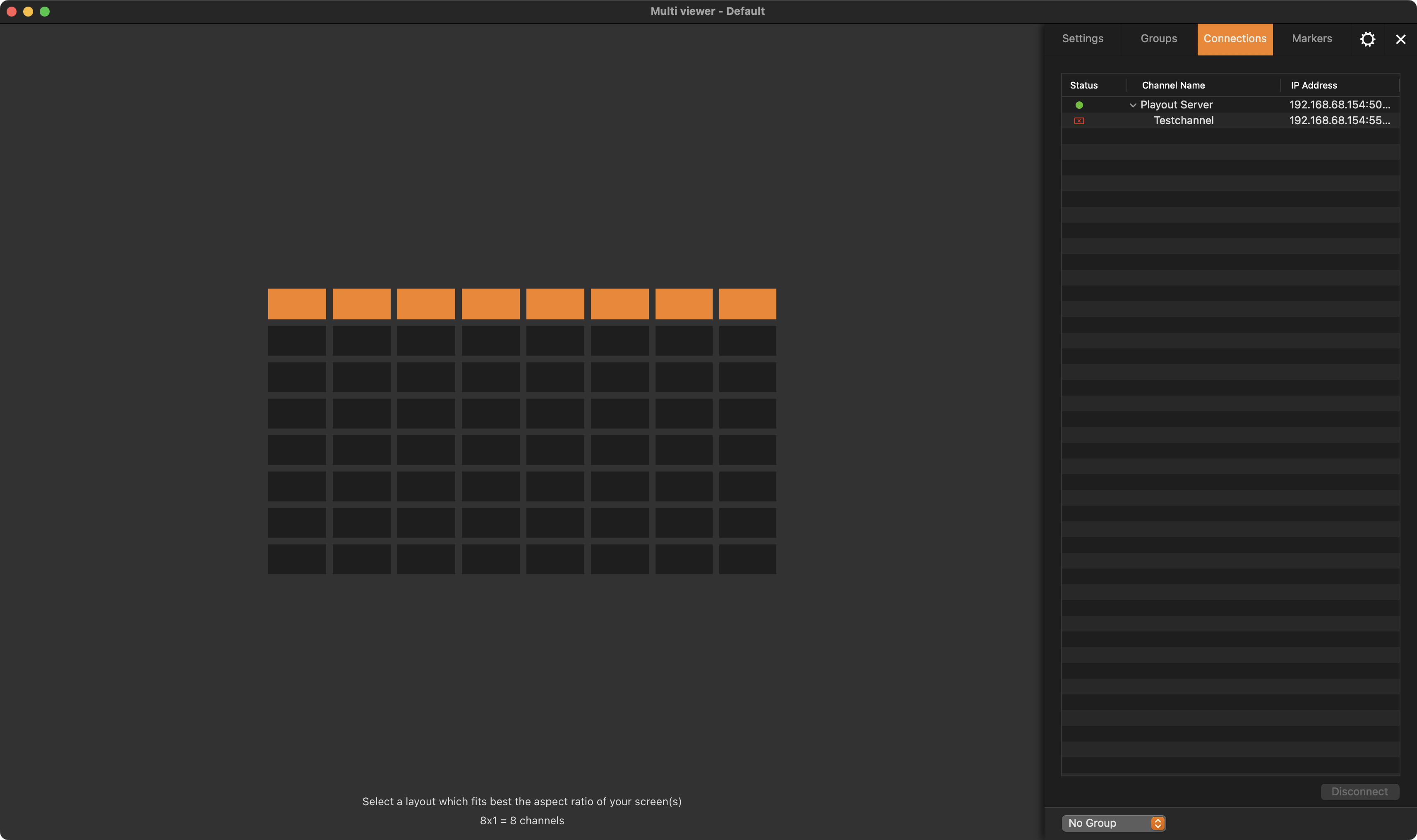
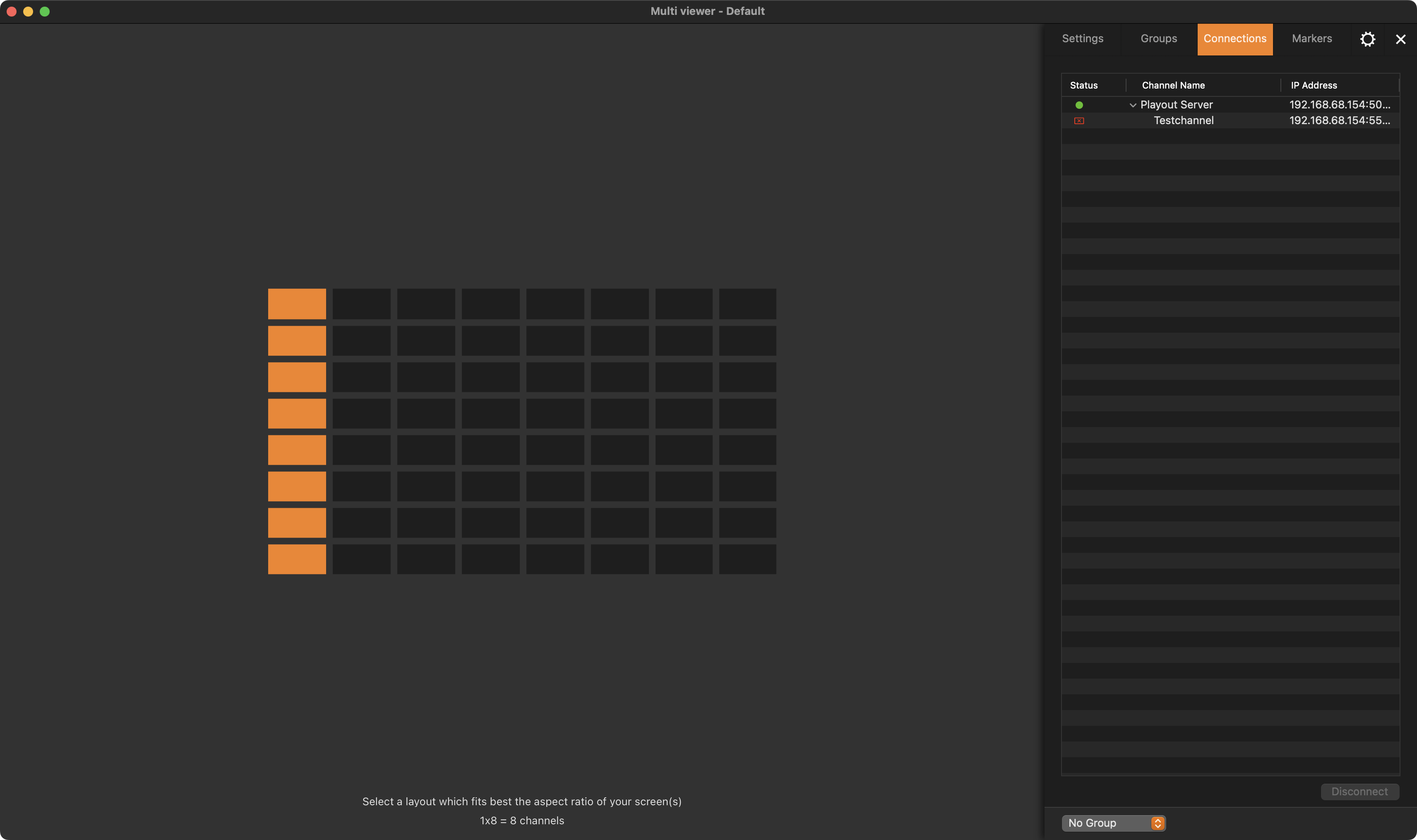
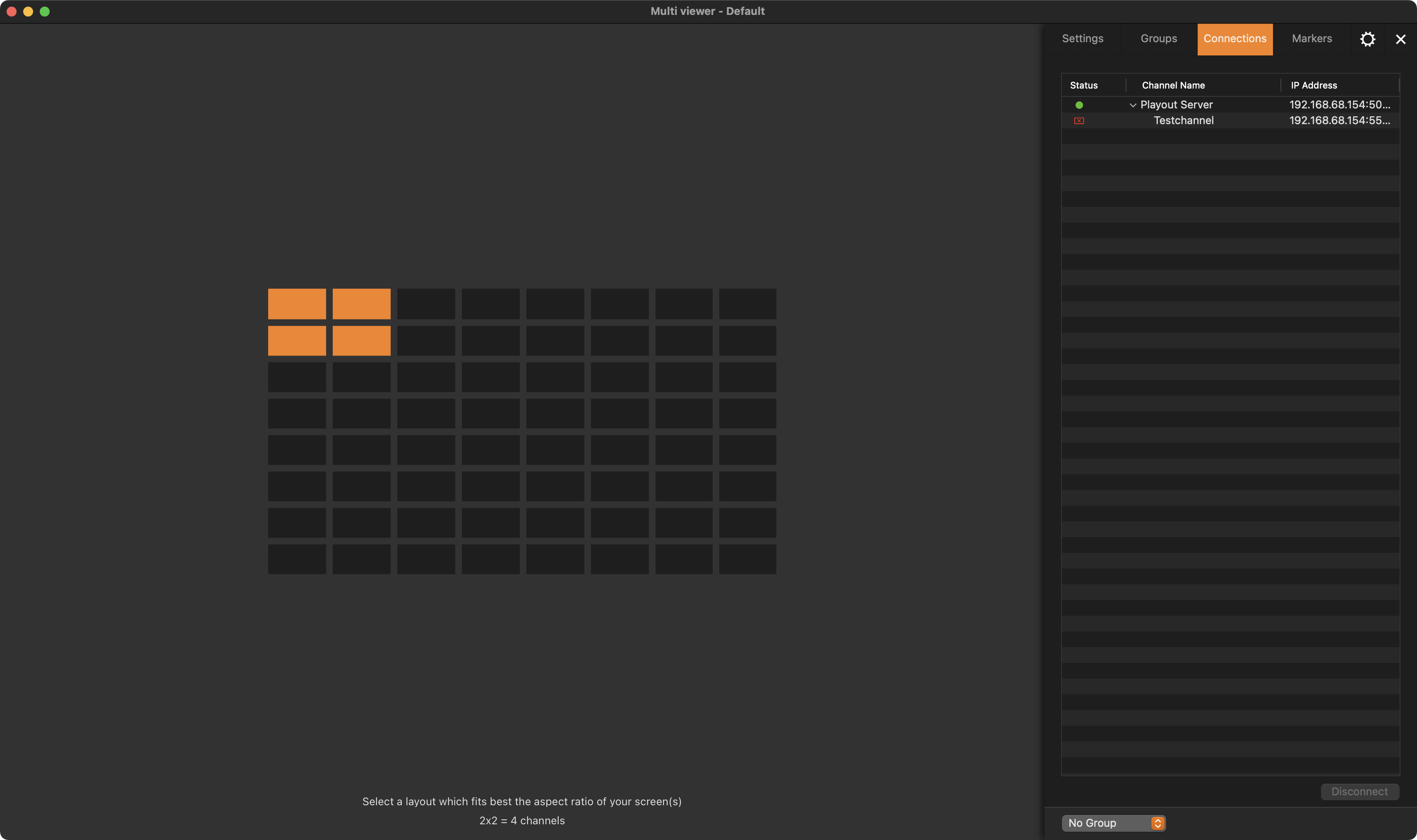
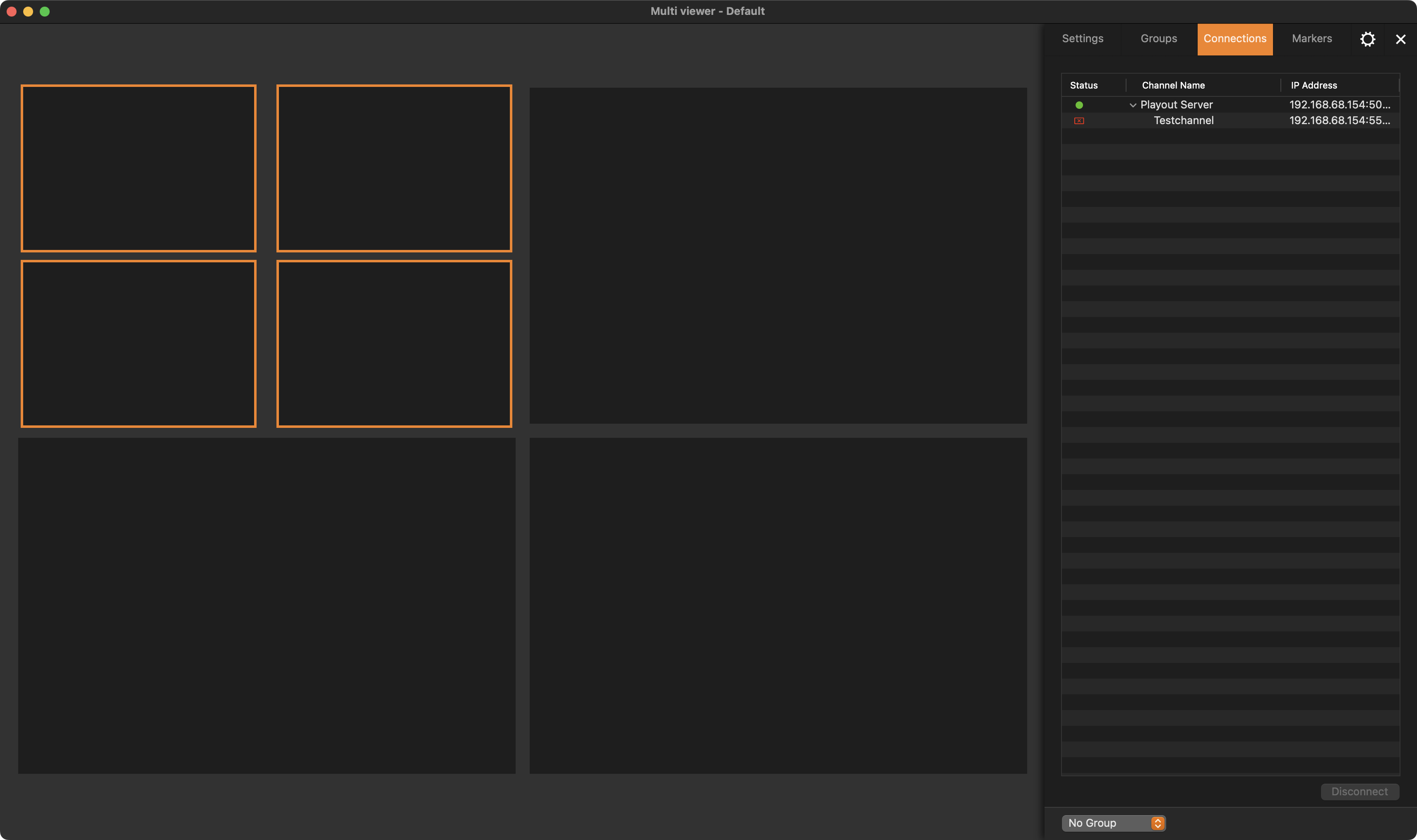
Basic 2×2 Grid Layout
In this example, we use a 2×2 layout. If the connection to your engine has already been established, you may now connect Channels from the “Connections” tab.
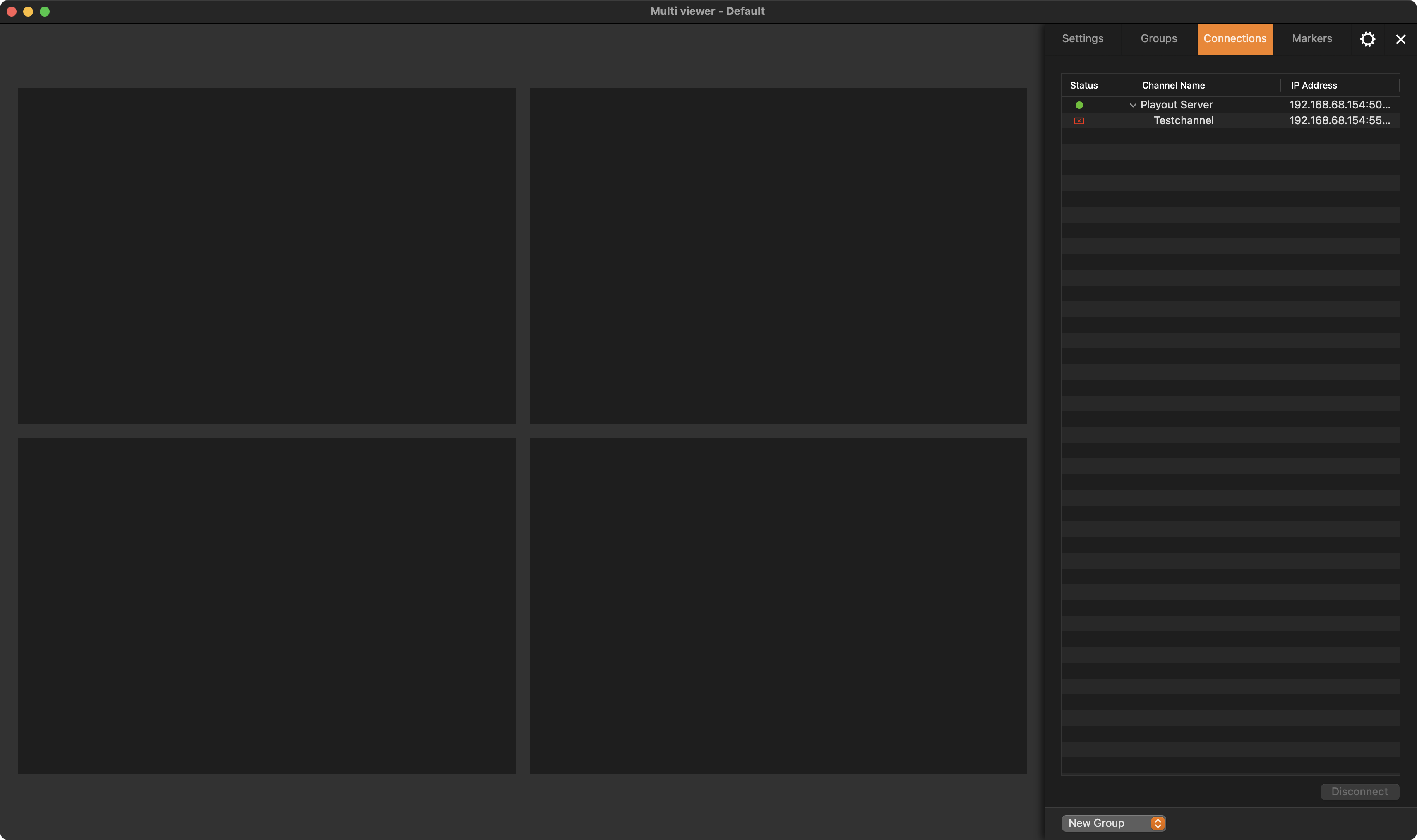
Splitting and Joining
Each Channel Viewer can be further split or joined.
Splitting
Select a Channel Viewer and use the keyboard shortcut “Command + Shift + S” to split the selected Channel Viewer to four new Channel Viewers.
Before Splitting
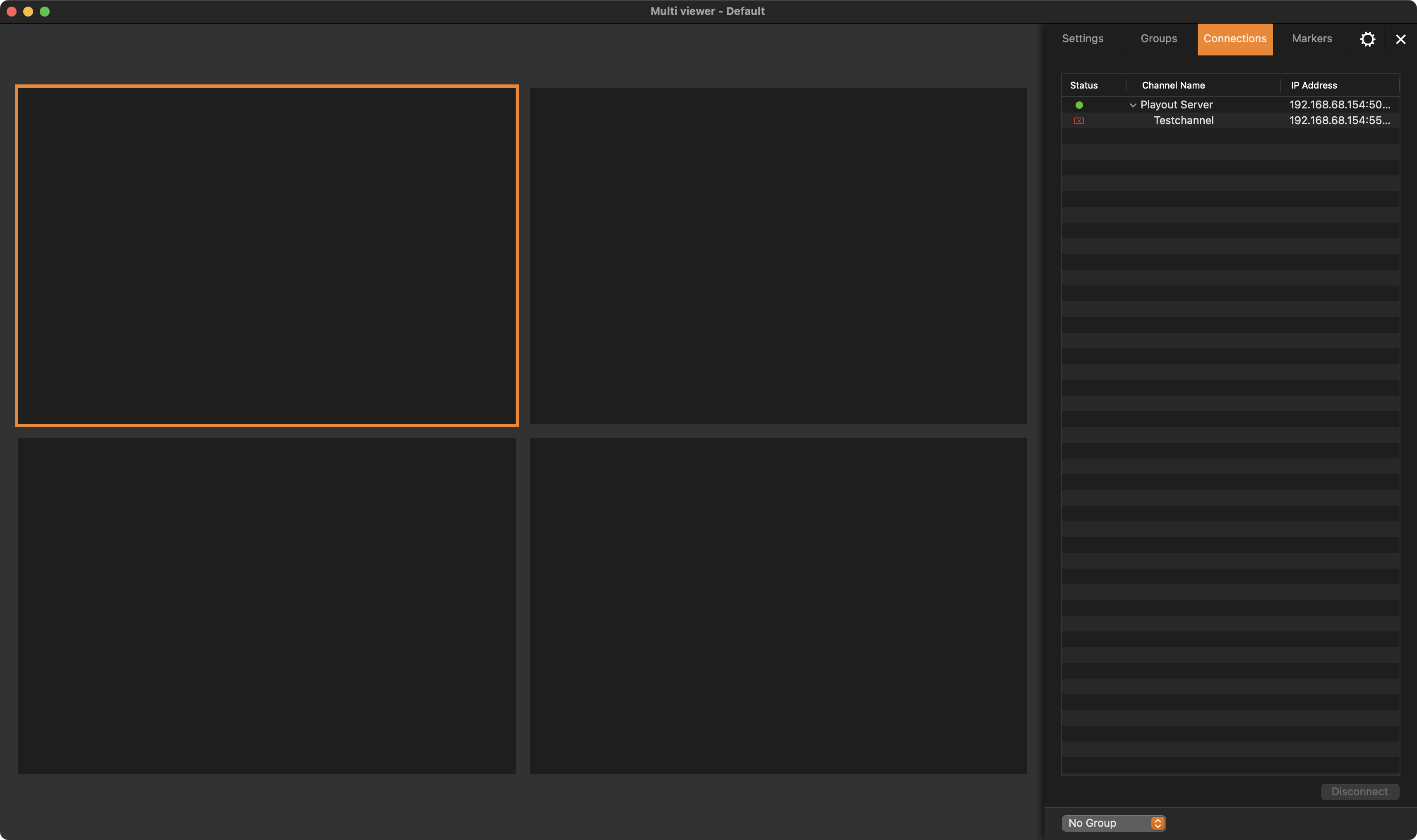
After Splitting
Splitting to Any
Use the keyboard shortcut Command + Option + Shift + S to select a new Channel Layout for the currently selected Channel Viewer.
Joining
Join Channel Viewers by using the keyboard shortcut Command + Shift +J. Please note that joining is only possible for previously split Channel Viewers.
Before Joining
After Joining
Menus and Shortcuts
The following menus and shortcuts are available while using the Multi Viewer interface:
Just Control
About Just Control shows the current version and credits.
Settings (“Command-Comma”) opens the Just Control Settings.
Log Out username (“Option-Command-Q”) allows you to log out the current user and to log in with another existing user.
Quit Just Control (“Command-Q”) Quits Just Control.
View
Disconnect (“Shift-Command-D”) disconnects the currently selected Channel from the viewer.
Disconnect All And Reset Layout (“Option-Shift-Command-D”) disconnects all Channels from all Viewers and allows defining a new Grid Layout.
New Multi Viewer Layout Template (“Option-Shift-Command-T”) allows saving the current Multi Viewer Layout using a certain name. The Layout will be automatically assigned to the current User.
Split to 4 (2×2) (“Shift-Command-S”) splits the currently selected viewer into 4 viewers.
Split To Any (“Option-Shift-Command-S”) allows defining a new Grid Layout for the currently selected viewer.
Join (“Shift-Command-J”) joins 4 viewers into one (in case only one is used and selected).
Markers show the currently available Markers (Just In only).
Groups show the currently available Groups.
Show Inspector (“Command-I”) Opens or closes the Just Control Inspector window.
Show Settings, Groups, or Connections shows the corresponding Just Control Inspector tab.
Clear All Messages (“Control-W”) clears all warnings and errors.
Audio Monitor (“Option-Command-A”) Allows listening to the outgoing audio.
Clear All Audio Peaks (“Shift-Command-A”)Audio Peaks shown for a certain channel can be cleared.
Enter Full Screen (“Control-Command-F”).
Channels
Show Configuration Panel (“Option-Command-comma”) opens the Just Control Configuration window.
Open Control Tab *1 (“Command-O”) opens the dedicated user interface.
Jump to Next/Play Next *1 (“Option-Command-J”) executes “Jump to/play Next” action for the selected Channel(s).
*1 Only available in case a playout Channel is selected in the Multi Viewer interface.
Window
Close (“Command-W”) closes the selected window or tab.
Minimize (“Command-M”) minimizes the selected window or tab into the Dock.
Zoom enters Full-Screen mode depending on the screen size.
Tile Window tiles the selected window to the left or the right side of the screen.
Show Previous Tab shows the content of the previous tab.
Show Next Tab shows the content of the next tab.
Multi Viewer (“Command-O”) opens the Multi Viewer interface, in case you closed it before.
Bring All to Front brings all open windows to the front.
Help
Just Control Help brings you to the ToolsOnAir User Guide Central.