You must unlock the Configuration panel first to perform any changes.
Before proceeding, you must stop the Channel by deactivating the checkbox. Stopping the channel will also stop the Just Out Primary engine output, unless there is a Redundant engine available.
A Channel can either be operated by using the Just Play, or the Just Live user interfaces.
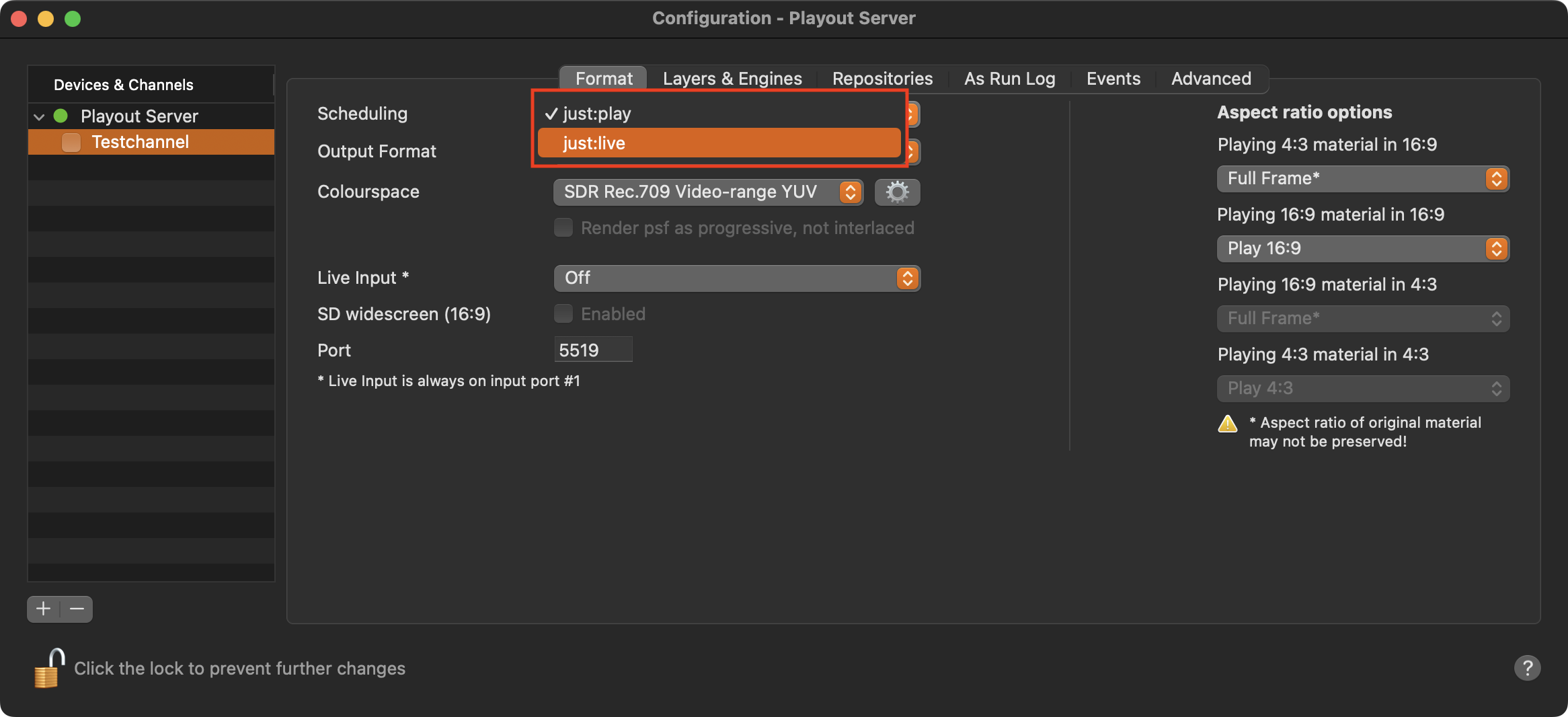
Stop the desired Channel by deactivating the checkbox in front of it. Stopping a Channel will also stop the Just Out engine and therefore the final output.
Select the Channel in the “Devices & Channels” list.
Click on the “Format” tab.
Select the desired scheduling user interface (Just Live or Just Play) in the Scheduling drop-down menu.
Activate the checkbox in front of the Channel to start it again and to take over the changes you just made.
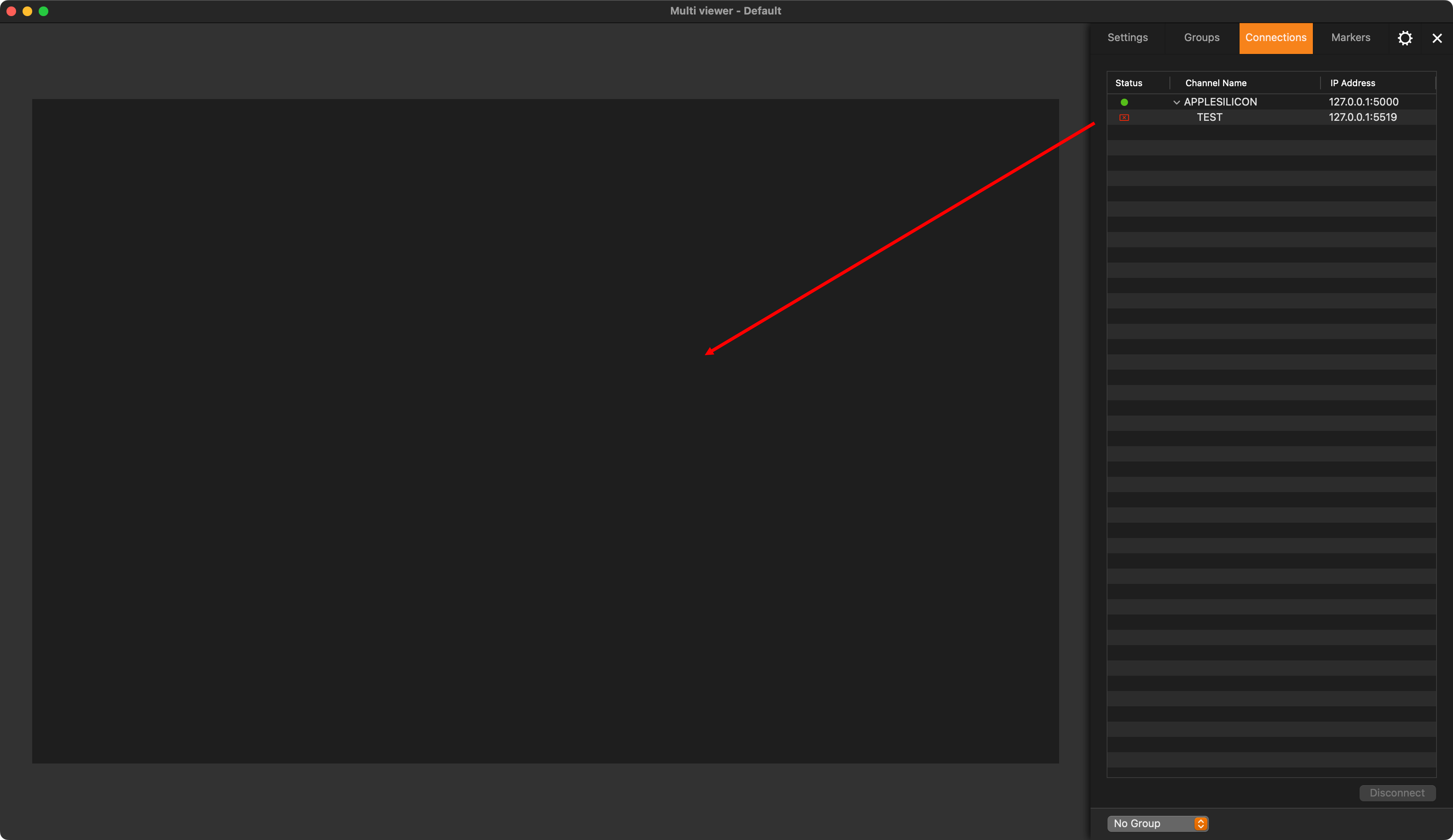
Close the Just Control Configuration panel and drag the Channel from the “Connections” tab to the Multi viewer area, or select the empty viewer you would like assign the channel to, then select the Settings tab in the Inspector and choose the channel under “Contents” - “Channel”.