You must unlock the Configuration panel first to perform any changes.
Before proceeding, you must stop the Channel by deactivating the checkbox. Stopping the channel will also stop the Just Out Primary engine output, unless there is a Redundant engine available.
The network settings of the Mac running Just Connect must include a valid Router and DNS setting, otherwise parts of the Automated Failover Control workflow will not work.
The Blackmagic ATEM Switchers version 7.2 or higher must be used. Older versions will not work.
Even though the Automated Failover Control option has been conceived for an SDI based workflow, it can also be used if no video signal is used for input and output. In this case, all functions are the same, except for the ability to control a video device to switch the on-air signal.
Starting with Version 1.0 of Just Live & Just Play, it was possible to configure a Redundant Playout. With Version 2.0 we added the ability to configure an optional Failover in case the Primary Playout Engine fails. The Automated Failover Control option is based on the Just Out engine's status. It can be used in a fully Redundant setup, where a Primary and a Redundant Just Out engine are available, but also for Channels where only a Primary Just Out engine is available.
Supported Devices
All Devices/Presets defined under the Events tab (Devices, Presets) can be used in case an Automated Failover switch is executed. This includes the ability to control video routers, video switches (including Blackmagic Design ATEM media player support), start/stop of Just In, mail notifications, and more.
Behaviour of the failover control
In case the Primary Just Out engine fails, the defined Event Presets will be executed and the Automated Failover Control will switch to:
The Redundant Engine (if available). Refer to Chapter 6. Setup Variants (v.2026.x) .
The Failover Signal (in case there is no Redundant Engine available) Refer to Chapter 6. Setup Variants (v.2026.x) .
and displays the status (Primary, Redundant, Failover) in the user interface.
The Failover Signal can be:
An additional signal which is added to the failover hardware
An additional signal added to the Blackmagic Design ATEM Failover mixer or an image that is stored in one of the ATEM’s Media Players.
Setting up Automated Failover Control
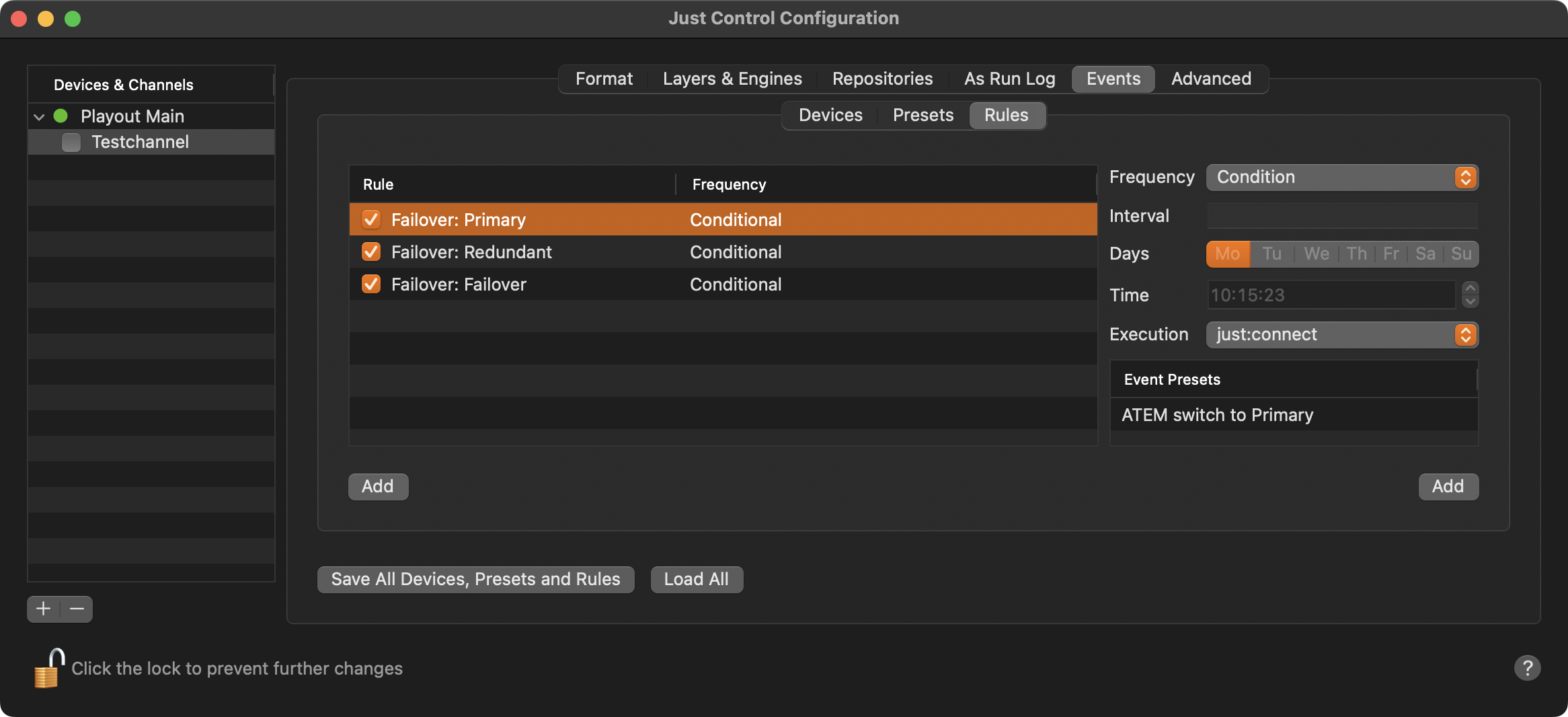
Stop the desired Channel by deactivating the checkbox in front of it. Stopping a Channel will also stop the primary Just Out engine and therefore the final output in case no redundant engine is running.
Select the Channel in the “Devices & Channels” list.
Click on the “Events” tab.
Click on the “Rules” tab.
Make sure the checkbox right in front of “Failover - Primary/Redundant/Failover” is activated.
Click “Primary, Redundant or Failover” and click the “Add” button under Event Presets. Select the Presets you would like to be executed in case the Primary Just Out Engine or the Redundant Just Out Engine fails, or in case both Just Out engines are not running.
Please keep in mind that there will be a delay between a Just Out engine fails and the time the switch is executed, if there is a Heartbeat Timeout defined for the Just Out engine. Otherwise, all Events will be executed at the same time the heartbeat is missing and therefore be frame accurate.
Workflow Status in the Playout User Interface
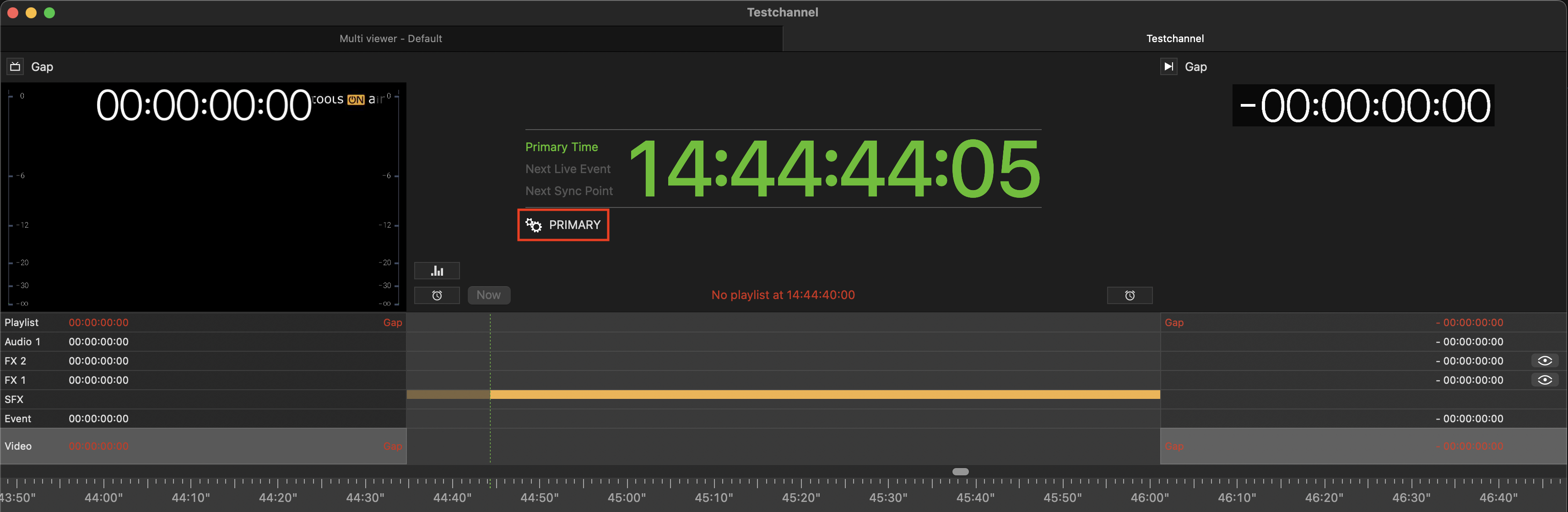
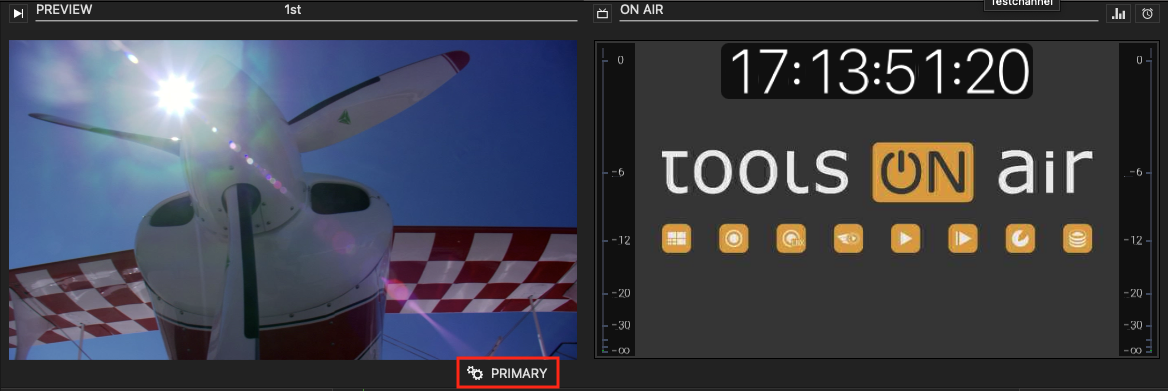
The status of the Playout is also shown in the Just Live/play user interface and the multi viewer.
In case the channel is configured without redundancy, ONLINE or OFFLINE is shown.
In case the channel is configured using 2N or N+1 redundancy, PRIMARY or REDUNDANT is shown, depending on the engine currently on air.
In case failover is configured for a channel, FAILOVER is shown in case both Just Out engines are not running.
Just Live
Just Play