
You must unlock the Configuration panel first to perform any changes.
Before proceeding, you must stop the Channel by deactivating the checkbox. Stopping the channel will also stop the Just Out Primary engine output, unless there is a Redundant engine available.
After using the New Channel Wizard, an engine is automatically created and added to all Layers of the Channel, but there can be situations where you would like to:
Separate the Video and the Graphics playout.
Set up a Redundant Just Out engine.
Add several video layer to a single Just Live user interface.
To make this work, a new engine has to be created and added to a Layer.
Adding a New Engine
Stop the desired Channel by deactivating the checkbox in front of it. Stopping a Channel will also stop the Just Out engine and therefore the final output.
Select the Channel in the “Devices & Channels” list.
Click on the “Layers & Engines” tab.
On the desired Layer, open the drop-down menu in the column “Primary Just Out Engine” and select “New engine”.
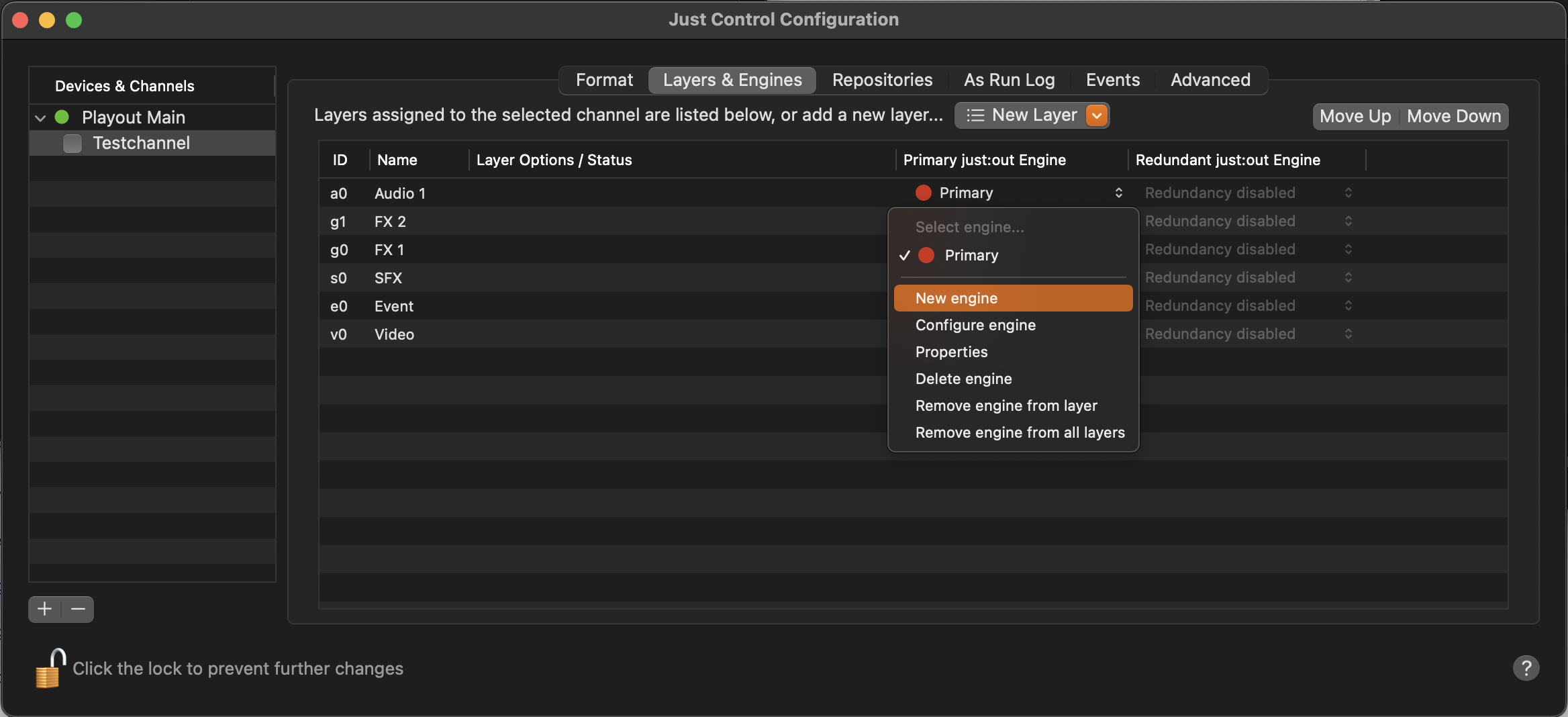
Configure the Just Out engine according to your needs (see Engine Configuration below).
Activate the checkbox in front of the Channel to start it again and to take over the changes you just made.
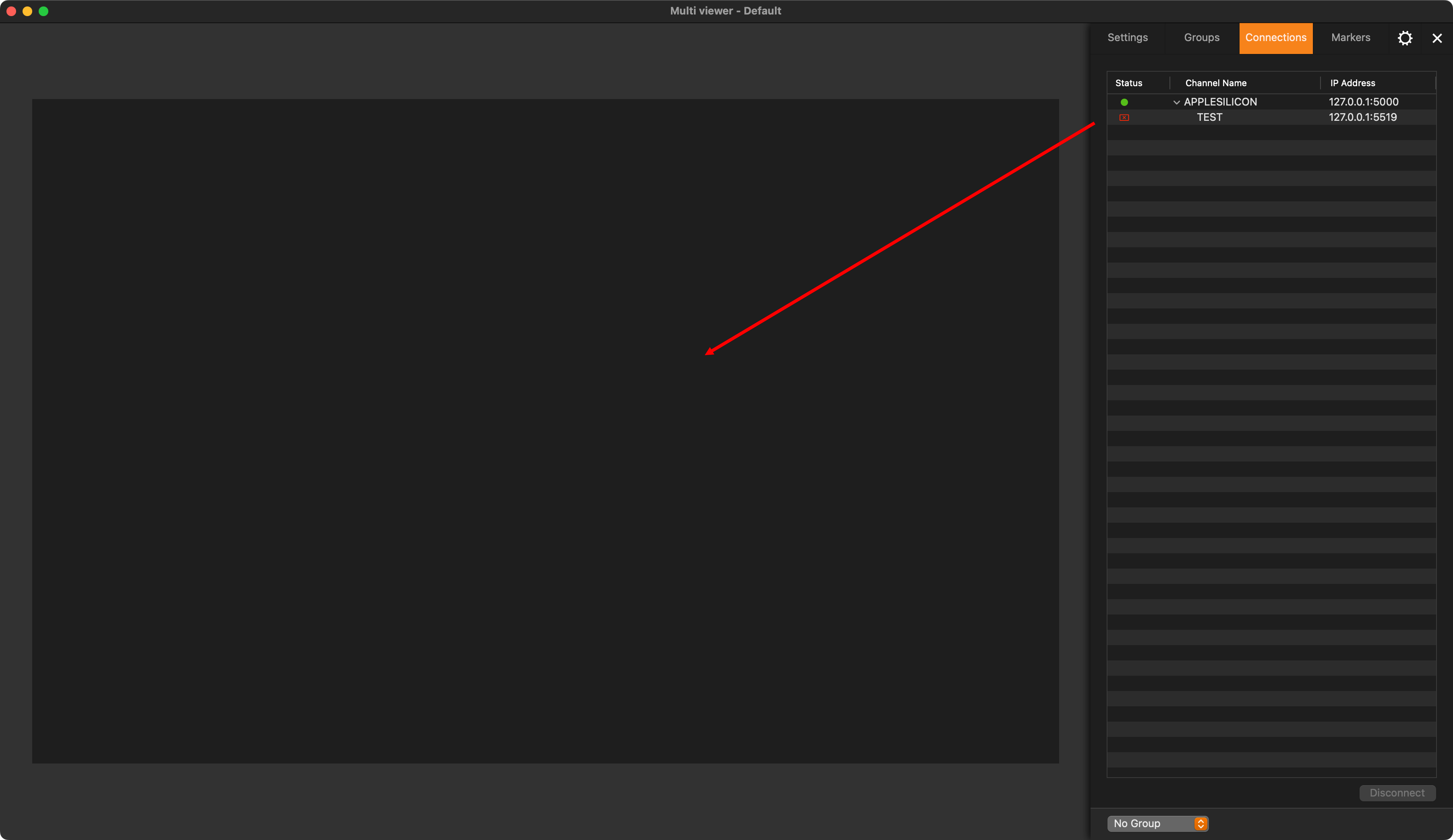
Close the Just Control Configuration panel and drag the Channel from the “Connections” tab to the Multi viewer area, or select the empty viewer you would like assign the channel to, then select the Settings tab in the Inspector and choose the channel under “Contents” - “Channel”.
Configuring a New Engine
After selecting a new Just Out engine, you can configure it.
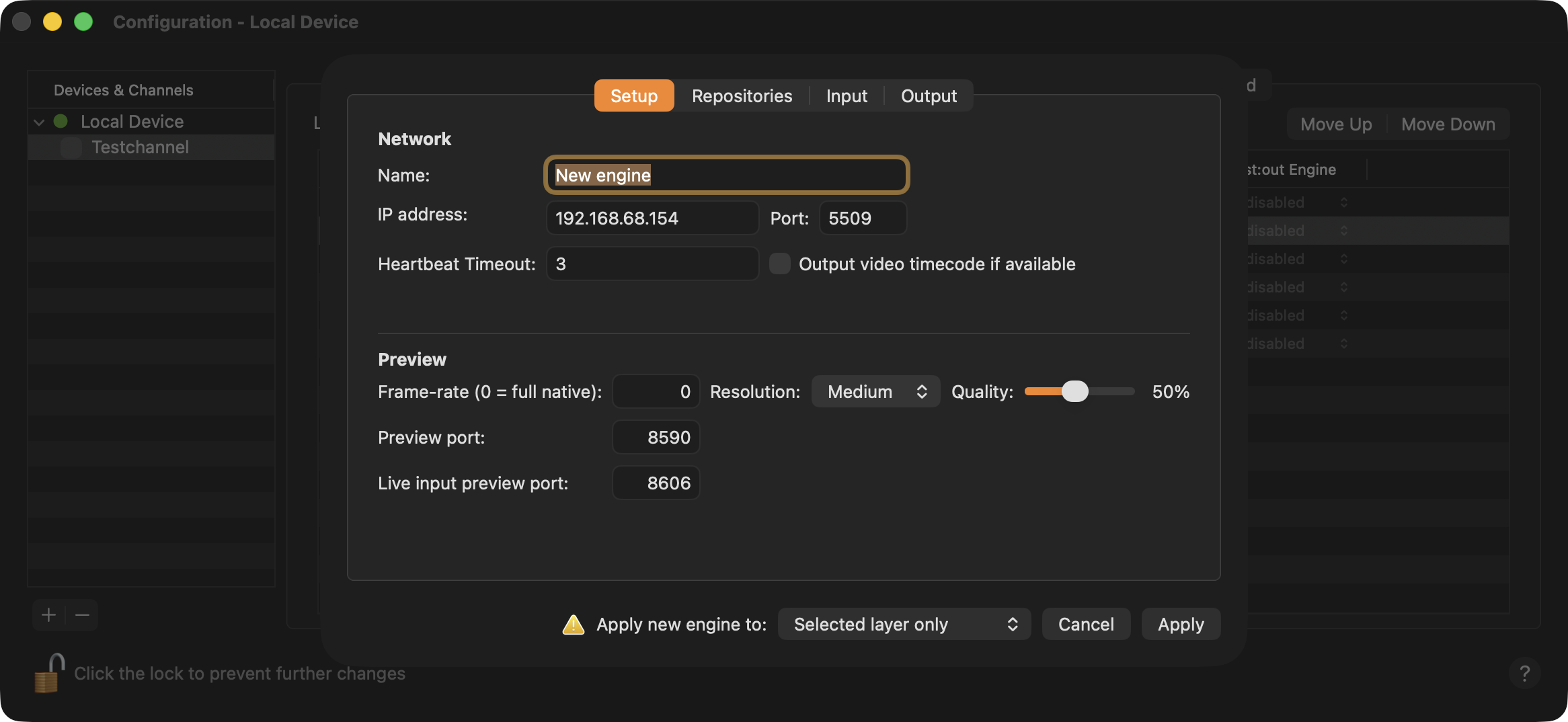
Setup tab:
Network: Engine network configuration.
Name: Name of the engine.
IP address: IP address of the machine which is running this engine.
Port: Port that is used by this Just Out engine.
Heartbeat Timeout: Defines the number of heartbeats which can be missed, before a Just Out engine is defined as stopped. This can be useful in setups, where the heartbeat is missing due to an unreliable network.
Output video timecode if available: By default this is off, but when selected the timecode sent to the SDI output will be the timecode specified by the currently playing video instead of the Channel’s current clock time. This setting also affects the timecode shown in the Just Control user interface, as it shows the engine’s output timecode. When the Just Out engine application is configured to output video timecode and the currently playing video doesn’t have a timecode track, or nothing is playing out, the output timecode shown will be “00:00:00:00” instead of the current Channel timecode.
Preview: Defines the Preview quality shown in the user interface and the ports used for the engine and the live input preview.
Frame-rate: Allows you to specify the number of frames per second for the video Preview. This should never be higher than the native frame rate of the Channel.
Resolution: This defines the number of pixels used for the Preview. Select from one of the available values.
Quality: This defines the amount of compression that is applied to the uncompressed image before it is used for the Preview.
Preview port: Port that is used by the preview of this Just Out engine.
Live input preview port: Port that is used by the live input preview of this Just Out engine.
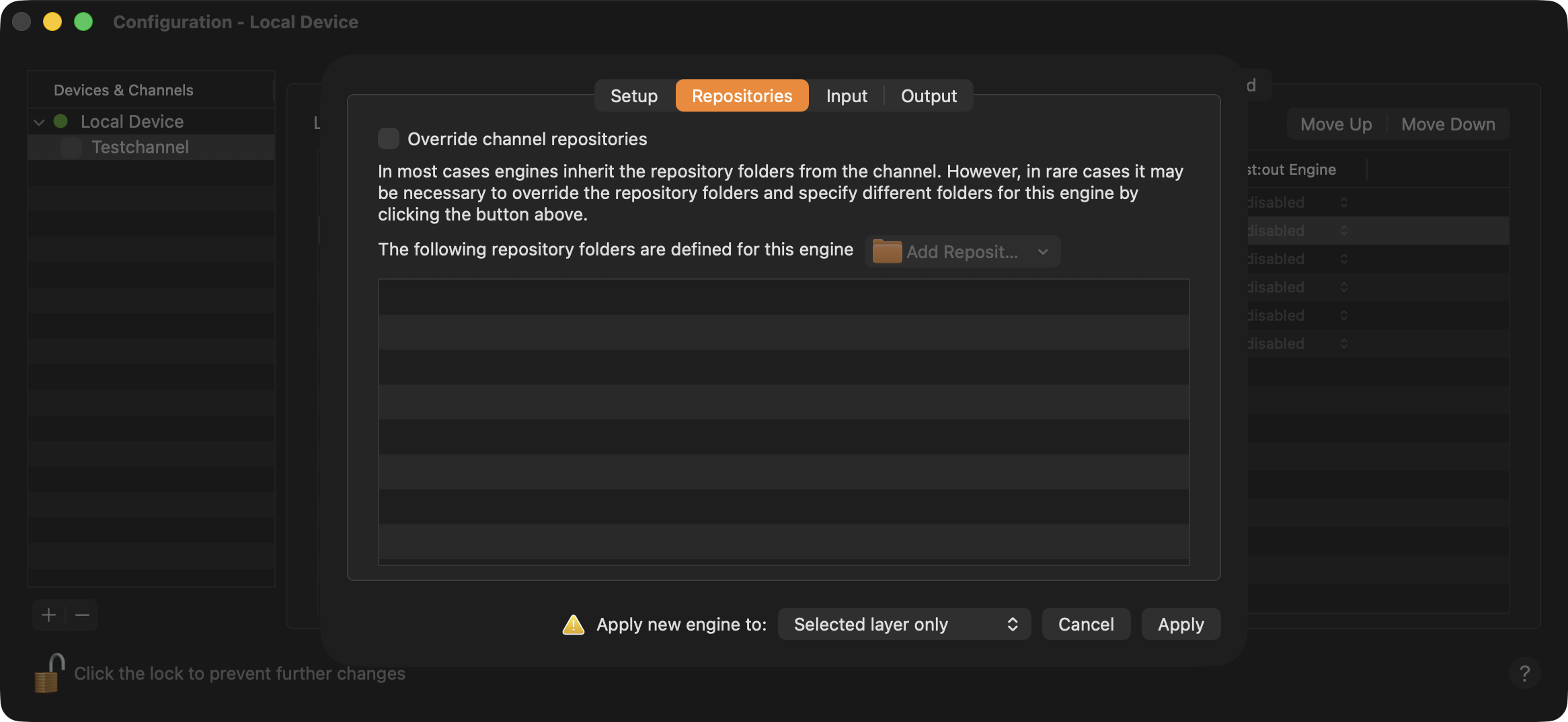
Repositories tab:
Activate “Override channel repositories”, click “Add Repository…” and select the kind of repository you would like to add. Select the volume and the folder and click “Choose”. Repeat this for all additional folders you would like to use as a repository.
Input tab:
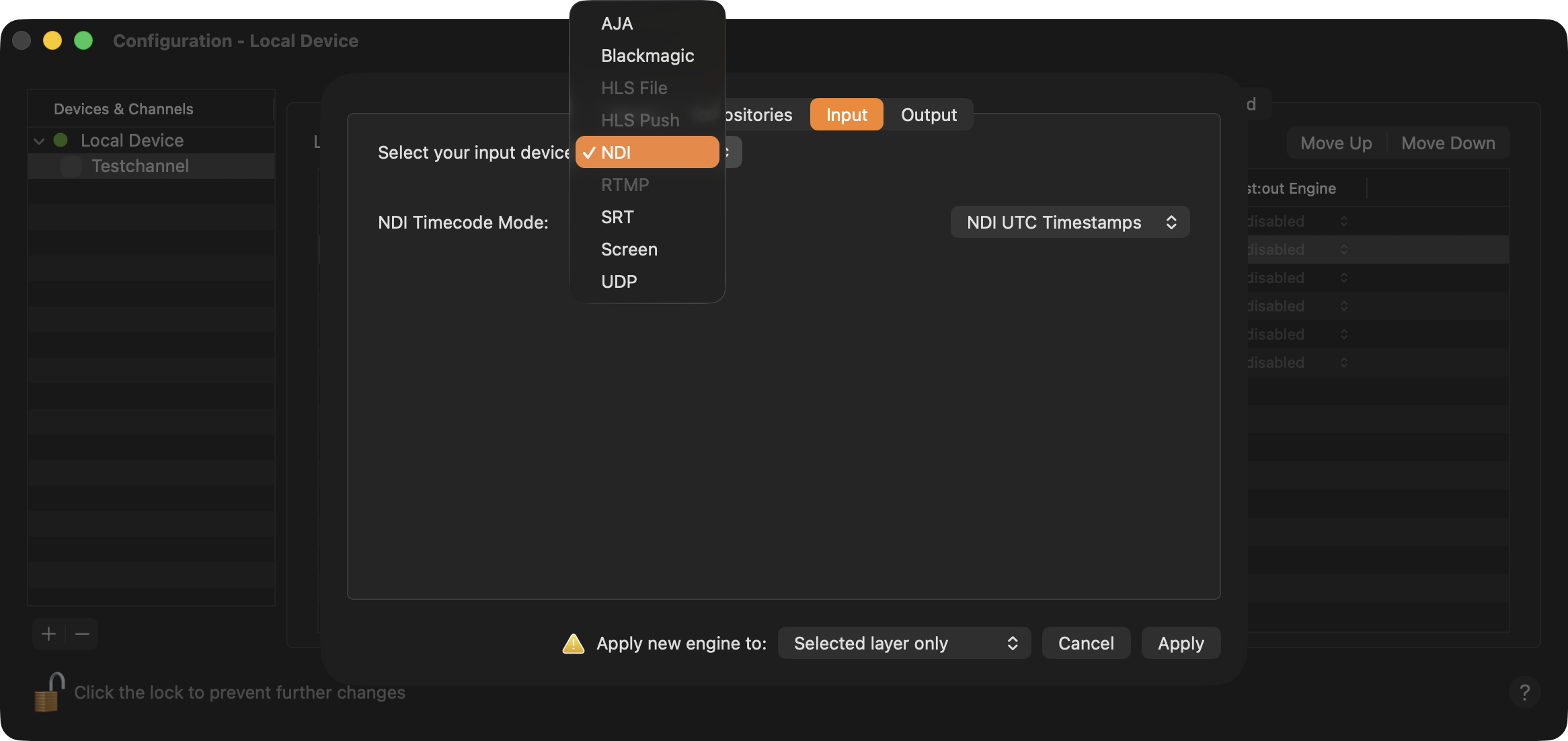
In case Live Input is activated under the channels Format tab, you can choose here the input device you would like to use for this engine.
Using BMD as Input or Output device, we will show all SDI ports of all BMD devices available on the Mac running just:out. It is the users responsibility to select the correct SDI port, and to select a specific SDI port only once as input OR output device for a single just:out engine.
Using AJA or BMD as the live input device, the hardware must be connected and properly configured the time just:out is started, otherwise it will not show up here. If the hardware is visible in the AJA Control Panel/BMD Desktop Video setup application but not here, select Screen, click on Apply and activate the channel, so just:out is started. This allows just:out to detect the hardware, so it is shown here next time.
Select your input device:
AJA: In case you have an AJA device installed on the machine running Just Out and you would like to use this device as the input device. The available Input will be automatically selected.
Blackmagic: In case you have a Blackmagic Design device installed on the machine running Just Out and you would like to use this device as the input device. Select one of the SDI ports available and make sure, the live signal is attached to that specific port.
HLS File: Not available as live input source.
HLS Push: Not available as live input source.
NDI: Selecting NDI lets you receive an NDI® stream as a live input using the network your machine running the Just Out engine is connected to. Additionally, when configuring and channel with NDI live input, there is a new “NDI Timecode Mode” setting in the “Streaming” tab in the engine’s configuration panel with the options “NDI UTC Timestamps” and “SMPTE Timecode”. The former expects frames with standard NDI UTC timestamps, as provided by the majority of NDI devices. The latter expects SMPTE timecode encoded as 100ths of a nanosecond. This may be useful in conjunction with some devices such as the AJA Bridge that take embedded SDI SMPTE timecode and converts it for use with NDI. Which NDI signal is finally used as the live signal can be defined in the Inspector - Channel tab of the dedicated user interface.
RTMP: Not available as live input source.
SRT: Selecting SRT lets you receive an SRT stream as a live input using the network your machine running the Just Out engine is connected to.
Screen: No dedicated video hardware is available as live input for this engine.
UDP: Selecting UDP lets you receive a UDP stream as a live input using the network your machine running the Just Out engine is connected to.
Using SRT or UDP, additional options are available to configure the incoming signals.
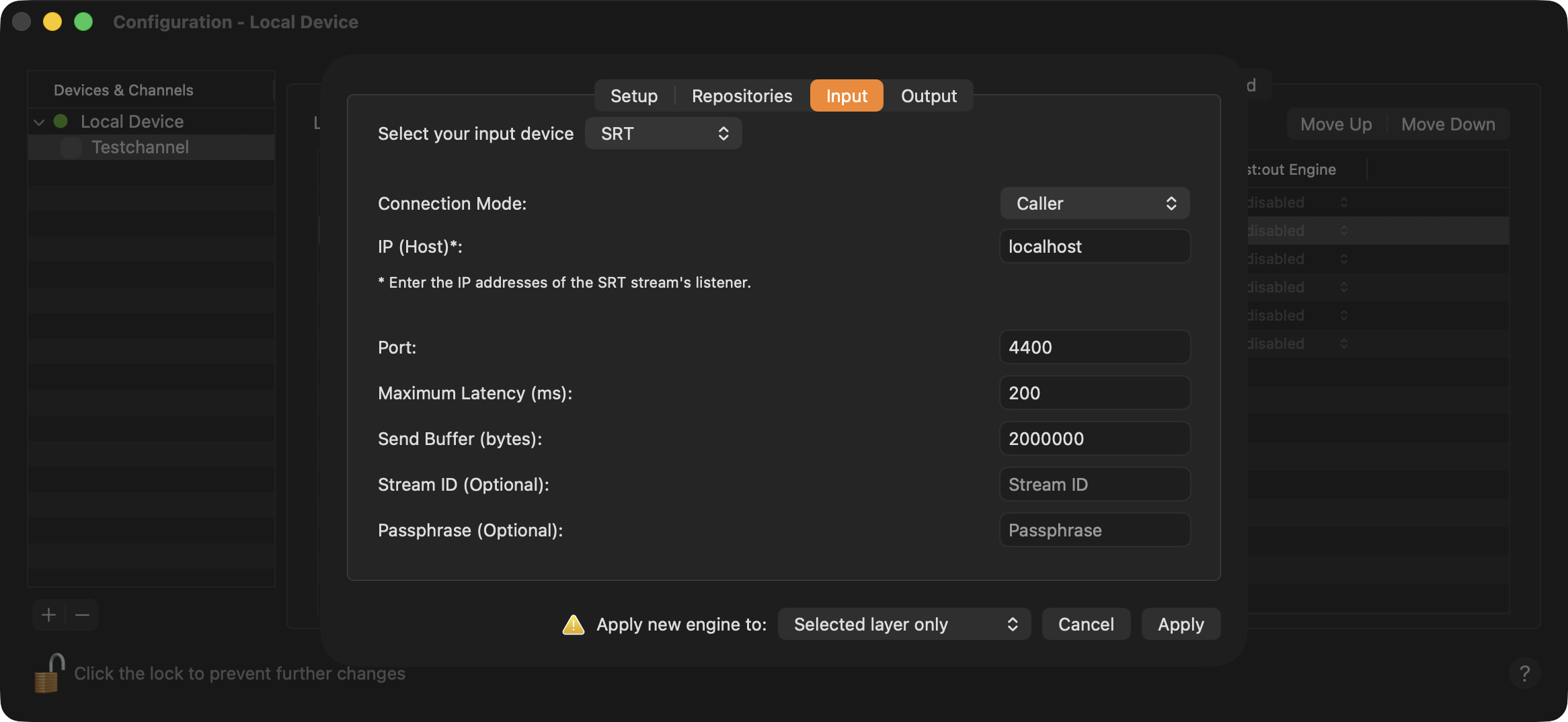 SRT specific live input settings | 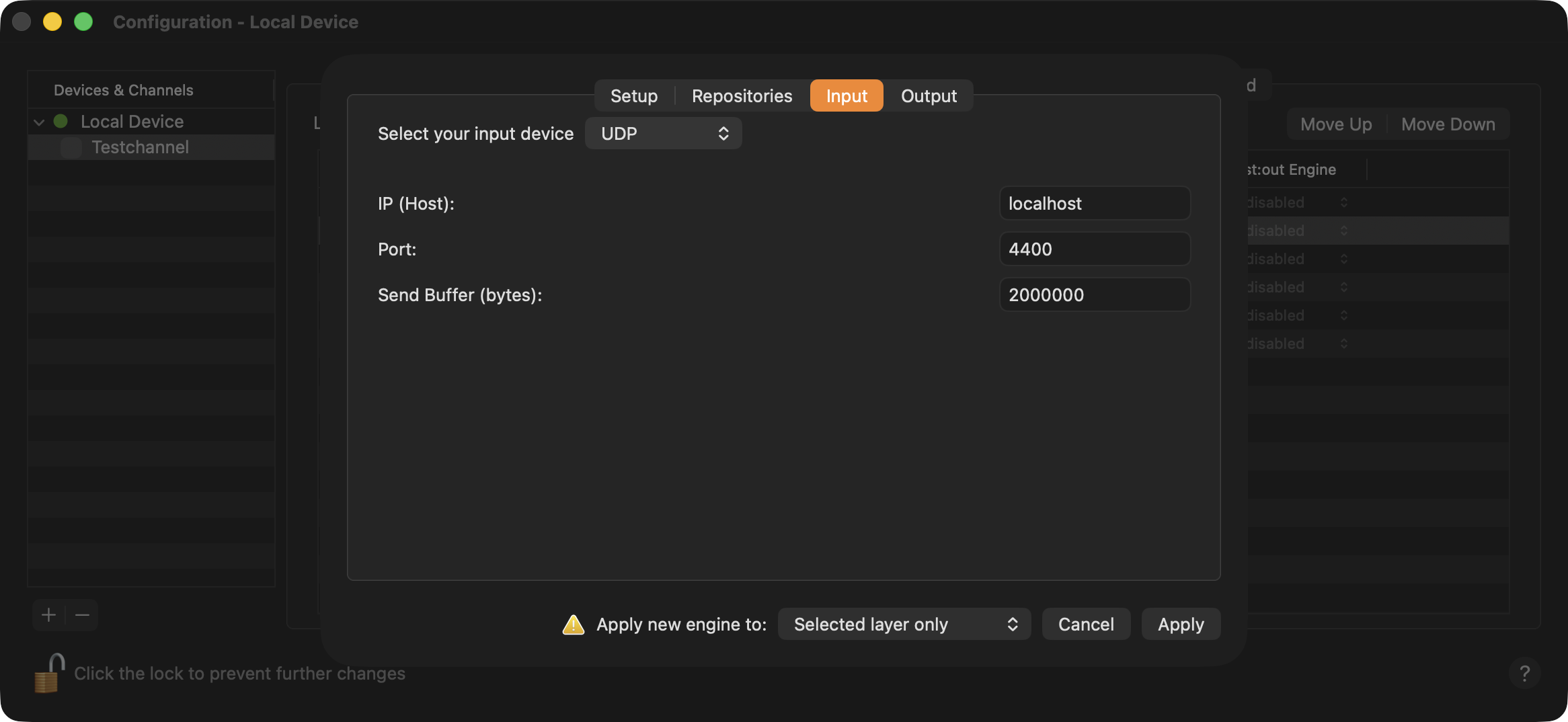 |
|---|
Output tab:
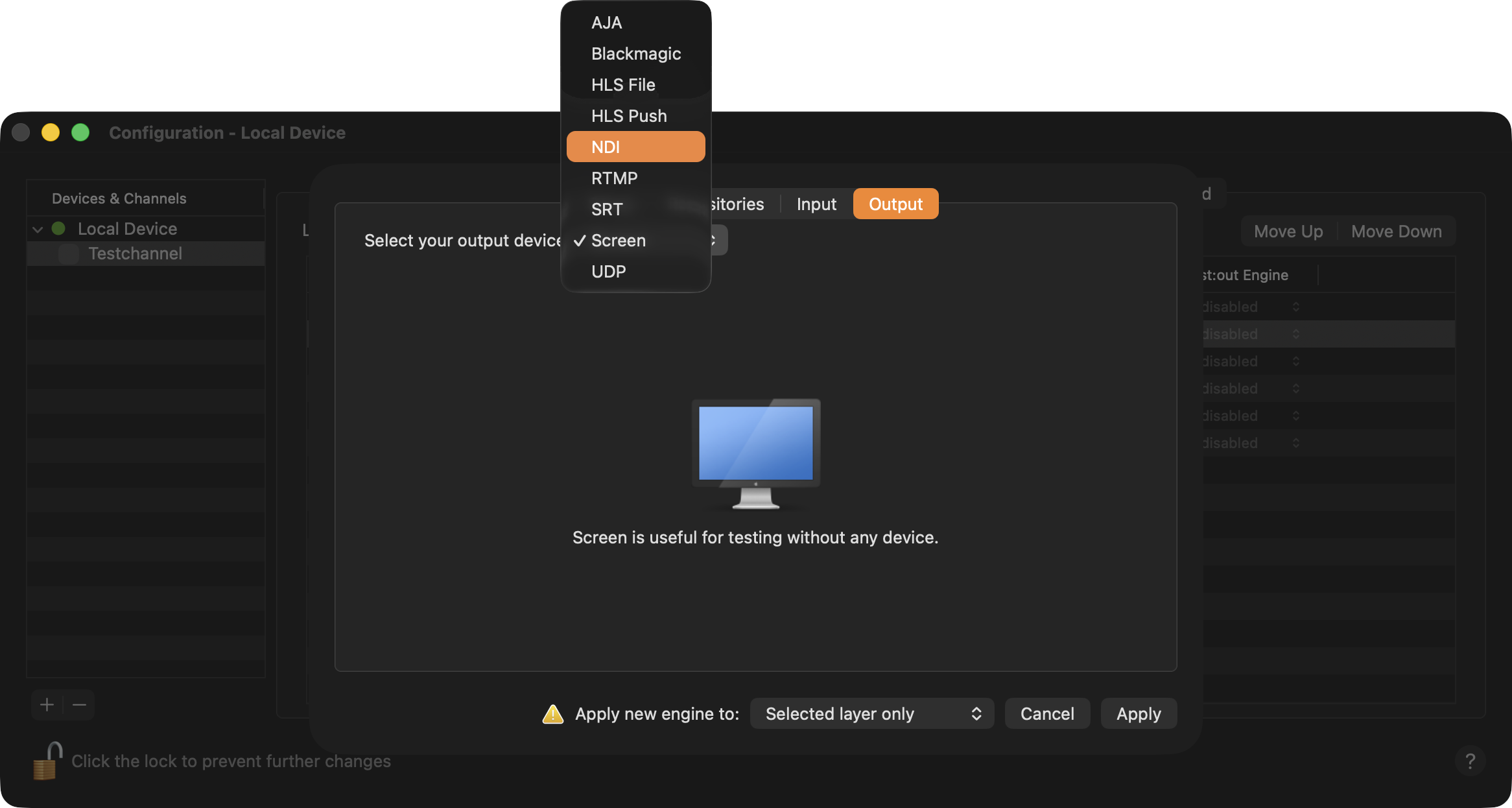
Here you can choose here the output device you would like to use for this engine.
Using BMD as Input or Output device, we will show all SDI ports of all BMD devices available on the Mac running just:out. It is the users responsibility to select the correct SDI port, and to select a specific SDI port only once as input OR output device for a single just:out engine.
Using AJA or BMD as the output device, the hardware must be connected and properly configured the time just:out is started, otherwise it will not show up here. If the hardware is visible in the AJA Control Panel/BMD Desktop Video setup application but not here, select Screen, click on Apply and activate the channel, so just:out is started. This allows just:out to detect the hardware, so it is shown here next time.
Select your output device:
AJA: In case you have an AJA device installed on the machine running Just Out and you would like to use this device as the output device. The available output will be automatically selected.
Blackmagic: In case you have a Blackmagic Design device installed on the machine running Just Out and you would like to use this device as the output device. Select one of the available SDI ports, in case more than one port is available. Otherwise the available output will be automatically selected.
NDI: Selecting NDI lets you output an NDI® signal using the network your machine running the Just Out engine is connected to.
SRT: Selecting SRT lets you stream the final output as an SRT signal using the network your machine running the Just Out engine is connected to.
Screen: No dedicated video hardware is available for the final output on the machine running the Just Out engine.
UDP: Selecting UDP lets you stream the final output as a UDP signal using the network your machine running the Just Out engine is connected to.
Apply new engine to:
Selected layer only: Applies the Just Out engine to the selected Layer only.
All non-assigned layers: Applies the Just Out engine to layers that do not have a Just Out engine assigned.
All layers: Applies the Just Out engine to all available Layers.