NAS and SAN storage devices use their own methods to handle macOS Finder colour tags, depending on the file system, and the protocol used for client connections. Consequently, we cannot guarantee that specific functions related to colour tags, or colour tags in general, will work reliably when combined with a SAN/NAS system. Please contact your storage vendor for more information.
If macOS Finder Tags are required for specific use cases or workflows, please ensure that Spotlight indexing is enabled for the volume holding the video files on the machine running the Just Control application.
Spotlight indexing can be turned on with the following Apple Terminal command:
mdutil -i on /path/to/volume
Spotlight indexing state can be checked with:
mdutil -s /path/to/volume
As soon as Spotlight indexing is enabled, you should be able to see macOS Finder Tags within the Just Control application.
Multiple systems running Just Control
When working with two or more systems running Just Control and using a shared storage, the macOS Finder Tag integration might not work correctly, as the metadata of files, where this specific Tag information is stored, is not handled adequately. This can lead to an unexpected behavior, and therefore we recommend using only one system running Just Control, when your workflow relies on the macOS Finder Tags.
macOS Finder Tag information (=metadata) can be checked and viewed with the following Apple Terminal command.
mdls /path/to/file
If a file has correct metadata information, the mentioned Terminal command displays:
kMDItemFSLabel                         = 6
kMDItemUserTags                        = (
    Red
)
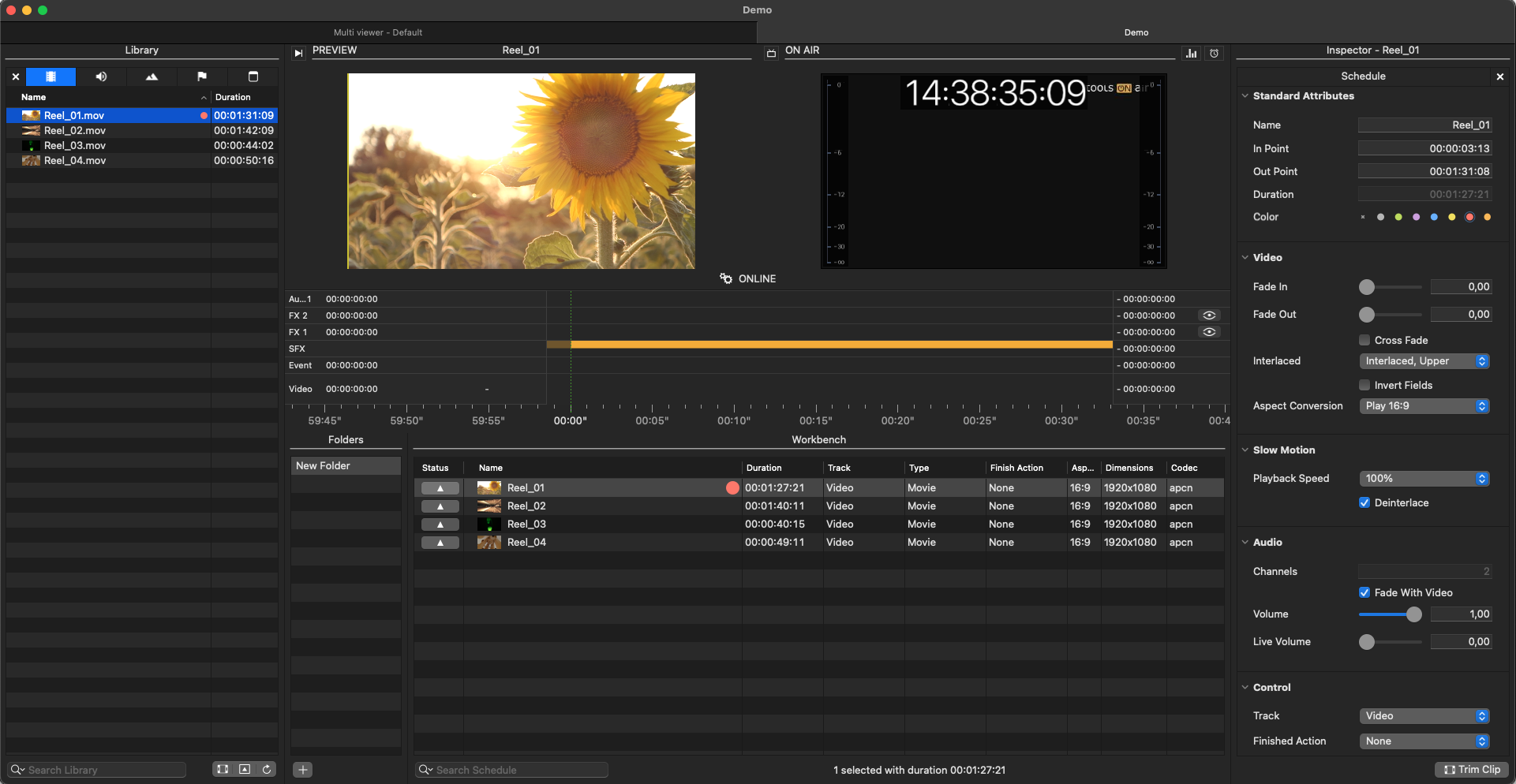
when a Red Color Tag was used, for instance. This information has to be visible on all Just Control systems; otherwise, the given workflow will not work as expected. Please note that it is possible that within the Finder application, a Red Color Tag is visible, but when checking the file with the “mdls” command, the dedicated metadata is missing. This normally happens when the given Tag is set on a remote system.
Please contact the ToolsOnAir support team, if you need additional information or would like to discuss other workflow solutions.
macOS System language setting and Finder Tags
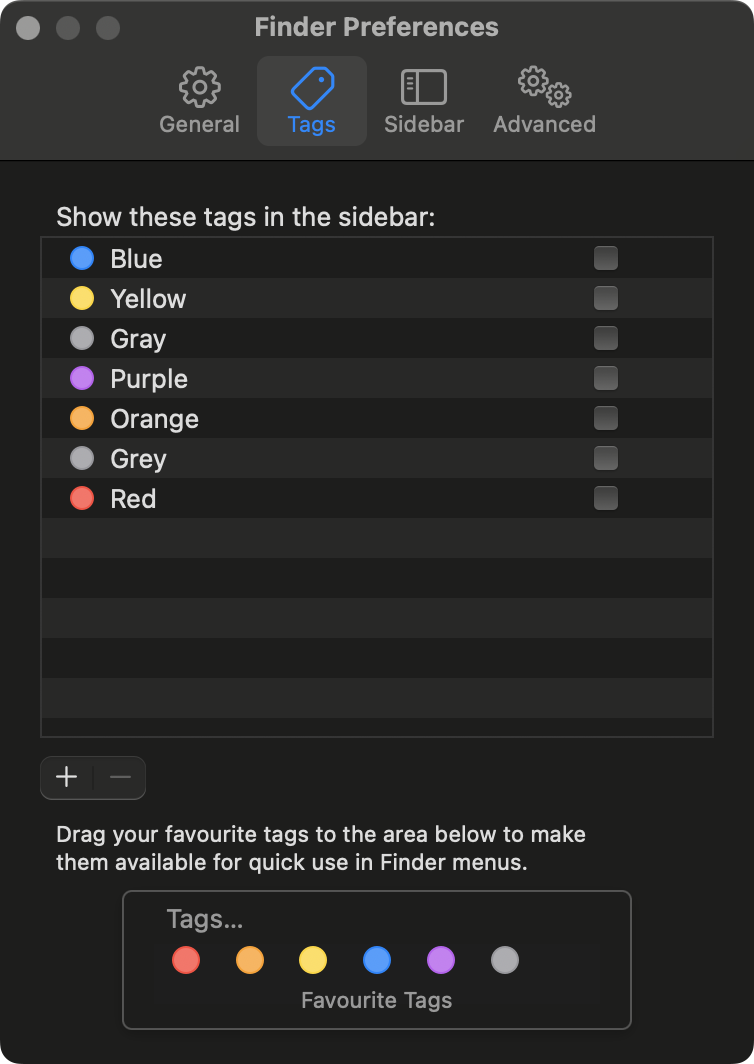
If another language than US or UK English is used as the System language, the name of the macOS Finder Tags has to be changed to English, as described below:
Make sure the macOS Finder is active
Open the Finder “Preferences” or “Settings”
Click on the “Tags” tab
Perform a right mouse click on every listed Tag and change the names as shown in the screenshot below: