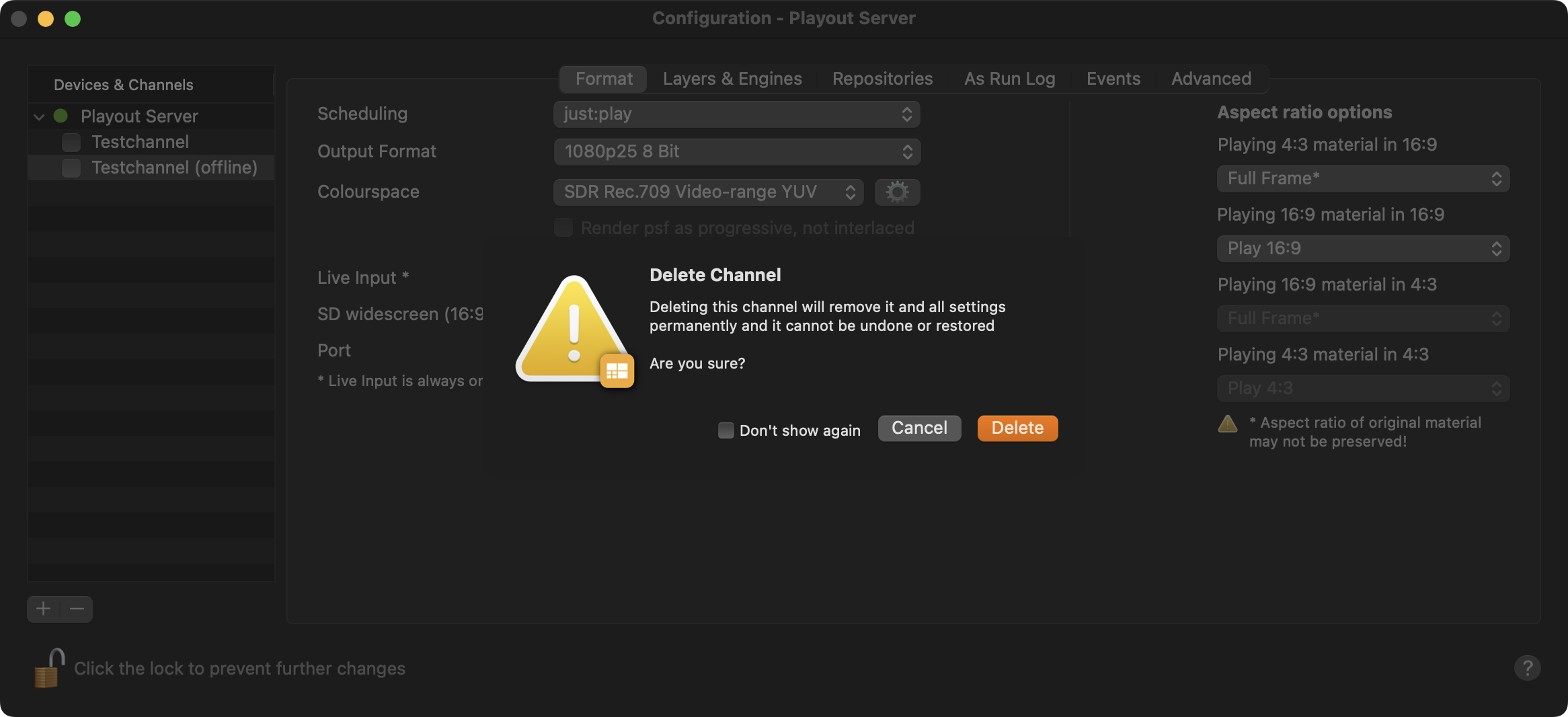
You must unlock the Configuration panel first to perform any changes.
Before proceeding, you must stop the Channel by deactivating the checkbox. Stopping the channel will also stop the Just Out Primary engine output, unless there is a Redundant engine available.
Adding an Online Channel
An Online Channel is a Channel that has a Just Out engine assigned. It can therefore be used for the final output.
To add a new Online Channel, click on the Device you would like to add the new Channel to and click on the “Plus +” button at the bottom of the Devices & Channels list.
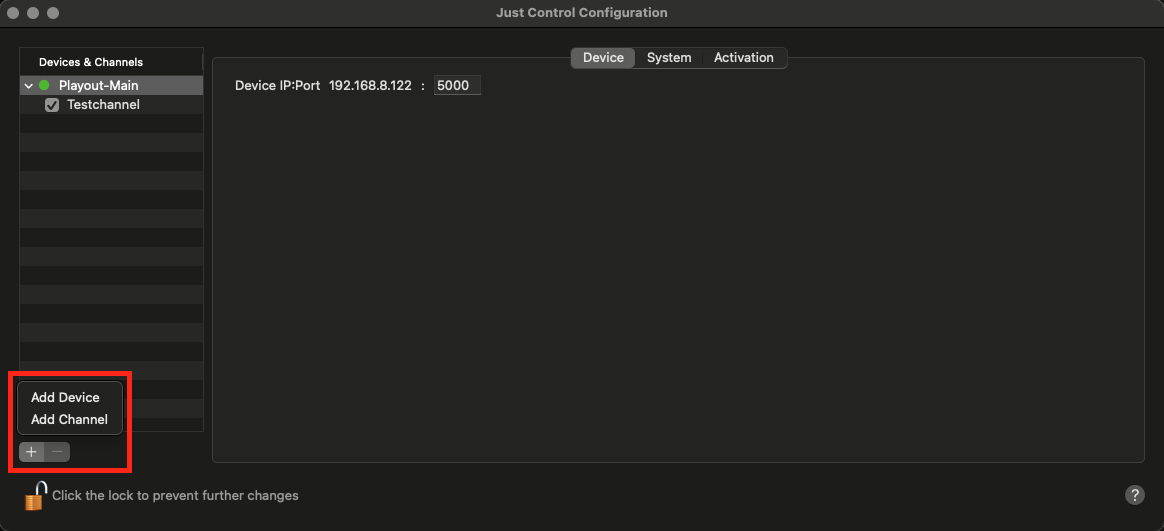
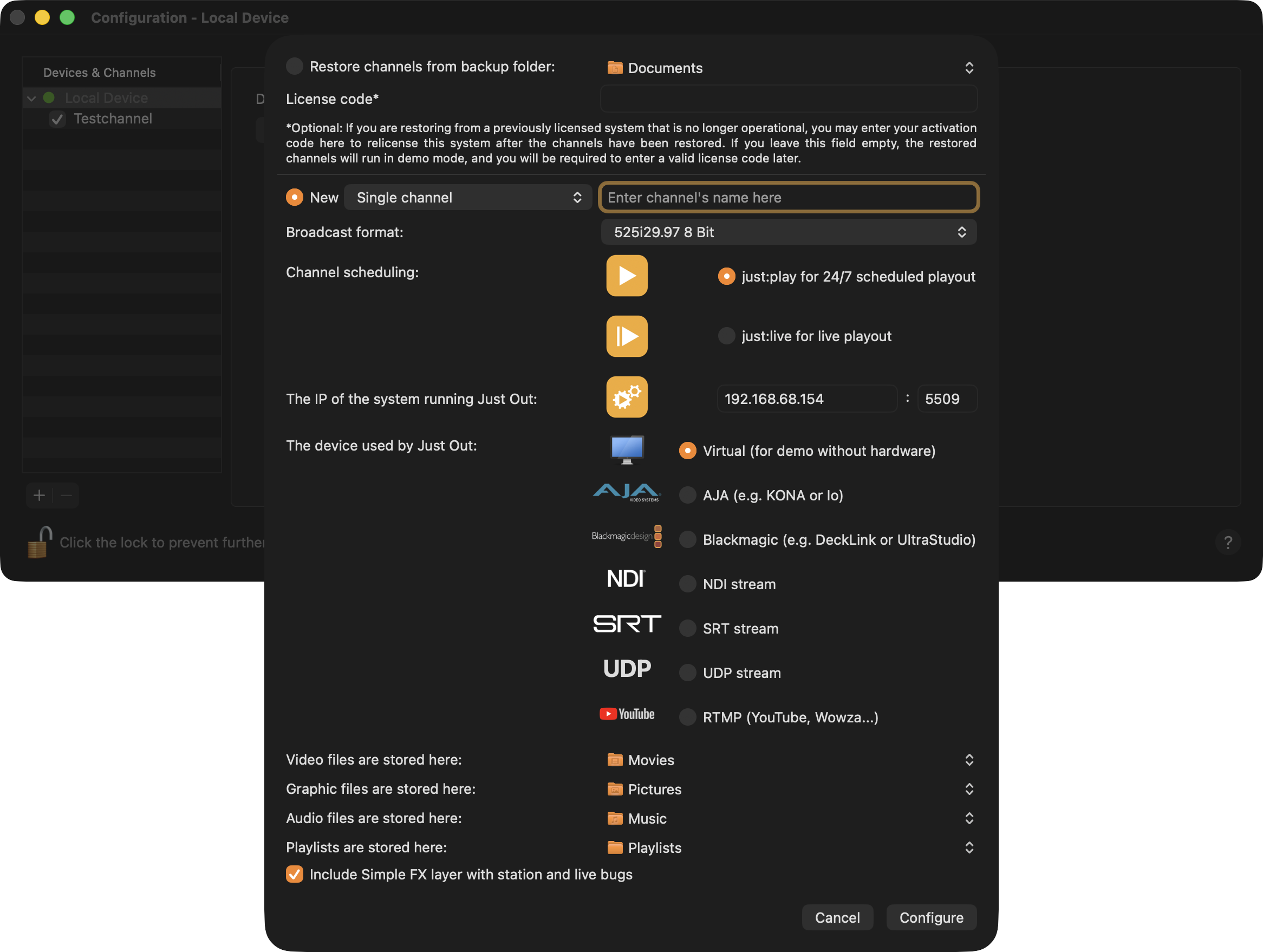
Configure the Channel using the New Channel Wizard as described in Chapter 10. Just Control Basic Setup - Wizard (v.2026.x) .
Adding an Offline Channel
In some situations, it is useful to have a Channel which has no Just Out engine assigned to it. Such a Channel is usually used to build Playlists, which are then transferred to an active Online Channel using the Watch folder functionality or a Playlist Repository folder.
An Offline Channel should have the same attributes as the Online Channel the Playlists are made for.
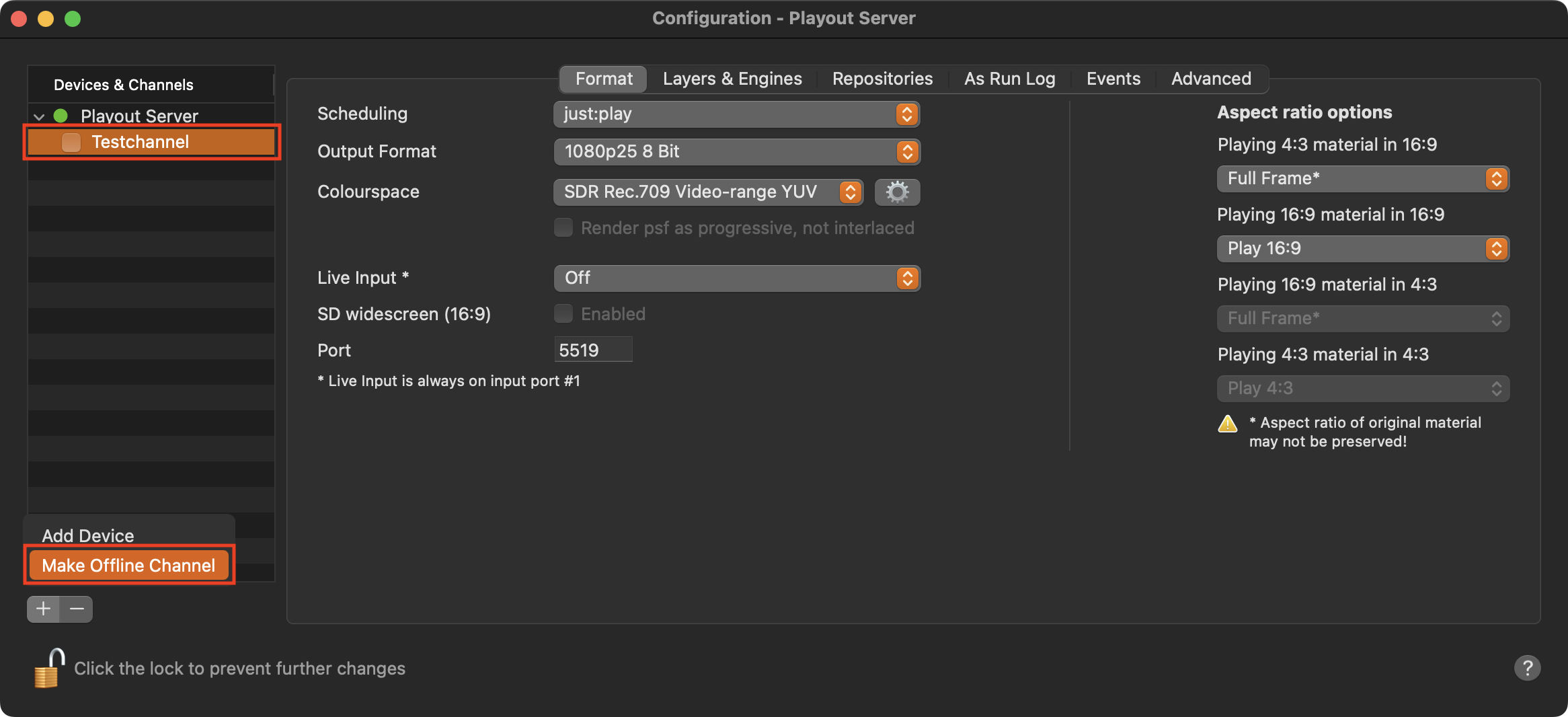
To create an Offline Channel based on an existing Online Channel, select an Online Channel in the “Devices & Channels” list.
Press the Plus (“+”) button at the bottom of the Devices & Channels list and select Make Offline Channel.
A new instance of the selected Channel will be added to the Devices & Channels list with the same name and the suffix “(offline)”.
Adding a Channel which runs on another Mac
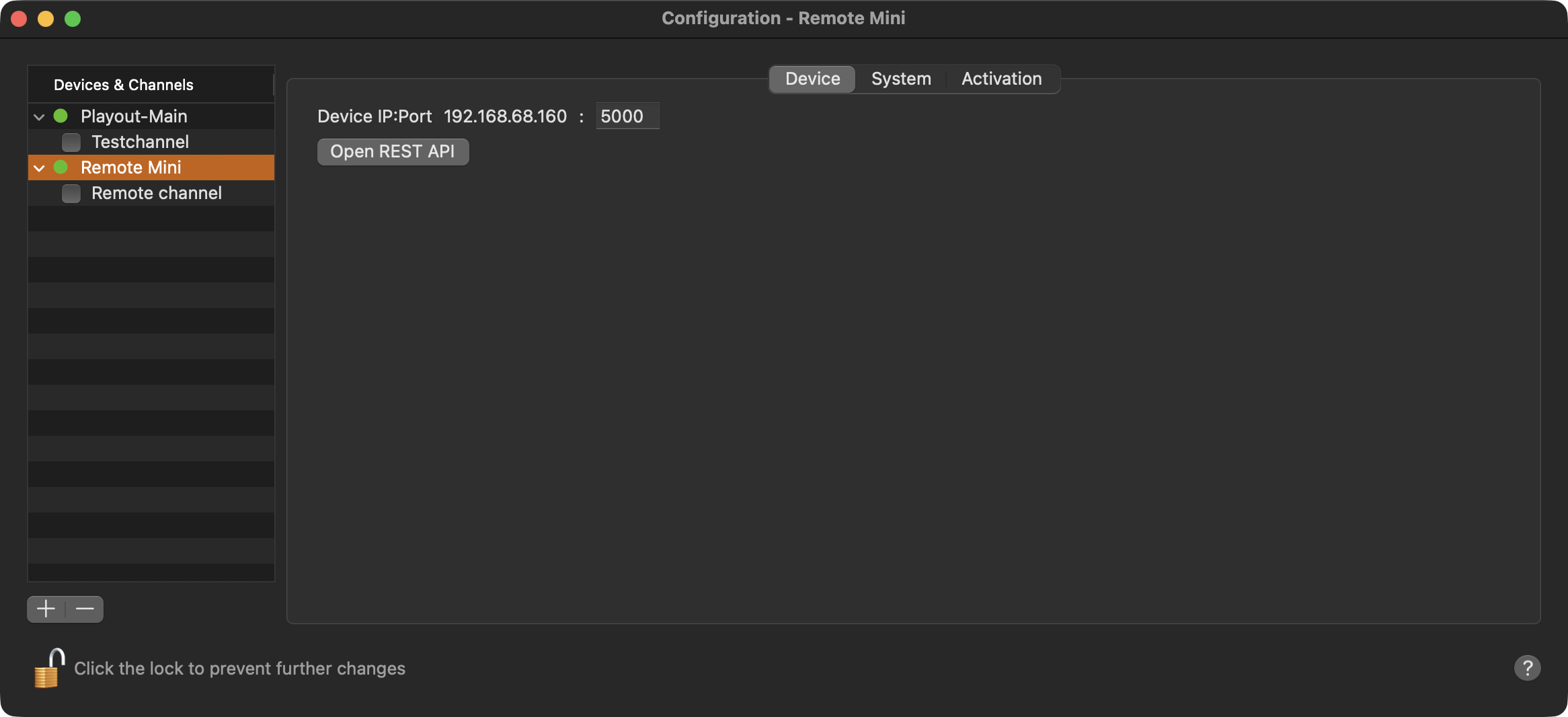
To access a channel which is administrated by a just:connect which runs in the same network but on another Mac, you have to add the Device to the local just:control.
Press the Plus (“+”) button at the bottom of the Devices & Channels list and select Add Device.
Type in the IP address of the Mac which runs the just:connect of the device/channel you would like to access and change the Port if needed (default 5000)
Click “Add” to add the device and all assigned channels to this just:control.
Removing (deleting) a Channel
This action will delete the Channel file which is saved at “/Library/Application Support/ToolsOnAir/Just Connect”. This action cannot be undone.
Deactivate the checkbox in front of the Channel you would like to delete. A warning is shown that stopping the Channel will also stop the playout. Click “Stop” to confirm.
Press the Minus (“-”) button at the bottom of the “Devices & Channels” list.
Accept the warning by clicking the “Delete” button to delete the Channel immediately.