Just Playout · 2026 documentation

17. Multi Viewer - Tabs (v.2026.x)

Just Control provides two areas with MultiViewer related settings, the Settings window panel and the Settings tab of the Multi viewer interface.

  1. Settings window: provides more general settings which defines how the MultiViewer works for all channels.

  2. Just Control MultiViewer Settings Tab: provides settings which define how the selected viewer is shown in the MultiViewer.

General

Settings of a Viewer which has no channel assigned to it

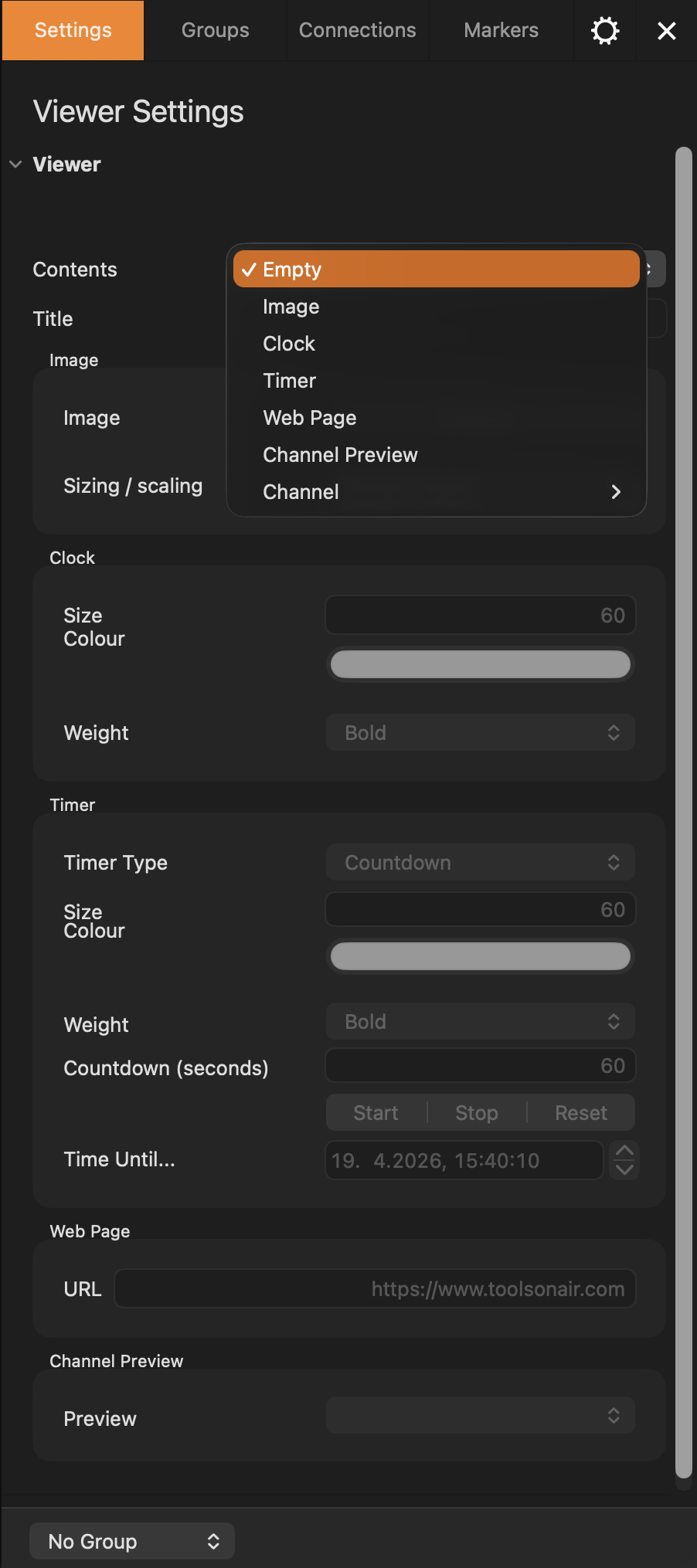
In case an empty viewer is selected, the Settings window allows to assign a channel or a custom element like a timer, a preview or a web page for example.
Screenshot 2026-04-21 at 13.59.35.png

Contents: select one of the following options:

  • Image: Select “Image” to open a macOS file chooser window, which allows you to assign a still image to the viewer. Use “Title” to give the viewer window a label and use “Image” to adjust how the image is shown.

  • Clock: Select “Clock” to show a digital clock in the selected viewer. User “Title” to give the viewer window a label and use ““Clock” to define how the clock is shown.

  • Timer: Select “Timer” to show a digital clock in the selected viewer. User “Title” to give the viewer window a label and use “Timer” to define how the timer is shown.

  • Web Page: Select “Web Page” to show a web page in the selected viewer. Use “Web Page” to define the URL.

  • Channel Preview: Select “Channel Preview” to show a preview in the selected viewer. User “Title” to give the viewer window a label and select the preview you would like to show under “Channel Preview”.

  • Channel: Shows all unassigned channels. Select one to assign the channel to the viewer.

Settings of a Viewer which has a channel assigned to it

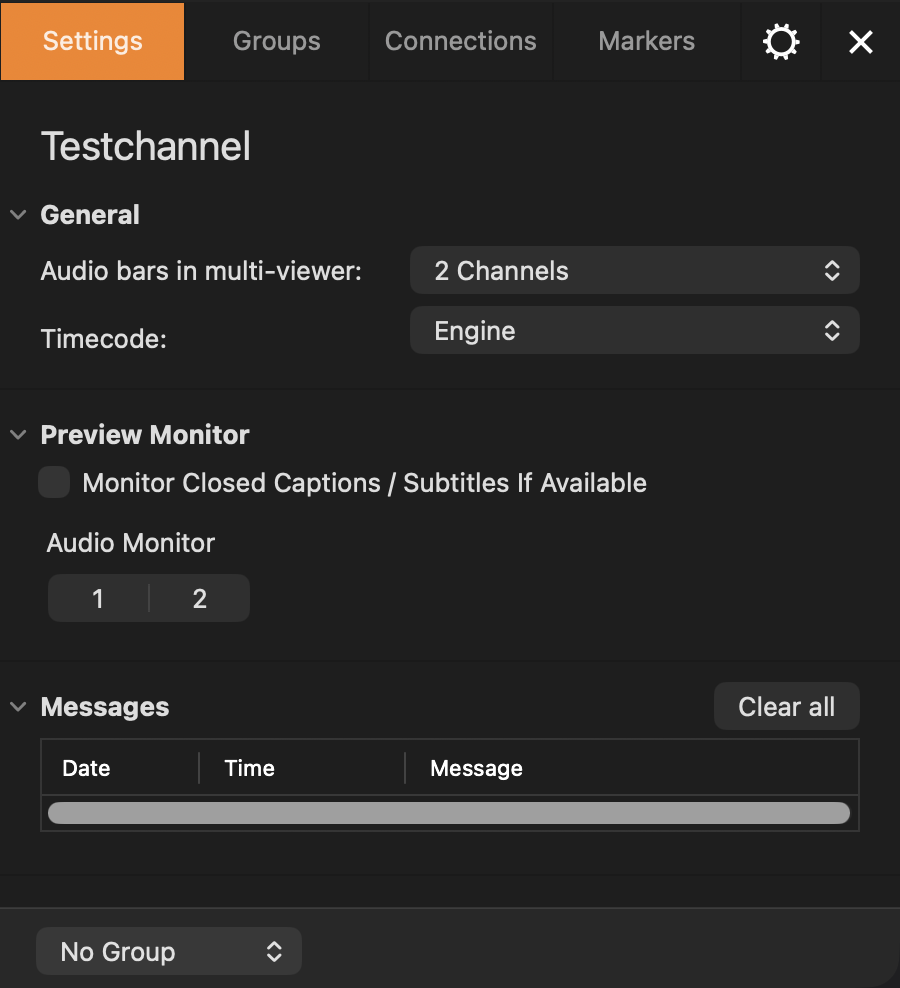
In case a viewer is selected which has an active channel assigned to it, the Settings window allows to define how the viewer of this particular channel is shown in the Multi Viewer interface.
Screenshot 2026-04-20 at 15.22.28.png

General:

  • Channel Name: Shows the name of the selected channel.

  • Audio bars in multi-viewer: Defines how many audio bars are shown in the viewer.

  • Timecode: Defines the Timecode shown:

    • Engine: Shows the Master TC (current day of time)

    • Elapsed: Shows the duration, the currently playing element has been on air already.

    • Remaining: Shows the duration, the currently playing element will remain on air from now on.

Preview Monitor:

  • Monitor Closed Captions / Subtitles If Available: Activate the checkbox to show available VANC data as overlay in the viewer.

  • Audio Monitor: Select the audio tracks, which should be hearable while the Audio Monitor is active.

Messages: Important Messages are shown here with the date and time they have been generated. Press “Clear All” to clear them from this window.

Groups

Screenshot 2025-04-17 at 15.59.26.png

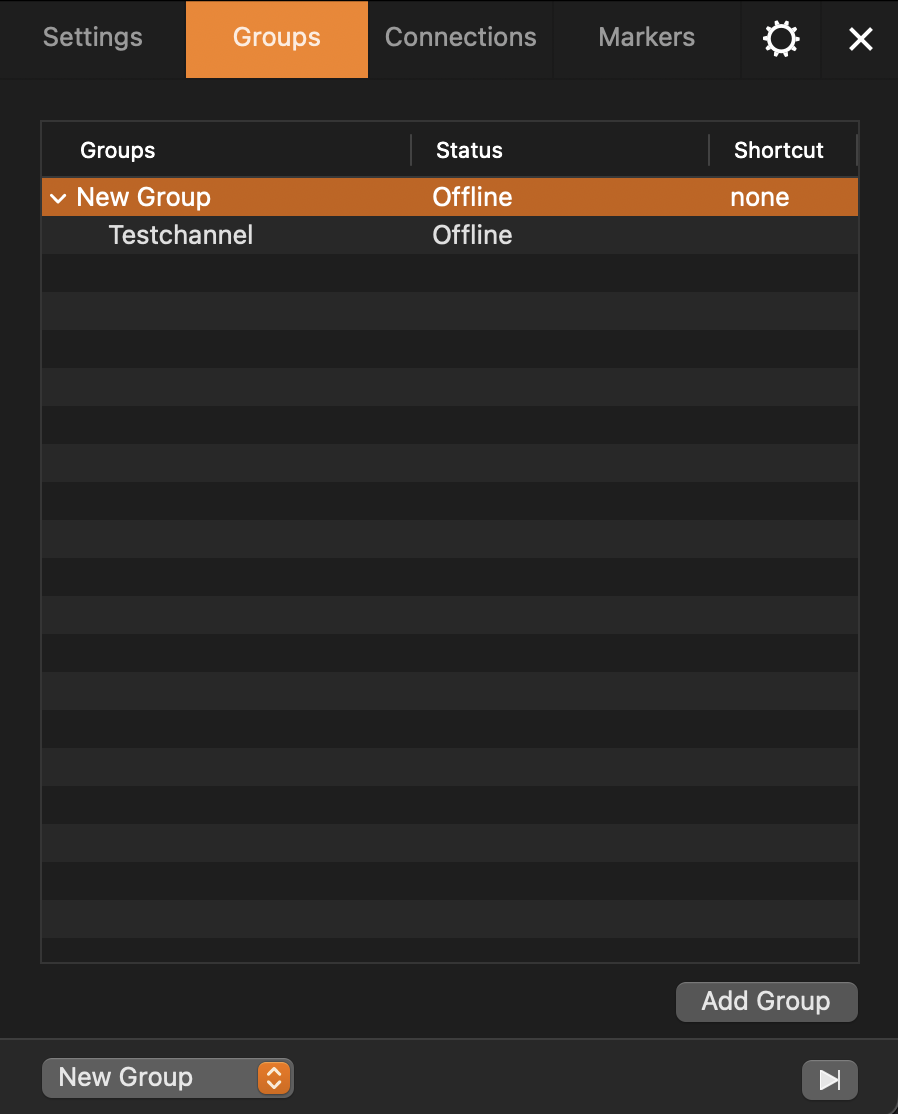
A group consisting of playout only Channels can be used, to execute the “Jump to next” functionality for all Channels with a single mouse click.

  • Click “Add Group” to create a new “Group”.

  • Click on the name of the Group to rename the Group.

  • Add a Channel to an existing Group by drag and drop of Channel viewer onto an existing Group.

  • Add a Shortcut to a Group by clicking on “None” or the existing shortcut, and press the keys you would like to use to select all Channels quickly in this particular group.

  • Select the Group and press the “Delete” button on your Keyboard to delete the Group.

Connections

Screenshot 2025-04-17 at 15.59.38.png

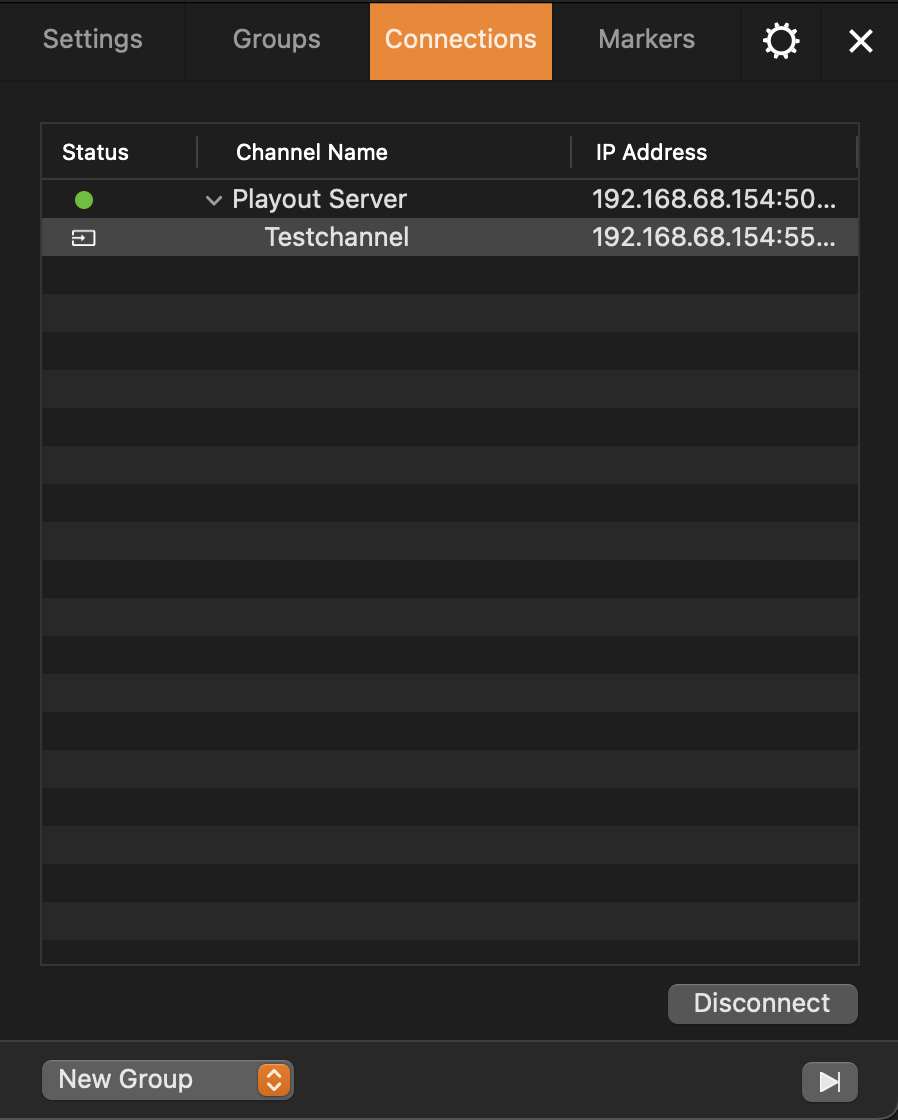
Shows all available Devices and Channels and their Status.

  • Double-Click a Device to open the Just Control Configuration window.

  • Double-Click a Channel (or select the Channel and press the “Disconnect” button) to remove the channel from the viewer it is assigned to.

Markers

Allows to insert Markers into the recording file (just:in only).