

Make sure that Just Connect is not started automatically using the “Login Items” functionality of the system preference pane “Users & Groups” or “General → Login Items”. Instead, use “Stay Alive” to start the application automatically after a restart of the Mac or a crash.
Just Connect acts like a channel manager, receiving and processing all the information related to a Channel. At the same time, it connects all Just Out engine(s) and Just Control user interface(s) which are related to a particular channel administrated by Just Connect.
Key Features
Channel Repository: Just Connect holds all the information about a Channel, such as Format, related User Interface, used video hardware, and more.
Centralized Schedule: For each Channel, a single copy of the schedule is held by Just Connect, which is sent to the clients automatically.
Rights Management: Control of who may connect to a Channel and what rights a user has to alter a schedule.
Redundancy: Optionally, a second Just Out engine can be defined for each Layer to act as a redundant playout node. In this case, every change made in Just Live/Just Play will be automatically sent to the Primary and the Redundant engine.
Automatic Channel Backup: There is a backup feature that allows you to automatically back up all of your Channel configurations to a second destination.
Interface
Just Connect comes with a very basic interface, which shows important information about the status of a Channel.
Before activation and without a connected Just Out Engine
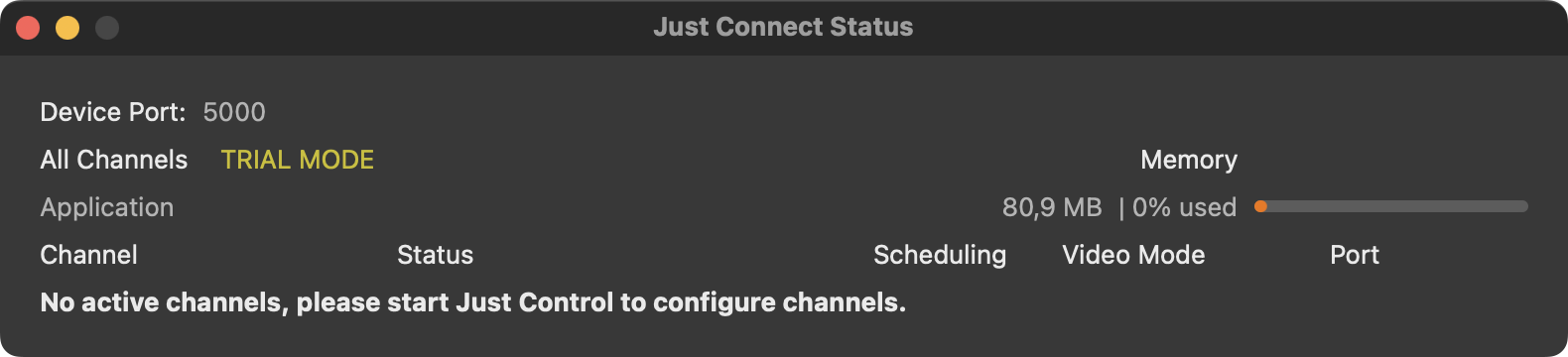
All Channels: TRIAL MODE – there is no licensed Channel yet and therefore the channels are in Trial Mode.
Memory: Shows the amount of RAM used by Just Connect
Channel: Shows the Channel name, and if the Master or the Redundant engine is on air, the IP address, Port, and the output device used.
Status: in this example, “Waiting for engines” means that there is no connection to the Just Out engine assigned to this Channel.
Scheduling: Shows the user interface defined for this Channel.
Video Mode: Shows the video mode defined for this Channel.
Port: Shows the Port defined for this Channel.
After activation and with a connected Just Out Engine
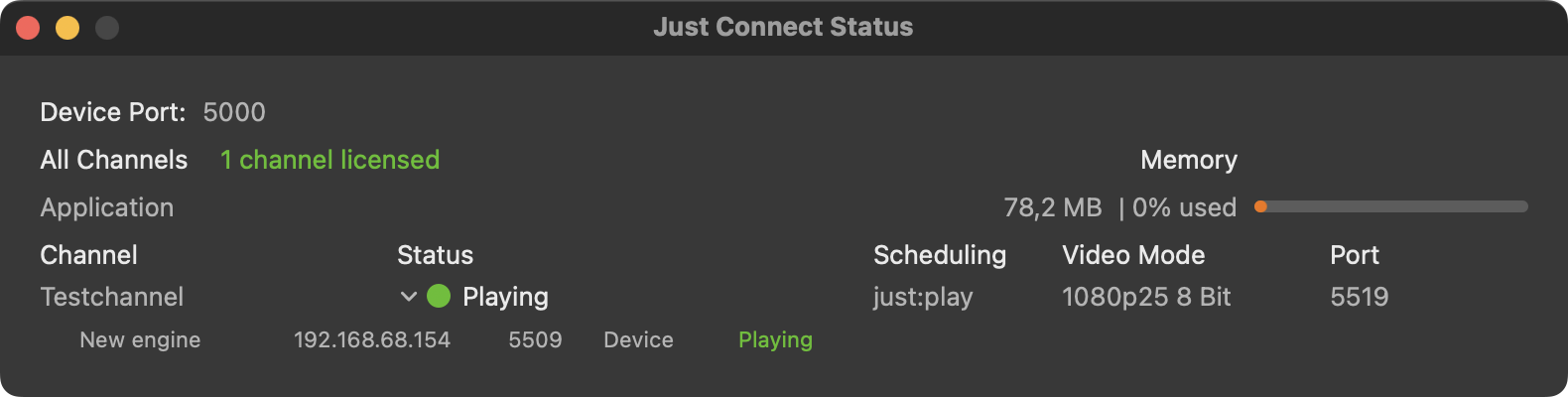
Device Port: Shows the Port of the Device, like configured in the Preferences.
All Channels: number of Channels licensed that can be used for production playout.
Memory: Shows the amount of RAM used by Just Connect.
Channel: Shows the Channel name, and if the Master or the Redundant engine is on air, the IP address, Port, and the output device used.
Status: in this example, “Playing” means that there is a Just Out engine assigned to this Channel which is started and connected.
Scheduling: Shows the user interface defined for this Channel.
Video Mode: Shows the video mode defined for this Channel.
Port: Shows the Port defined for this Channel.
While Just Connect shows all the information, the setup and administration of the channels is done in Just Control, which provides a centralized user interface to define the attributes of all Channels.
The following chapters describe how to create a Channel for the first time, but also how to add a new Offline or Online Channel to the existing list of Channels using Just Control. In addition to the basic setup, we will describe how to add further functions to a Channel using the Expert User mode.